Must Read to use the MS Teams integration for video calls, call queue & auto attendant
PLEASE READ CAREFULLY FOR A SUCCESSFUL MS TEAMS INTEGRATION!
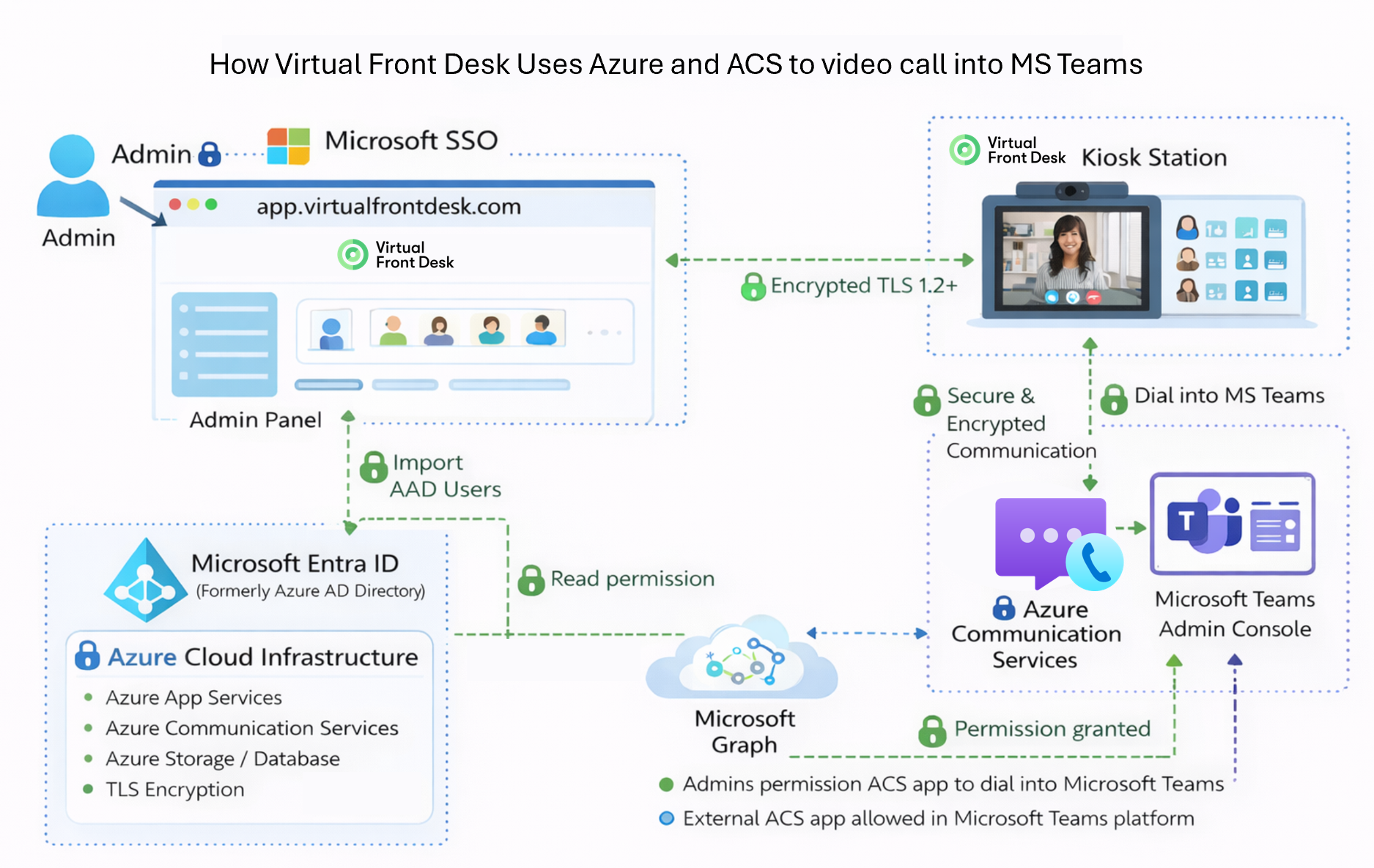
We are pleased to offer a full MS Teams integration into Virtual Front Desk (VFD). This integration allows you to send video call notifications to a MS Teams user, MS Teams Call Queue or an auto attendant instead of using the Virtual Front Desk dashboard. The buttons on your VFD station can directly video call a user in the desktop or mobile MS Teams application. Please note this comes with limited functionalities listed below. (MS Teams SMS is a separate feature for sending SMS notifications instead of video calls directly within MS Teams. It uses a simpler integration and doesn't require the Microsoft Phone Standard license described below.)
Before using this MS Teams integration you must purchase an MS Teams Phone Calling plan assigned to the Microsoft administrator, and a Teams Phone Standard license for each other users. You can access these features through TAC (Teams Admin Console). Some of these settings can take up to 24 hours to be effective
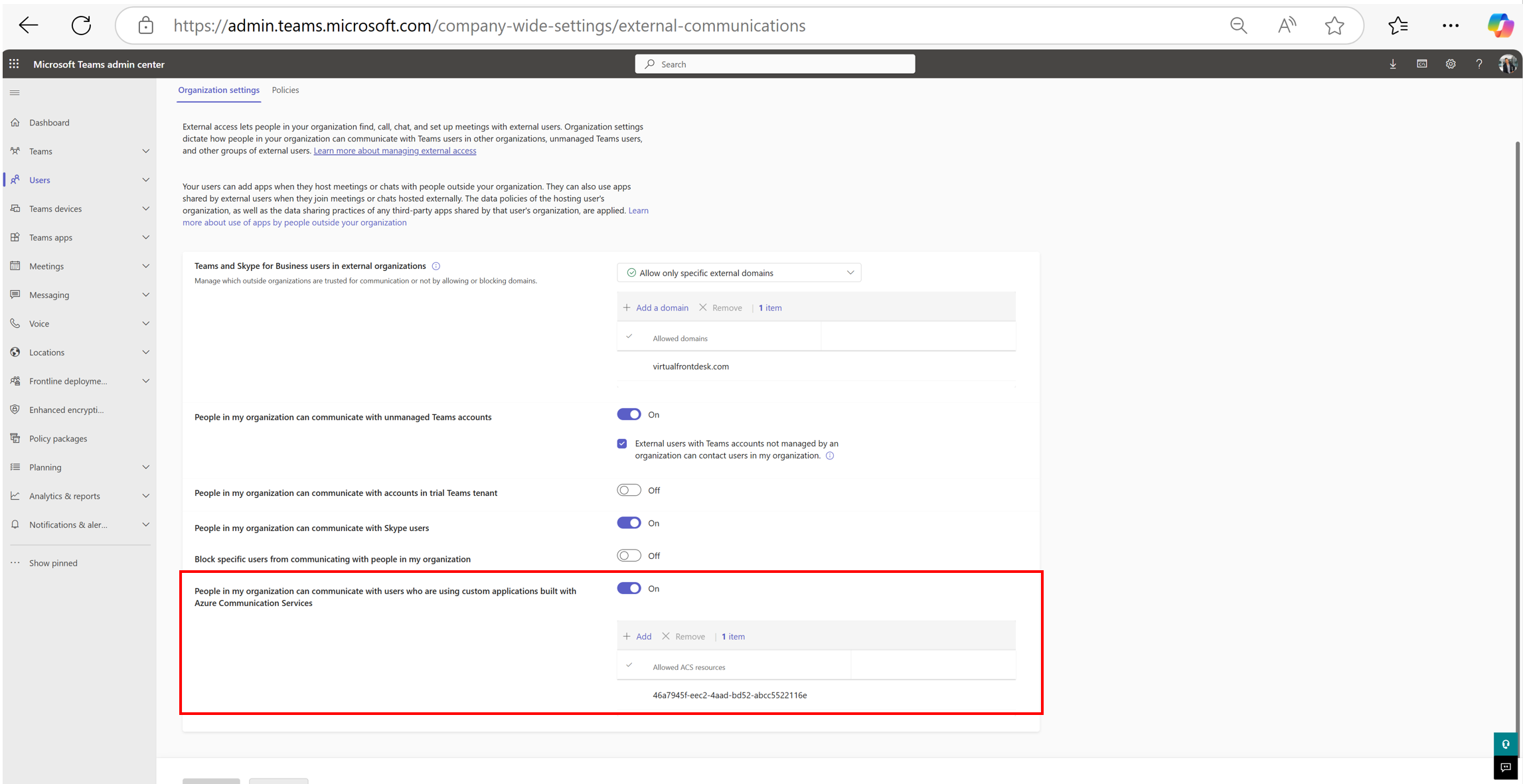
TAC (Teams Admin Console) Settings to allow VFD to dial into your MS Teams
Please log in at External access - Microsoft Teams admin center
Enabling external access and federating with an ACS tenant are both visible in this screenshot (ACS tenants are all the way at the bottom)
Virtual Front Desk ACS Ressource number to add: 46a7945f-eec2-4aad-bd52-abcc5522116e
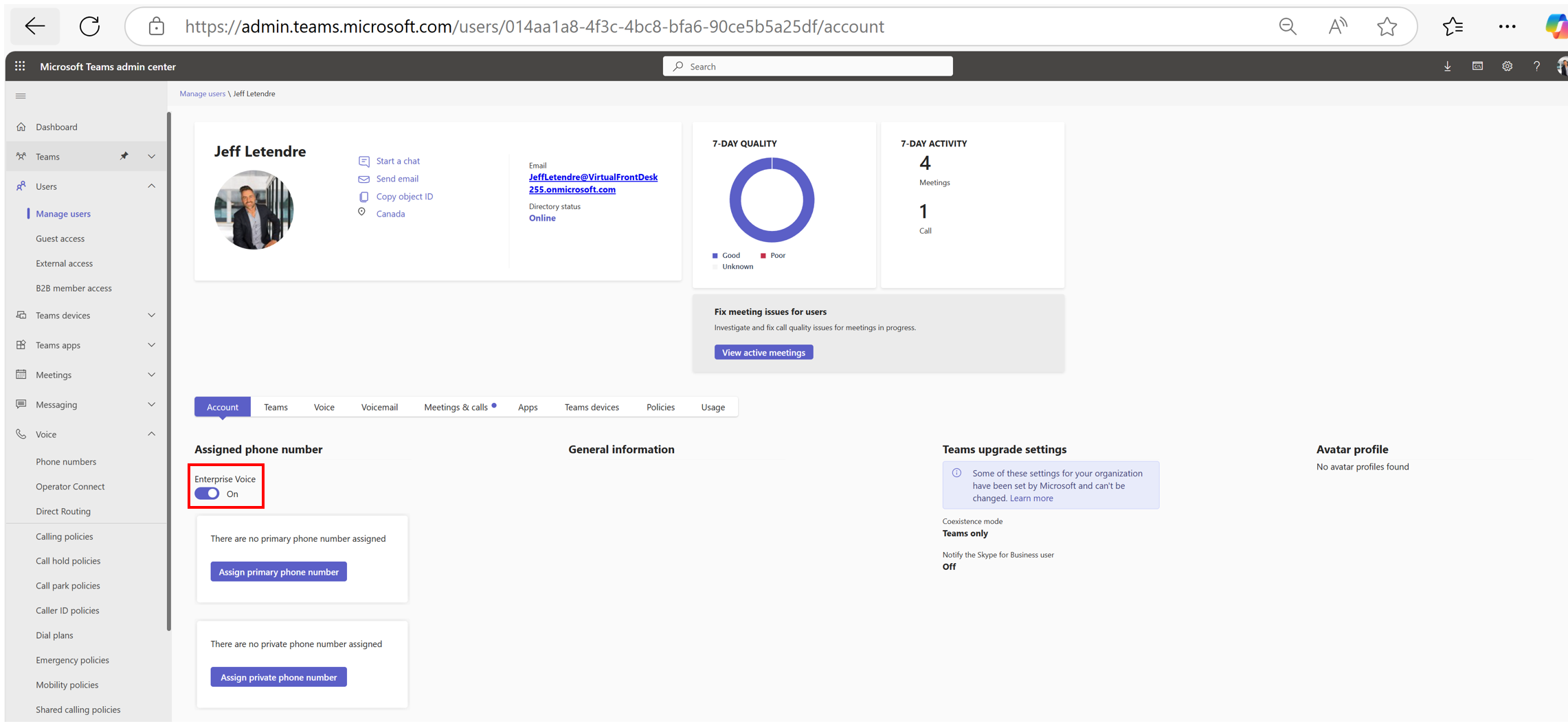
Enable "Enterprise Voice" for each user
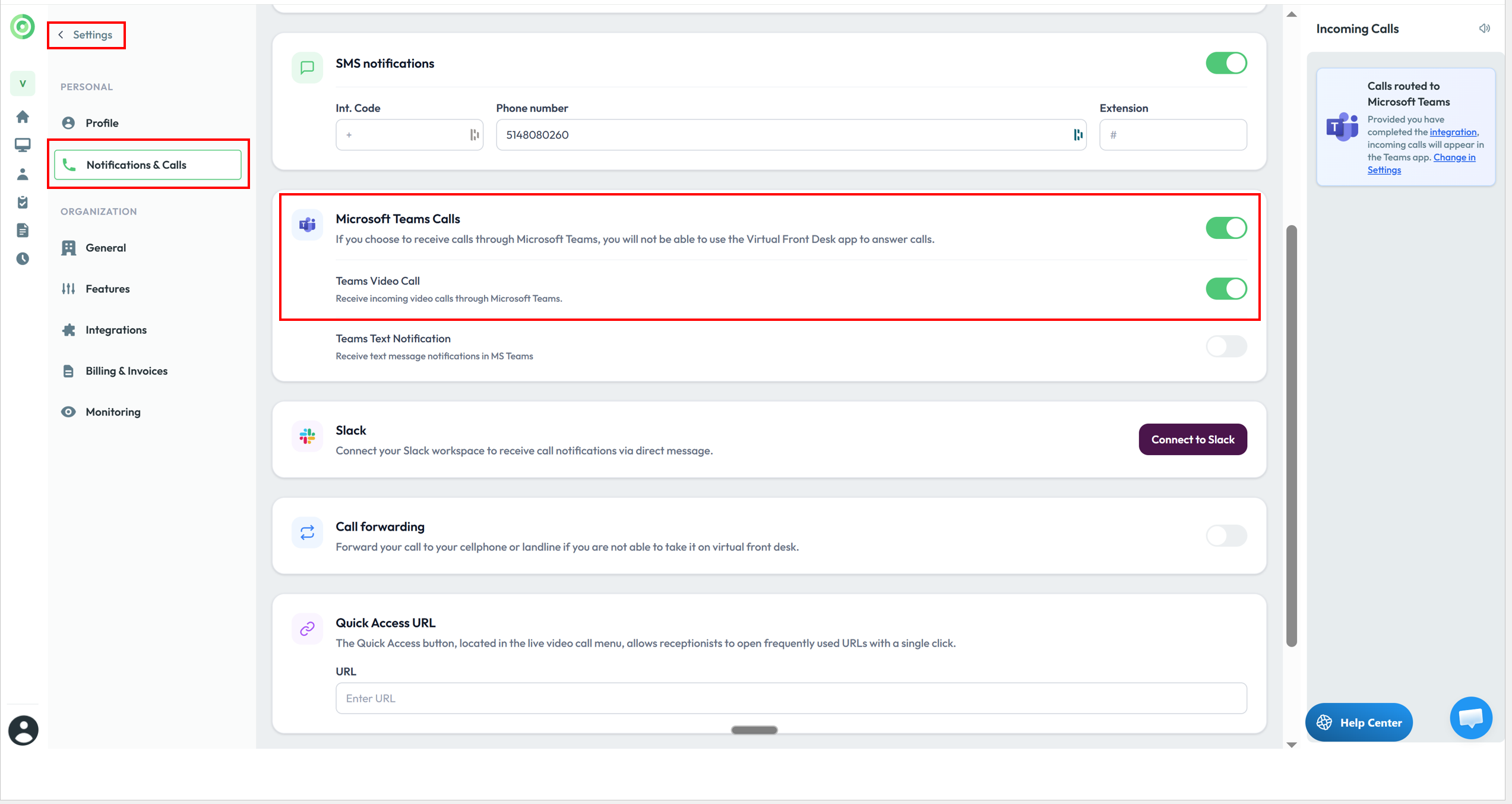
Settings
Under settings, notification & calls, make sure the MS Teams Calling option is switched on. While an account can use VFD and the Teams app simultaneously, each individual user must choose between receiving video call notifications in MS Teams or in the VFD dashboard.
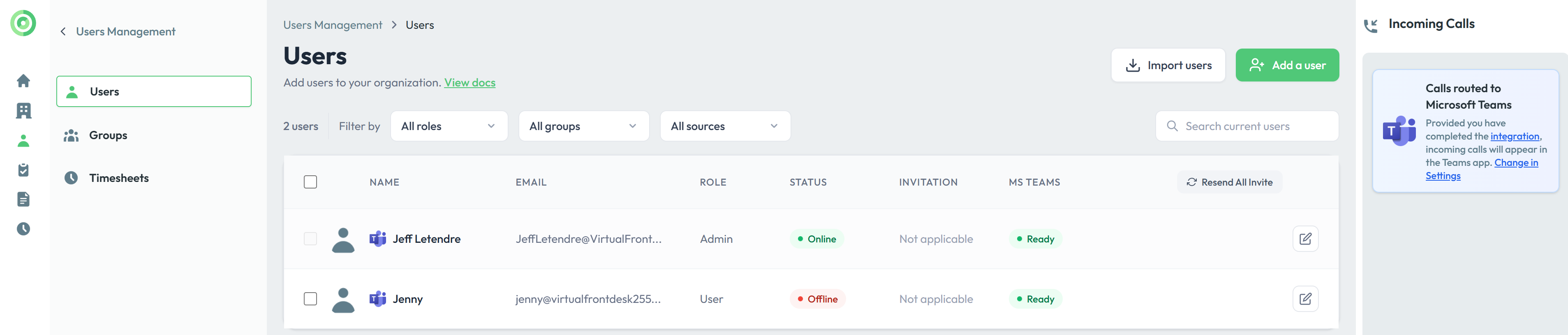
Adding users on your VFD team from MS Entra (AAD)
To add users to your organization, click Add Users in the Users menu. You will be prompted to either add a user manually by email or import users from Azure Active Directory (AAD).
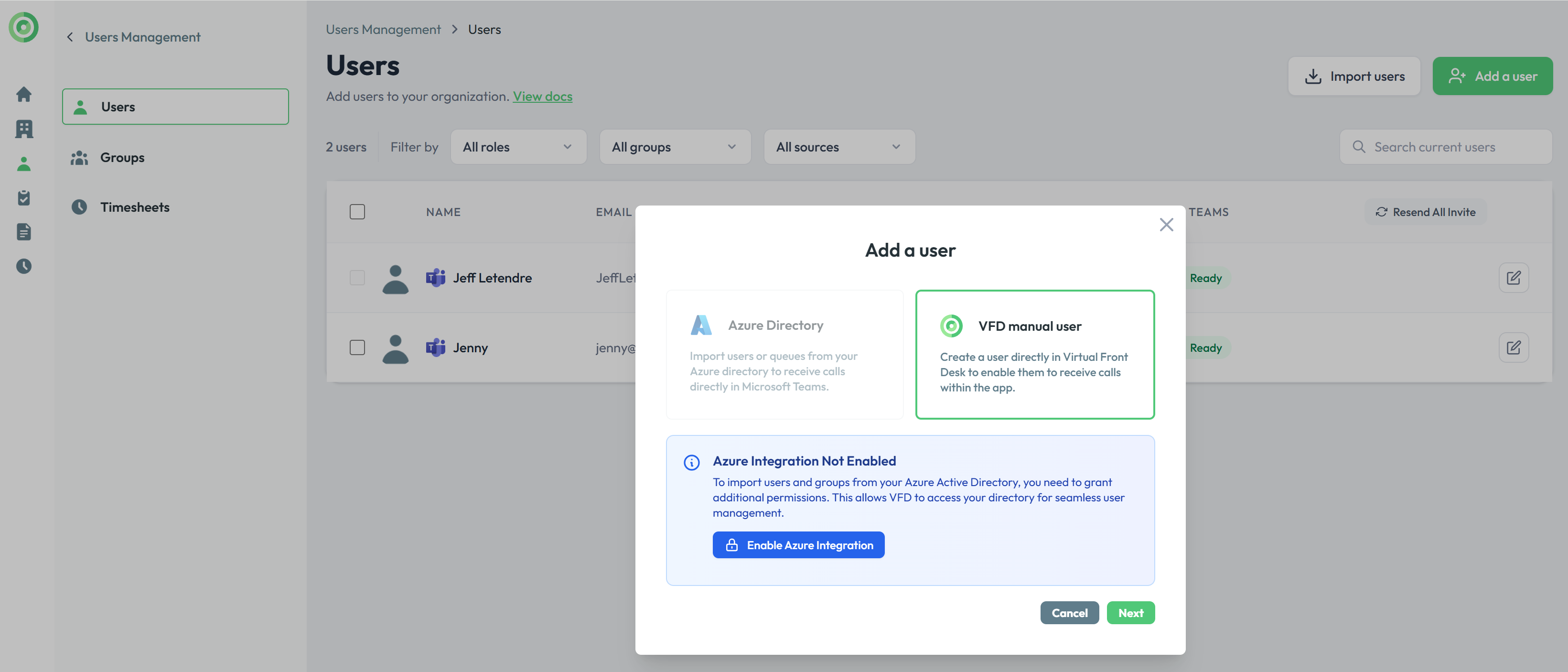
Select how much access VFD needs to your Microsoft Azure Active Directory. This determines which users and groups you can import into VFD. You will need Microsoft permission to provide this access.
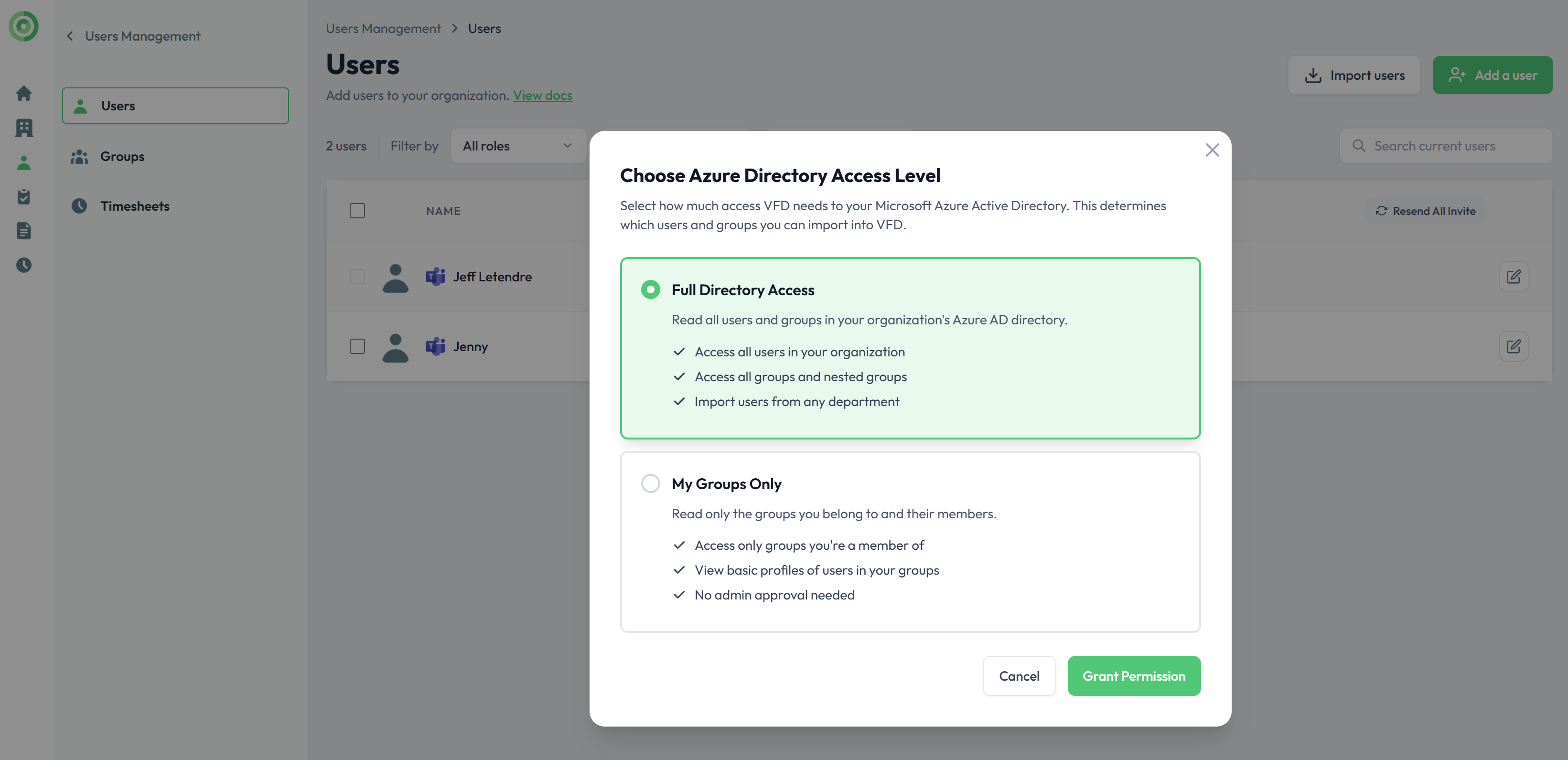
Once permission is granted, import users from the Azure search engine.
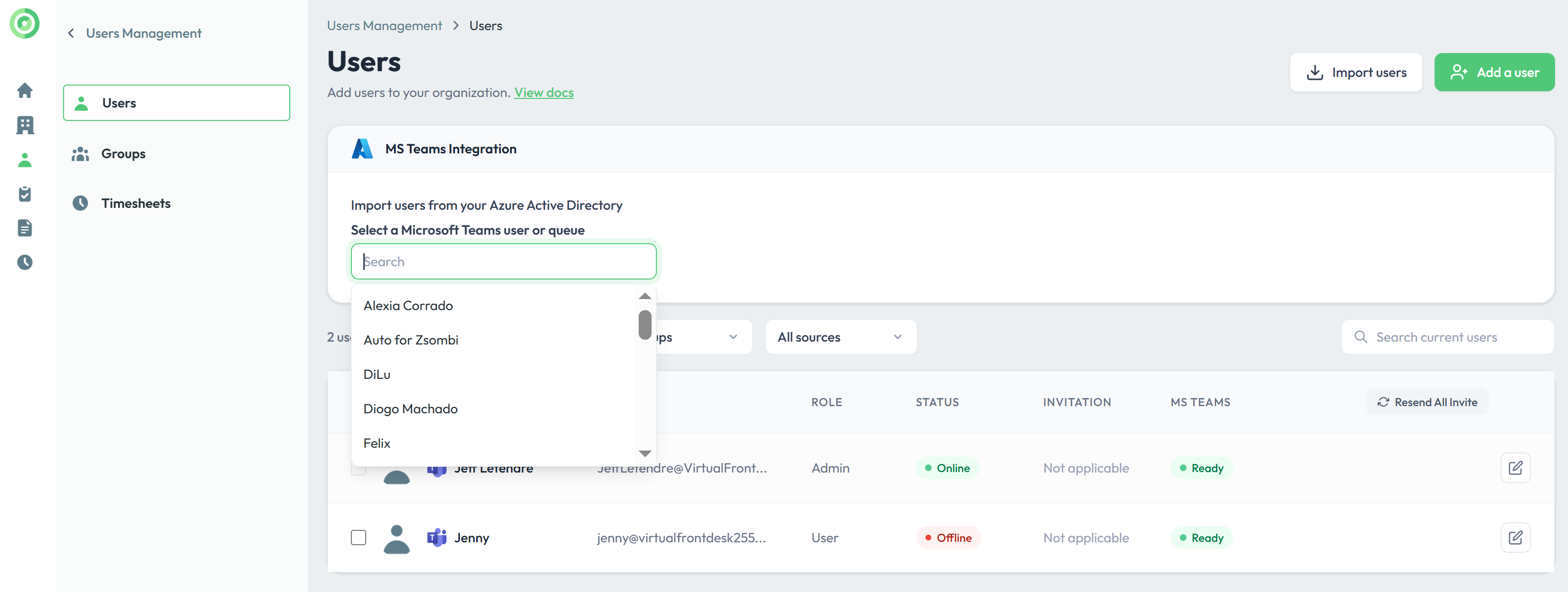
If the user import is successful, you will see the Microsoft Teams icon next to their name. These users are then able to receive calls in Microsoft Teams when a station button associated with them is selected.
Please note that users imported from Azure do not need to ever log into Virtual Front Desk. If they are Enterprise Voice enabled and have a Microsoft Teams Phone Standard license, their integration is complete.
Using the MS Teams integration
You can manage users individually or organize them into standard groups. The Azure Group feature is designed to import Azure Active Directory (AAD) users in bulk and to create an employee directory on your station.
Azure groups are automatically synced to changes in Azure. To create an employee directory on your station, simply select Azure Group as the action for your station button.
Microsoft Teams Call Queue
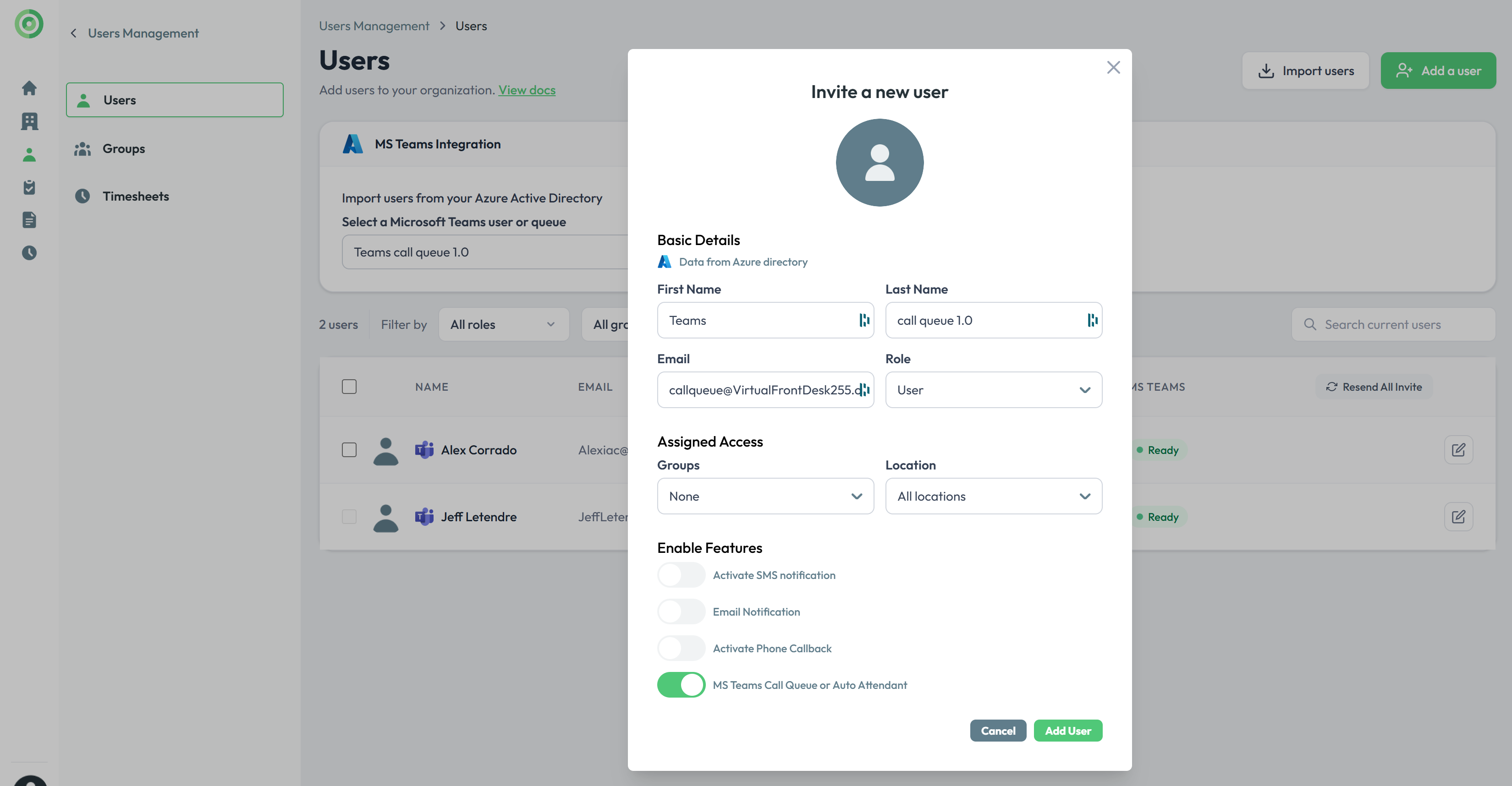
Regular groups include built-in call queue functionality which becomes mandatory for use with Azure users. Alternatively, you can create a call queue in your Microsoft Teams Admin Center and import it as a regular user using the Microsoft Azure AD search.
Once imported, enable the “MS Teams Call Queue” option to ensure calls are handled correctly. Choose "User" as the button action and select your Call Queue or Auto attendant.
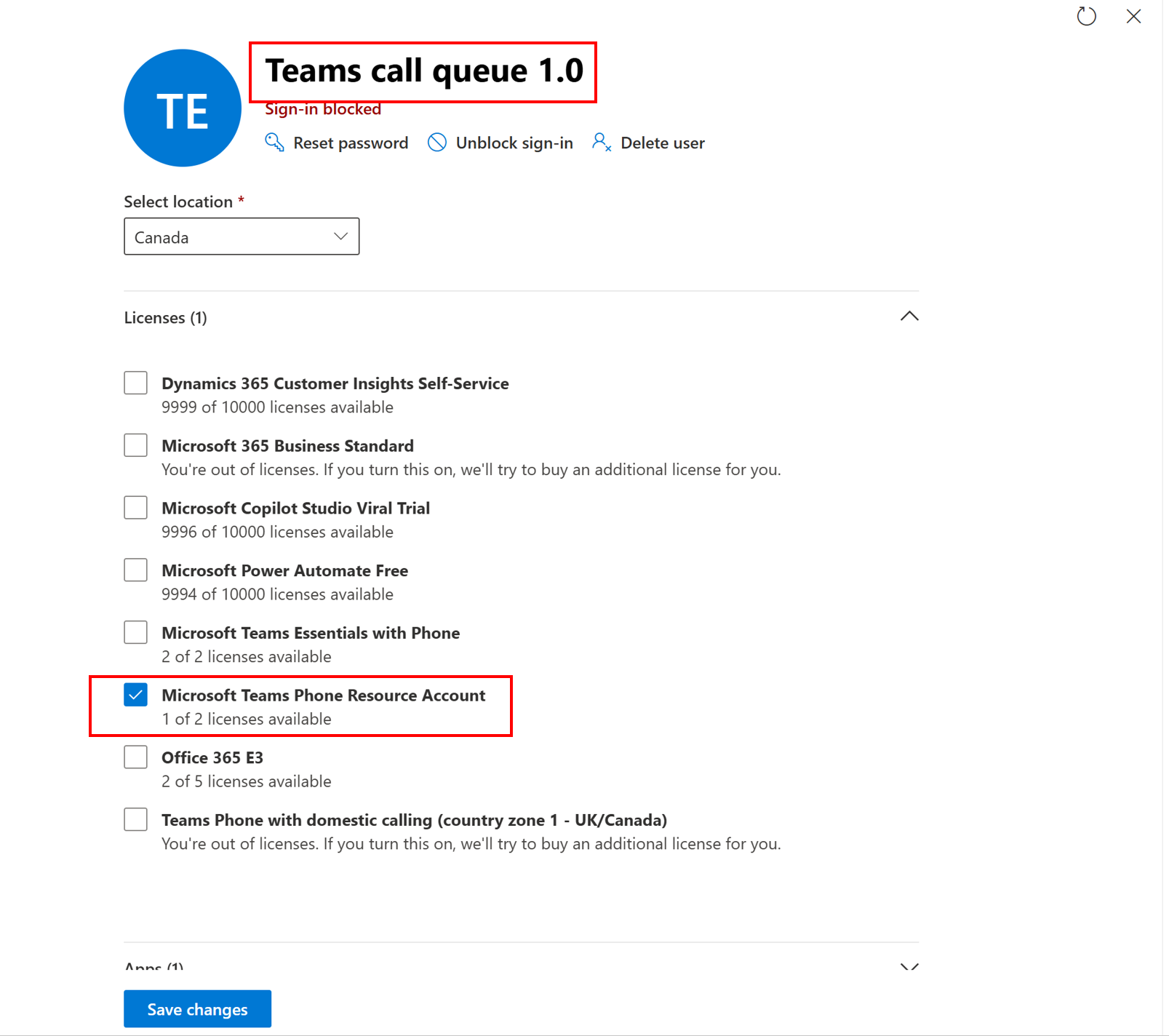
Please note: You must assign a free MS Teams Phone Ressource Account Licence to your call queue. (admin.microsoft.com)
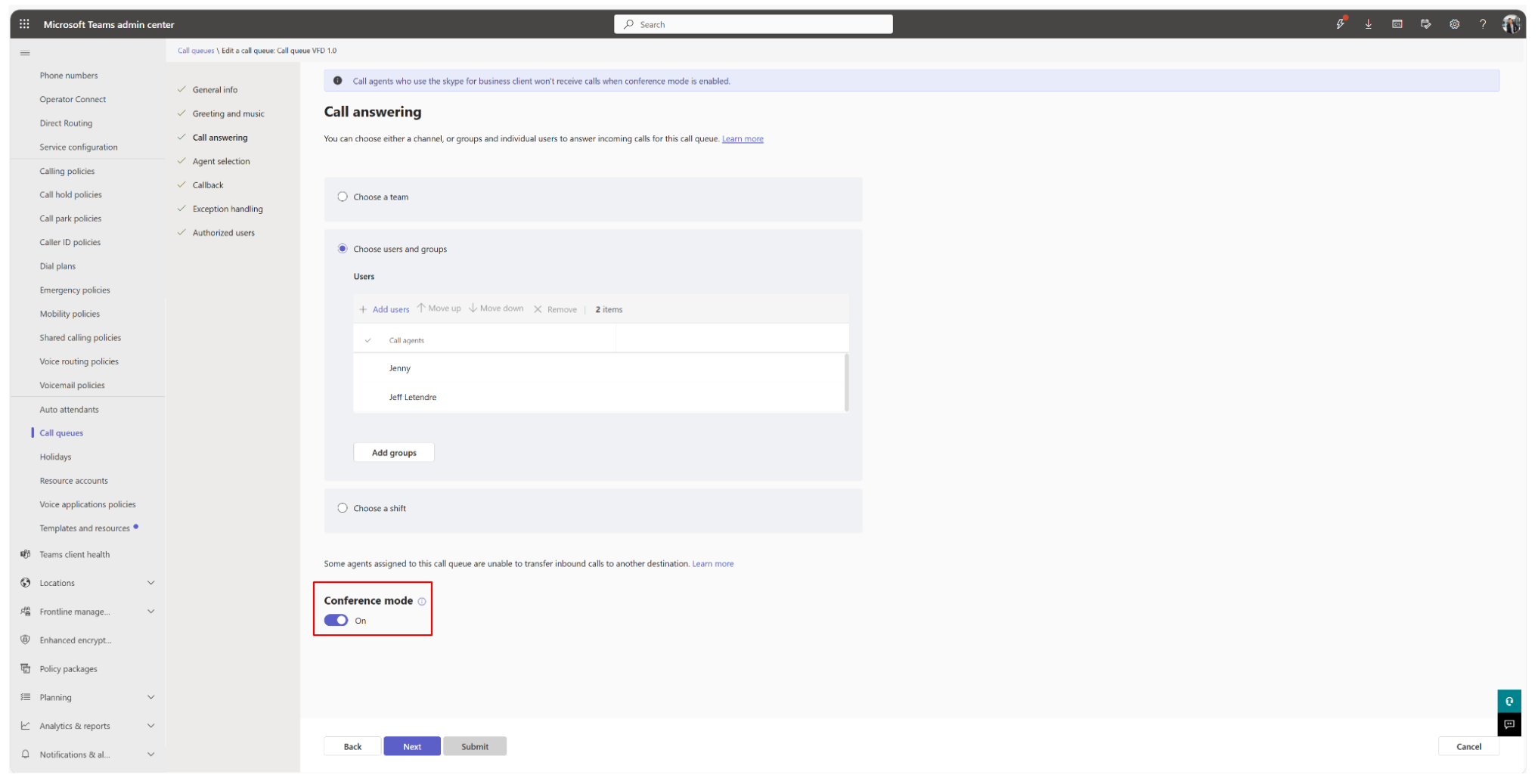
Under your call queue settings, from the Teams Admin Console, make sure Conference mode is switched on.
Using Auto Attendant in Microsoft Teams
To use the Auto Attendant feature, create a standard group in Virtual Front Desk and enter the phone number of your Auto Attendant. When this group is selected as the action for a button, it will initiate a call to the Auto Attendant number.
Note: This option supports audio (phone) calls only, video is not supported.
Limitations:
- Some MS Teams features are not available.
- Most Virtual Front Desk features like taking IDs, screenshots, PDF to screen or printer, payments and QR codes are not available with MS Teams.
Architecture Diagram