
Outlook Calendar add in for Pre Registration and Express QR code Sign in
Outlook Calendar add-in for pre-registration and Express QR code sign-in
With the Virtual Front Desk for Outlook add-in, hosts can pre-register their visitors directly from their Outlook calendar while they create a meeting, without signing in to the Virtual Front Desk dashboard. The Outlook add-in is available on all plans.
How visitors sign in
Visitors can sign in at your station in two ways:
- Sign in at the station: visitors complete the sign-in form on site, at the station.
- Pre-registration: you send the visitor the sign-in form in advance. They complete it on their computer or phone, then receive a QR code or a 4-digit code by email for Express sign-in at the station.
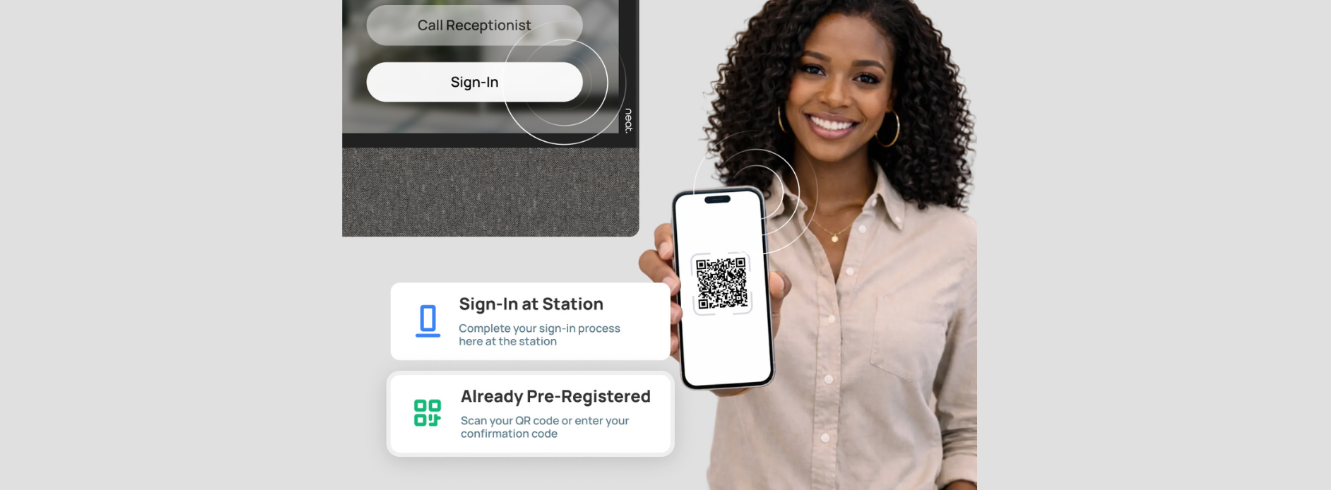
Signing in at the station, or with a pre-registration code
The Outlook add-in makes pre-registration even faster: you send the pre-registration from your Outlook calendar while you create the meeting. To learn more about sign-in forms and pre-registration, read Visitor sign in, sign out and Express QR code sign in.
Install the add-in (Microsoft 365 administrator)
- In the Microsoft 365 admin center, go to Settings > Integrated apps and click Get apps.
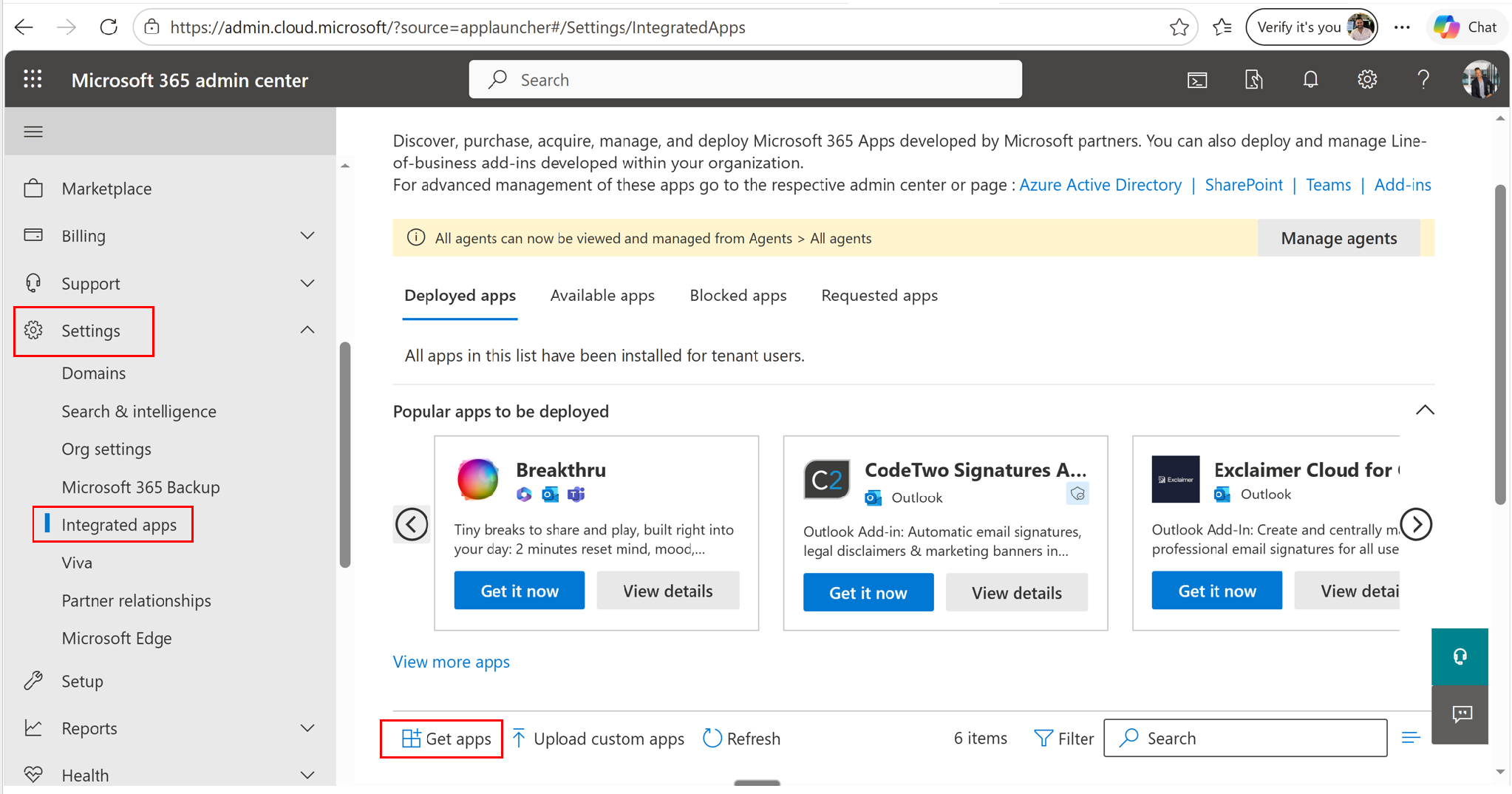
Integrated apps in the Microsoft 365 admin center
- Search for Virtual Front Desk for Outlook and select it.
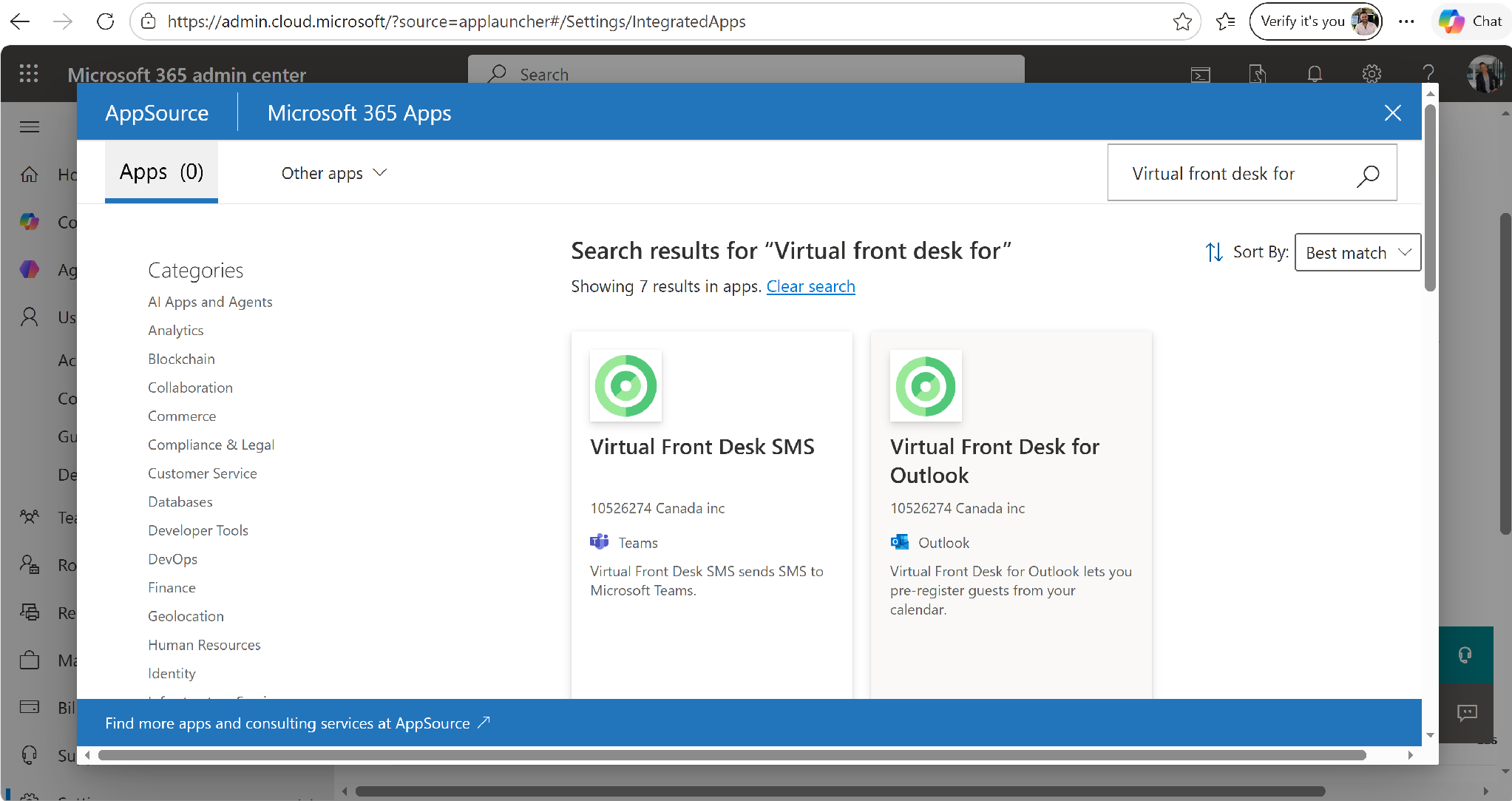
Searching for Virtual Front Desk for Outlook
- Install the add-in, choose which users can use it, and choose the deployment method.
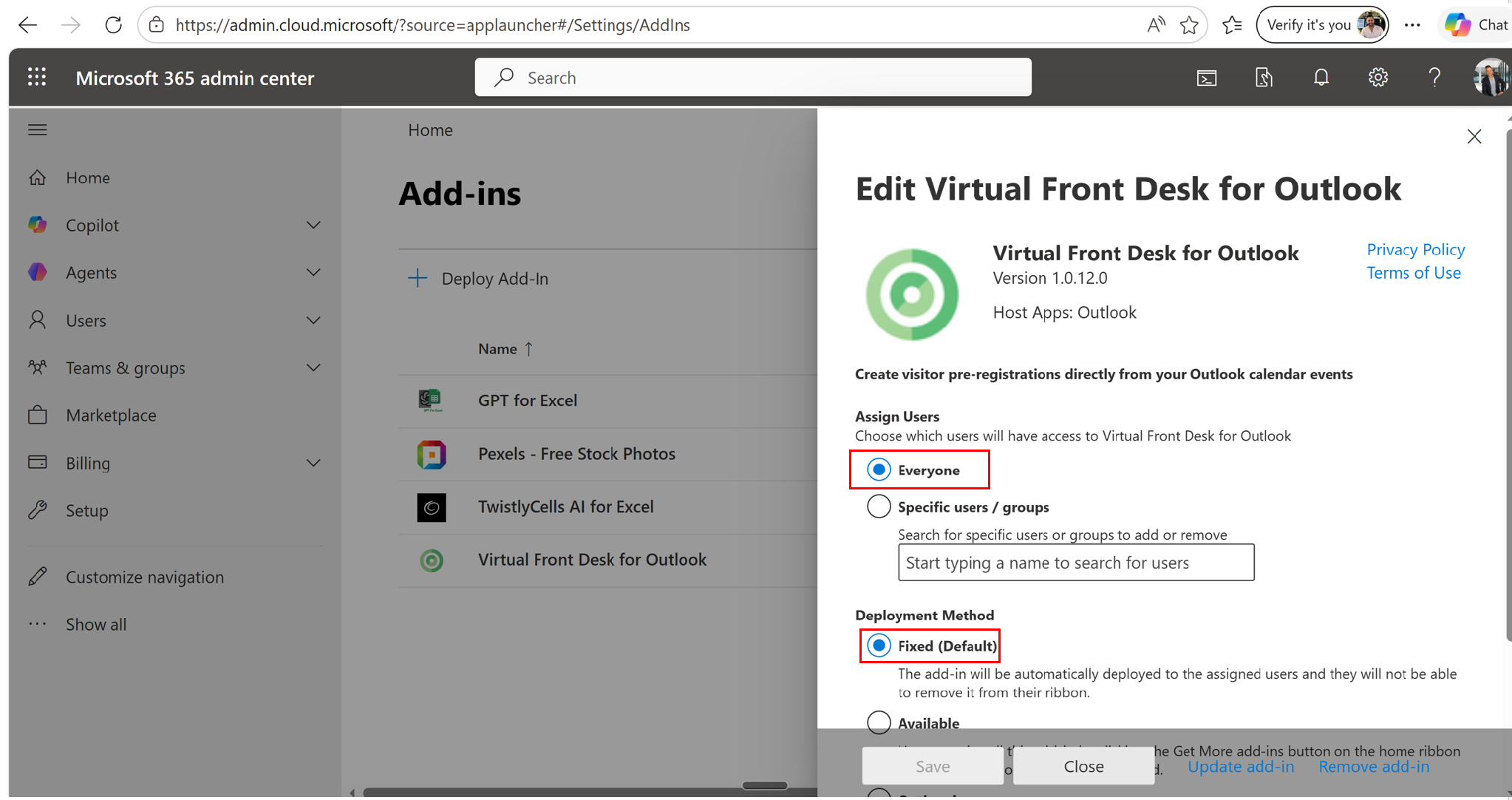
Assigning users and the deployment method
The add-in now appears at the top right of the window when users create a new meeting in Outlook.
Note: The add-in is available in the Outlook calendar only. It is not available from the Microsoft Teams calendar.
Send a pre-registration from Outlook
- In Outlook, create a new meeting, add your guests and complete the meeting details. If some attendees are internal and do not need to fill in a sign-in form, you can exclude them in the next steps.
- Click Virtual Front Desk for Outlook at the top right of the meeting window.
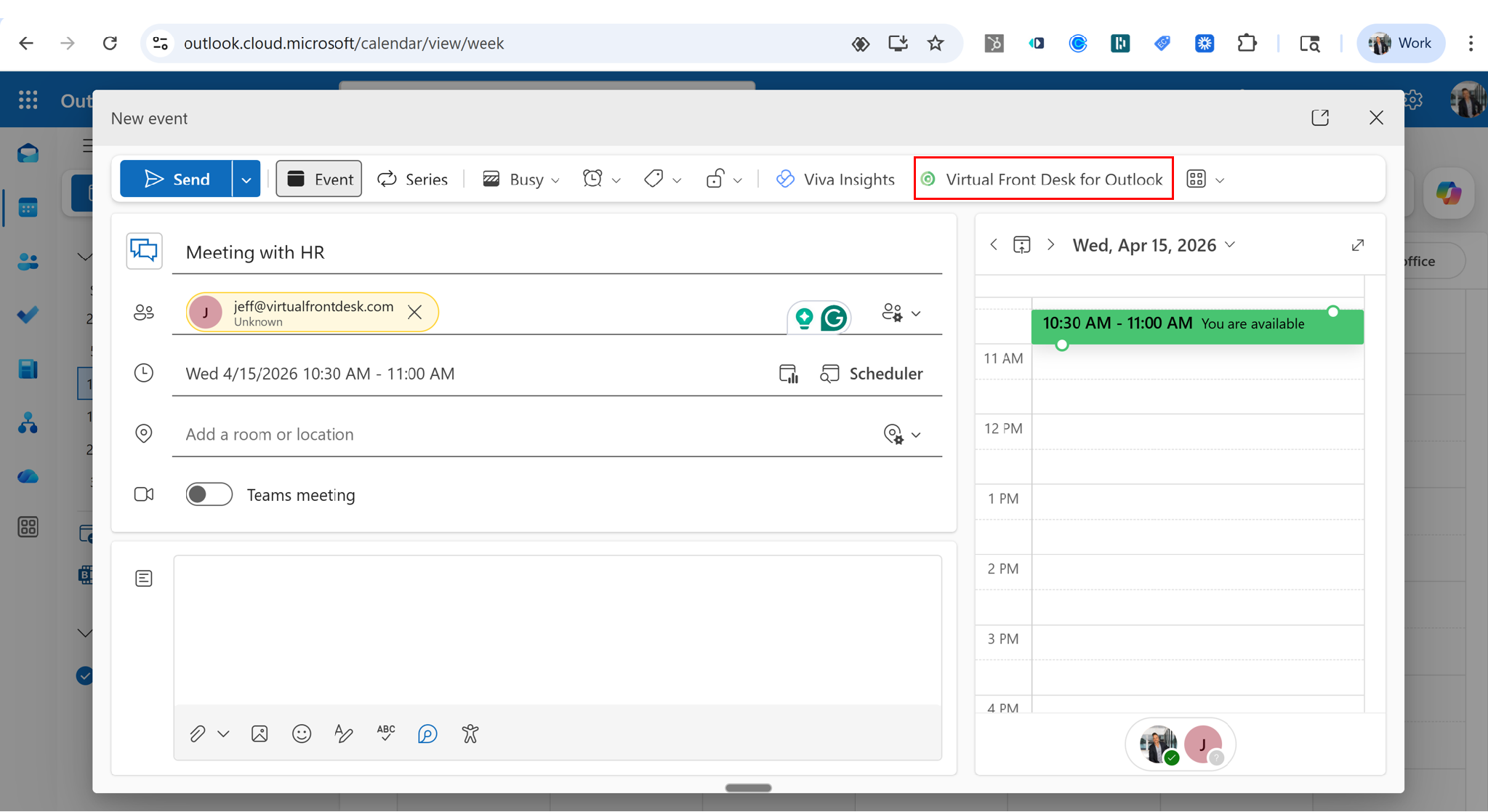
The Virtual Front Desk for Outlook add-in in a new meeting
- Select the meeting Location, the VFD Host (from your Virtual Front Desk users) and the Sign-In Form guests should fill in.
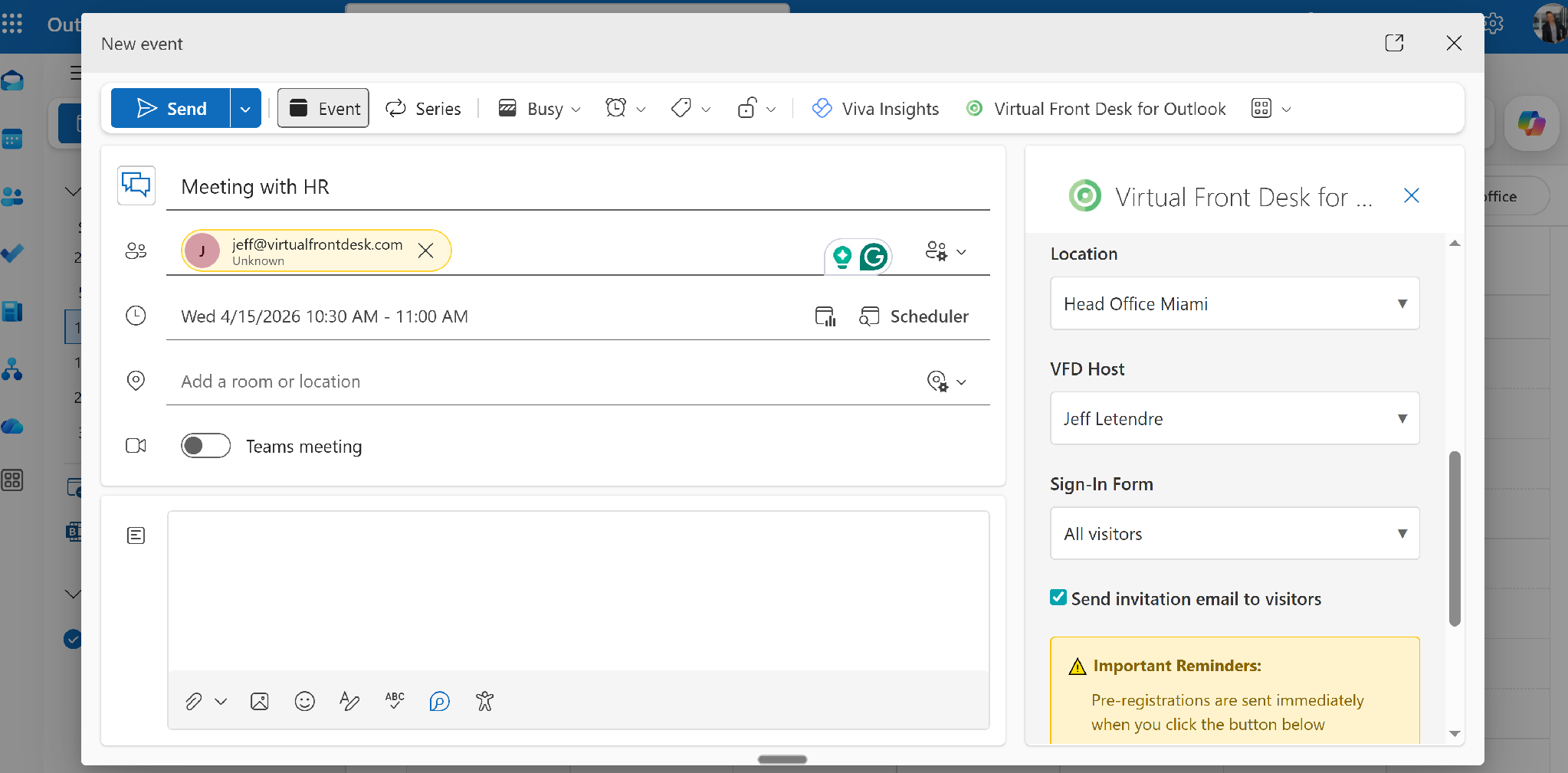
Choosing the location, host and sign-in form
- Click Send Pre-Registrations. External attendees are selected automatically. Your guests immediately receive an email with a link to complete the sign-in form.
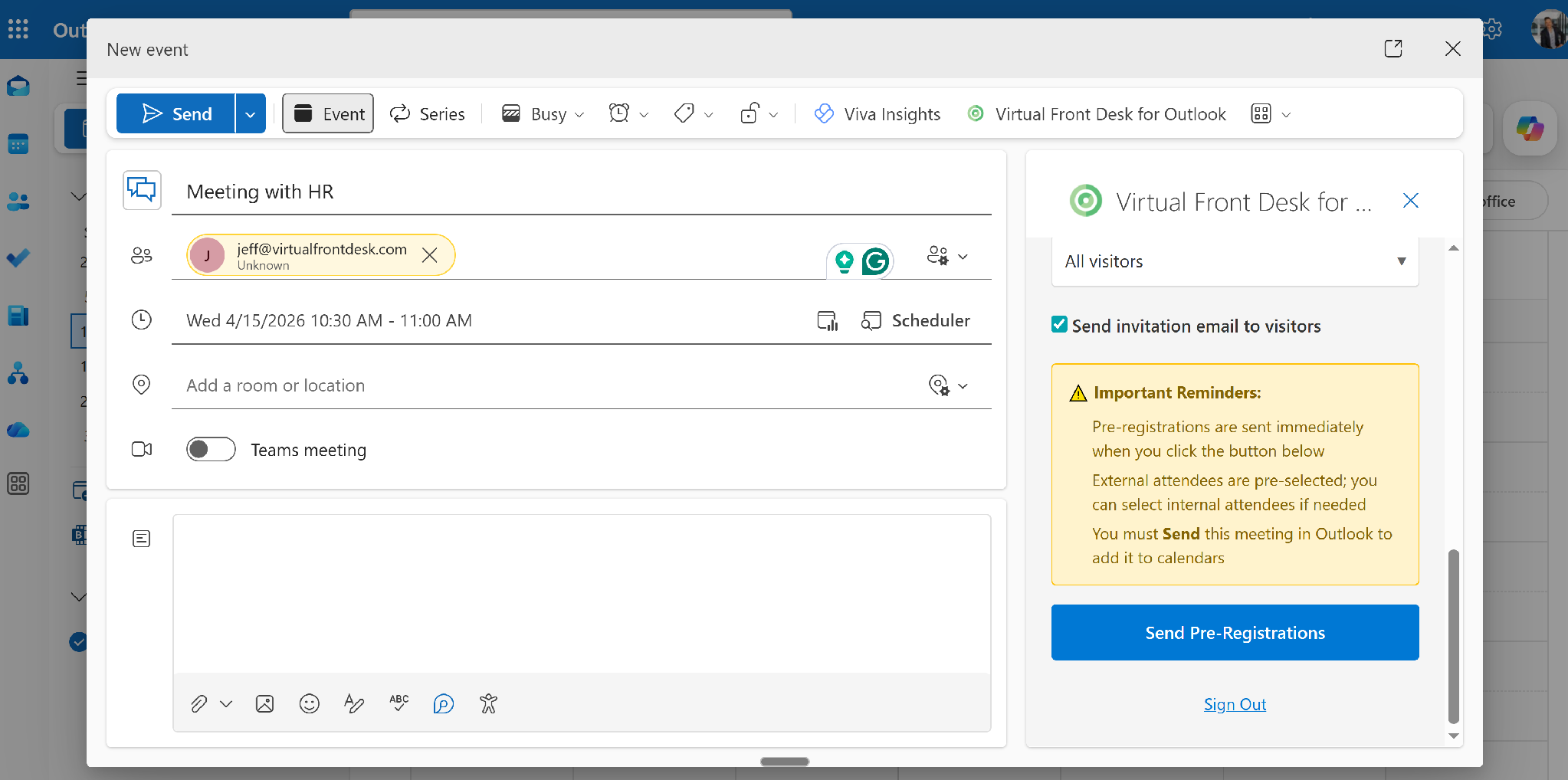
The Send Pre-Registrations button
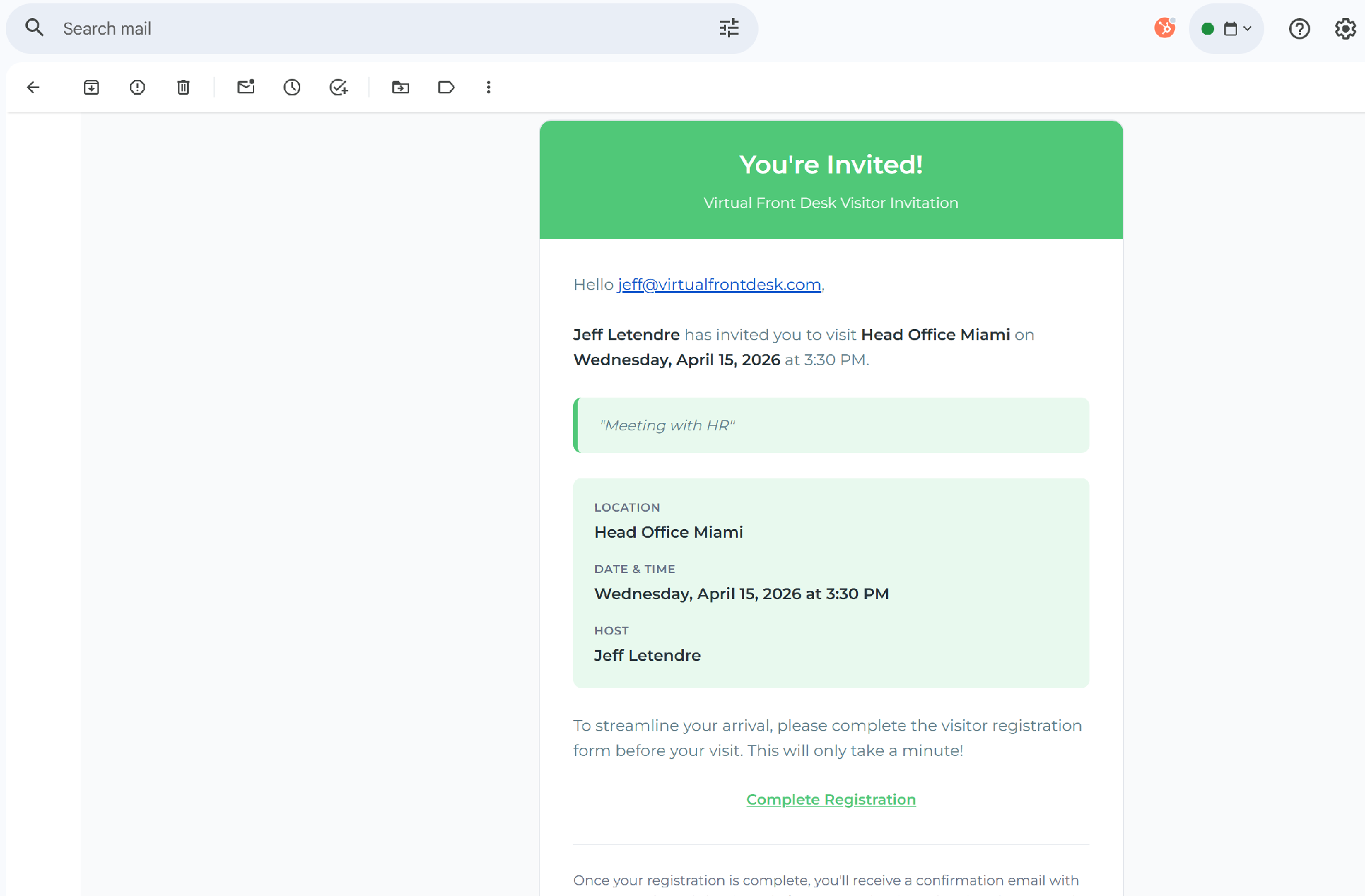
The pre-registration email received by a guest
- Send your Outlook meeting invitation as usual, so the meeting is added to everyone’s calendar.
Follow your pre-registrations
The add-in shows the status of each pre-registration, with the option to delete it. Click View Dashboard to open Virtual Front Desk, where you can create or edit sign-in forms depending on your permissions. Sign in with the Microsoft SSO option, using the same email address.
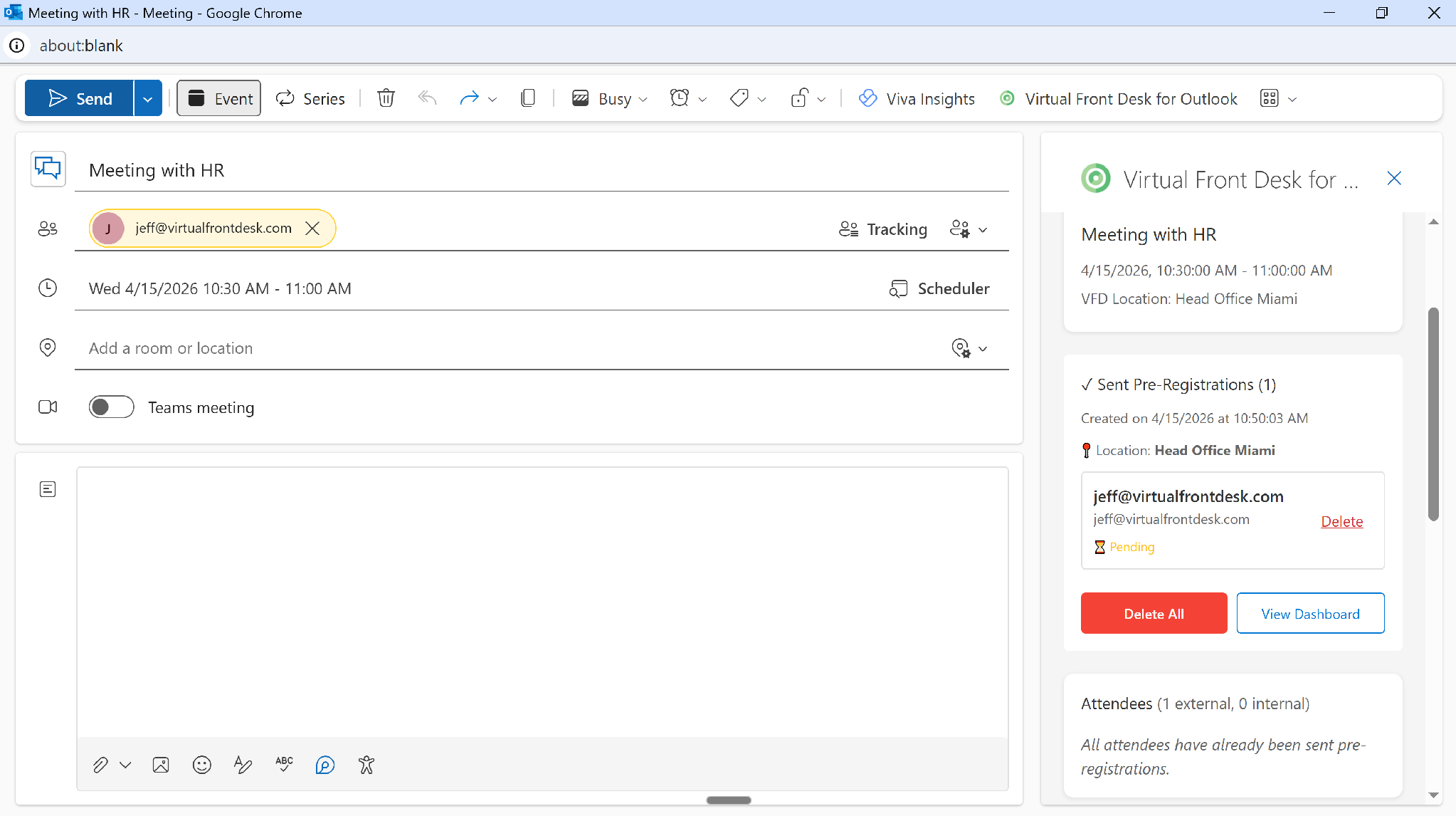
The status of sent pre-registrations
All pre-registrations are also listed under History > Pre-registration logs in the Virtual Front Desk dashboard.