Trouble shooting guide, Firewall, Permissions
Troubleshooting Guide, Firewall and Permissions
Quick fixes for the most common issues, and the network access your IT department needs to allow.
Virtual Front Desk is a web application, so your browser plays a key role: it controls access to your camera and microphone. Keep your browser up to date and make sure Virtual Front Desk has permission to use your camera and microphone. For the best experience, we recommend Chrome or Edge on Windows, Safari on iPad and iPhone, and Chrome on Android.
Allow access to your camera and microphone
The first time you use Virtual Front Desk, your browser asks for permission to use your camera and microphone. Click Allow, otherwise calls will not connect. If you denied access by mistake, or if a browser or system update reset your permissions, follow the steps below for both your dashboard address and your station address in your region (for example, app.virtualfrontdesk.com and station.virtualfrontdesk.com in the United States, or app.virtualfrontdesk.ca and station.virtualfrontdesk.ca in Canada).
Google Chrome
- Click the three dots in the upper-right corner and select Settings.
- Select Privacy and security, then Site settings.
- Under Permissions, click Camera, then Microphone, and make sure the Virtual Front Desk addresses are set to Allow.
Tip: you can also click the icon to the left of the address bar, turn on Camera and Microphone, then reload the page.
Microsoft Edge
- Click the three dots in the upper-right corner and select Settings.
- Select Cookies and site permissions.
- Click Camera, then Microphone, and add the Virtual Front Desk addresses to the Allow list.
Safari on Mac
- Go to Safari > Settings > Websites.
- On the left, click Camera, then Microphone.
- Find the Virtual Front Desk addresses in the list and set them to Allow.
Safari on iPad and iPhone
- Open the Settings app and go to Safari (or Apps > Safari).
- Under Settings for Websites, tap Camera, then Microphone.
- Select Allow.
Station shows “Station not found” or asks for a connection code
When you activate a connection code on a station (for example, at station.virtualfrontdesk.com), the connection is saved in the browser’s cache on that device, not in our system. If a station shows “Station not found” or asks for a connection code again, either the station was deleted from your dashboard or the browser’s cache was cleared. This can happen manually, during a major system update, or because of settings that clear the cache on restart.
To fix it:
- In your dashboard, go to Stations.
- Open the station’s menu (the three dots next to it) and click Duplicate to create a copy with a new connection code.
- Enter the new code on the device.
- Delete the old station (station menu > Delete) so you are not billed for stations you no longer use.
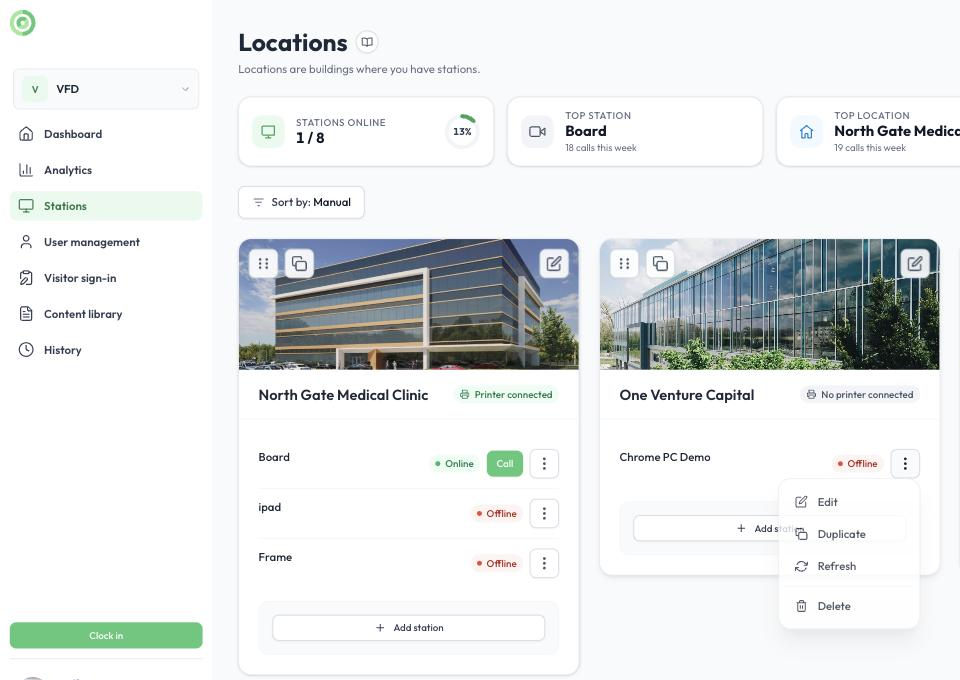
The station menu
Keep the station from asking for a code again
Updates and restarts can clear the browser cache where the connection is saved. To prevent this on a Windows station:
- Browser settings: in Chrome or Edge, open Settings, search for “Clear browsing data” and make sure the browser does not clear cookies or cached data when it closes.
- Storage Sense: Windows can automatically delete temporary files, including the browser cache. Go to Settings > System > Storage and turn off Storage Sense, or make sure it does not clear browser data.
- Disk Cleanup: open Disk Cleanup from the Windows search bar and uncheck Temporary Internet Files and Temporary Files.
- Cleaning software: if a tool such as CCleaner is installed, make sure it does not clear the browser cache after restarts or updates.
- Company policies: if the problem continues, ask your IT department whether a group policy clears the browser cache after updates or restarts.
Clear your browser cache to fix sign-in issues
Clearing the browser cache can fix sign-in problems, loading errors, missing elements or outdated content, especially after Virtual Front Desk is updated. It forces the browser to load the latest version of the app.
In Chrome:
- Click the three dots in the upper-right corner and select Settings.
- Select Privacy and security, then Delete browsing data.
- Select Cached images and files and choose All time as the time range.
- Click Delete data.
Note: do not clear cookies on a station, or it will ask for a connection code again.
“No email address on your account” when signing in with Microsoft
When signing in with Microsoft, you may see this message: No email address on your account. Your identity provider account has no email address configured.
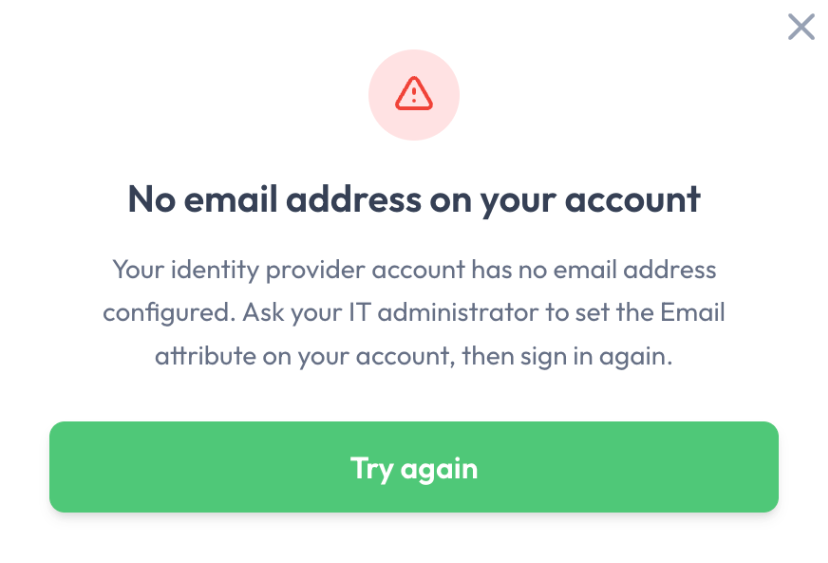
The “No email address on your account” message
Why it happens: Virtual Front Desk identifies Microsoft users by their email address. If the Microsoft Entra ID (Azure AD) account has no Email attribute, Microsoft does not send an email address when you sign in, so Virtual Front Desk cannot match the account and blocks the sign-in to prevent unauthorized access. This usually happens with administrator or service accounts that only have a User Principal Name (UPN) and no mailbox.
How to fix it: your Microsoft 365 or Entra ID administrator must add an email address to the account, using either option:
- Add an Email attribute (recommended): in the Microsoft Entra admin center, go to Users, select the account, open Properties and, under Contact information, enter a value in the Email field. Save the changes. No mailbox or Microsoft 365 license is required.
- Assign an Exchange mailbox to the account.
Then wait a few moments, return to Virtual Front Desk and click Try again. Nothing needs to change in Virtual Front Desk.
Important: the email address in Entra ID must match the address invited to Virtual Front Desk. If it is different, an administrator must invite the new address before the user signs in.
No sound from the receptionist on an iPad station
On some iPads, Safari blocks the sound of a call until someone touches the screen. When this happens, the station shows a full-screen message: Tap the screen to hear the receptionist. The visitor taps the screen once and hears the call.
On the dashboard, if your browser blocks the visitor's sound during a call, a notice appears in the call. Click it to hear the visitor.
A station or user appears “Offline” and calls do not go through
A station or user can appear offline for a moment when the network is unstable. If the Offline status persists, the most common cause is a device clock that is not synchronized: even a few minutes ahead or behind can prevent Virtual Front Desk from working properly.
Make sure the device’s date and time are set automatically in its system settings. Once the clock is accurate, the connection returns to normal.
Tip: Turn on Offline alerts in the station’s settings to get an email or SMS as soon as a station goes offline, and another when it is back online. See Station offline alerts.
VPNs and ad blockers
VPNs and ad blockers can interfere with Virtual Front Desk. If you have connection issues, turn them off or add Virtual Front Desk to their allow list.
Network firewall requirements
Virtual Front Desk only needs outbound network access to the domains, IP ranges and ports below. Return traffic for established sessions must be allowed, which is standard behavior for a stateful firewall.
Domains to allow on TCP 443
| Domain | Purpose |
|---|---|
| *.virtualfrontdesk.com | US application, streaming services for all regions, and api.virtualfrontdesk.com |
| *.virtualfrontdesk.ca | Canada region application |
| *.virtualfrontdesk.global | Global (EU) region application |
| *.virtualfrontdesk.asia | Asia (AU) region application |
| *.azurewebsites.net | Regional services for Canada, EU and Asia on Microsoft Azure |
| *.firebaseio.com | Real-time database for the US and Canada |
| *.firebasedatabase.app | Real-time database for the EU and Asia |
| *.googleapis.com | Authentication and configuration services |
| *.vercel.app | Application hosting |
| *.skype.com, *.microsoft.com, *.azure.net, *.azure.com, *.office.com | Azure Communication Services video calling |
| *.twilio.com | Twilio Voice phone fallback |
IP ranges and UDP ports for audio and video
Real-time audio and video use IP ranges and UDP ports that a domain allowlist cannot cover, so these rules are also required.
| Service | Destination IP range | Ports | Purpose |
|---|---|---|---|
| Microsoft Azure Communication Services | 20.202.0.0/16 | UDP 3478 to 3481, TCP 443 | Video call media and relay |
| Twilio | 168.86.128.0/18 | UDP 10000 to 60000 | Phone call media |
Summary
| Traffic | Direction | Requirement |
|---|---|---|
| Application and database | Outbound | TCP 443 to the listed domains |
| Video calls | Outbound | UDP 3478 to 3481 and TCP 443 to the Microsoft IP range |
| Phone calls | Outbound | UDP 10000 to 60000 to the Twilio IP range |
| Return traffic | Inbound | Allow return traffic for established sessions |
Quick test: open networktest.twilio.com on the device and run the test. It shows exactly what could be blocked.
Need more help?
Please contact us through the live chat.