Neat Pulse and setting up your Neat Frame with Virtual Front Desk
Neat Pulse and Setting Up Your Neat Frame with Virtual Front Desk
Set up a Neat Frame or Neat Board as a Virtual Front Desk station, step by step.
This guide walks you through creating your Neat Pulse account, setting up your Neat device and connecting it to your Virtual Front Desk station. The steps are the same for a Neat Frame and a Neat Board. To learn why Neat devices make great stations, read Neat Frame or Board.
Step 1: Create your Neat Pulse account
Neat Pulse is Neat’s free platform to manage your devices remotely.
- Go to pulse.neat.no and click Sign up.
- Enter your company email address and follow the on-screen instructions. If asked, select the free Starter plan.
- In the Apps menu, under Other (Neat Boards, Neat Frame), turn on Virtual Front Desk.
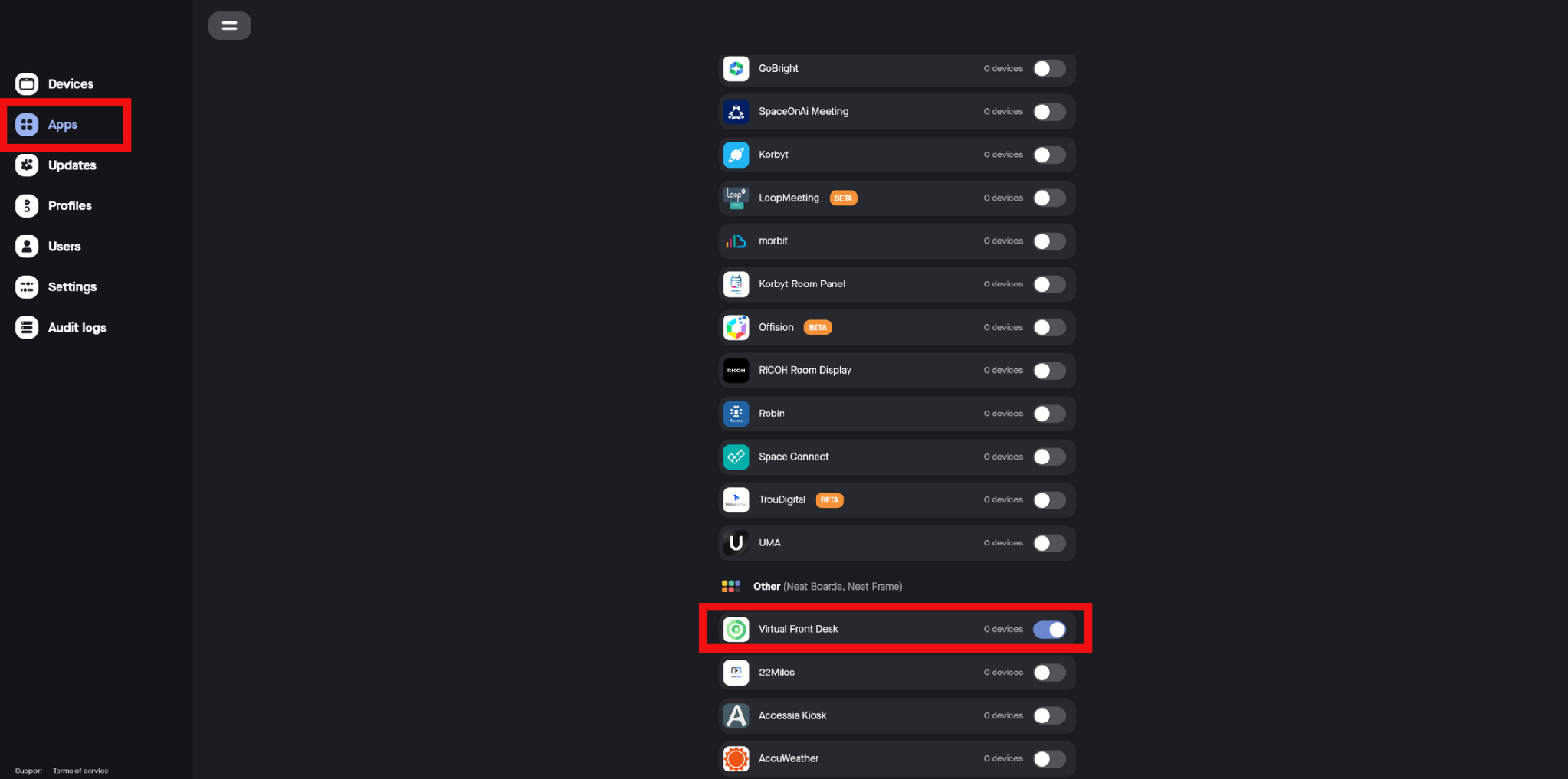
Turn on Virtual Front Desk in the Neat Pulse Apps menu
Step 2: Power up and connect your Neat Frame
- Plug your Neat Frame into power. The setup screens start automatically.
- Select a language and tap Continue.
- Connect the Frame to your Wi-Fi network and tap Continue. To use a wired connection instead, connect an Ethernet to USB-C adapter.
- Select your time zone and clock format, then tap Continue.
Admin password: if the Frame asks for an admin password, for example to change its Wi-Fi network later, enter the last six digits of its serial number. You can find the serial number on the label under the Frame, or on the device page in Neat Pulse.
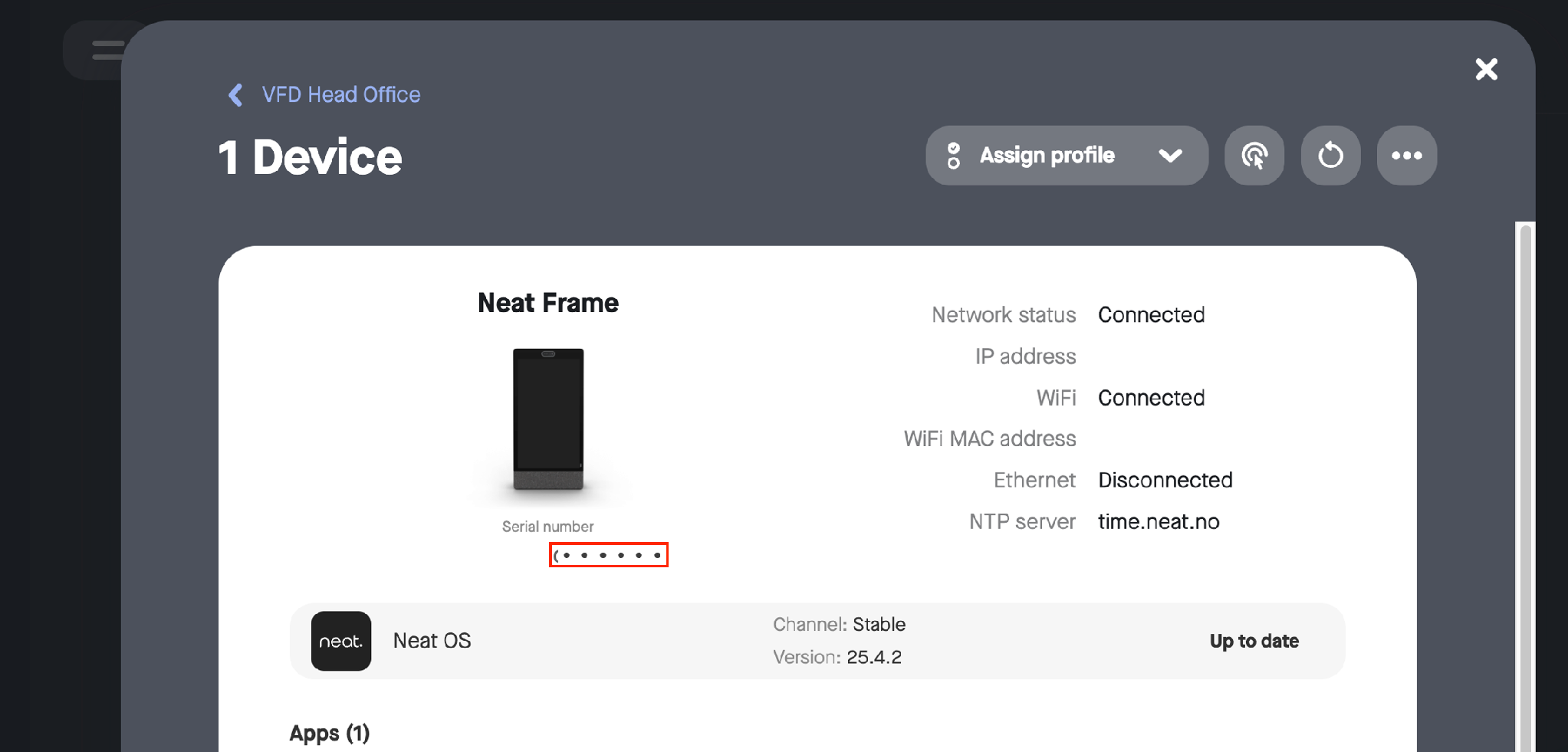
The serial number on the device page in Neat Pulse
The last six digits of the serial number are the admin password
Step 3: Enroll the Frame in Neat Pulse
You need to enroll your device in Neat Pulse before you can install Virtual Front Desk.
- Sign in to Neat Pulse.
- Open the space where you want to add the device (or create one), then click Generate code.
- Enter the code on the Frame. A progress bar appears. Do not unplug the device until it confirms that it was added to Neat Pulse.
Next, the Frame asks whether to share analytics with Neat, shows a camera preview and lets you set a framing boundary. Choose your options and tap Continue on each screen.
Step 4: Install Virtual Front Desk
- On the Choose platform screen, tap Other (the App Hub icon), then tap Continue. Virtual Front Desk installs automatically. Do not unplug the device during installation.
- When the device confirms it is ready, tap Launch.
Don’t see Other? It only appears once the device is enrolled in Neat Pulse and Virtual Front Desk is turned on in the Pulse Apps menu. Check both, then factory reset the Frame: press and hold the pin button on the back for 4 seconds, then press it again.
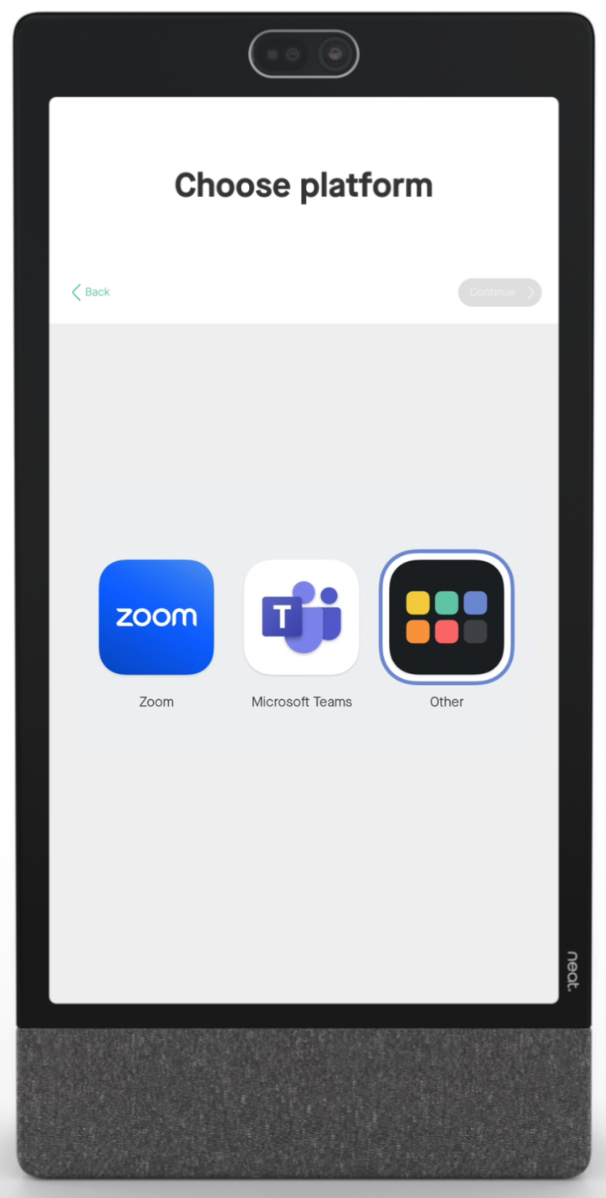
Tap Other on the Choose platform screen
Step 5: Connect your station
Virtual Front Desk opens and asks for a connection code.
- Select the same region as your Virtual Front Desk account.
- Enter the station’s connection code from your dashboard, under Stations. To learn how to create a station, read Creating Stations.
Your station loads and is ready for visitors.
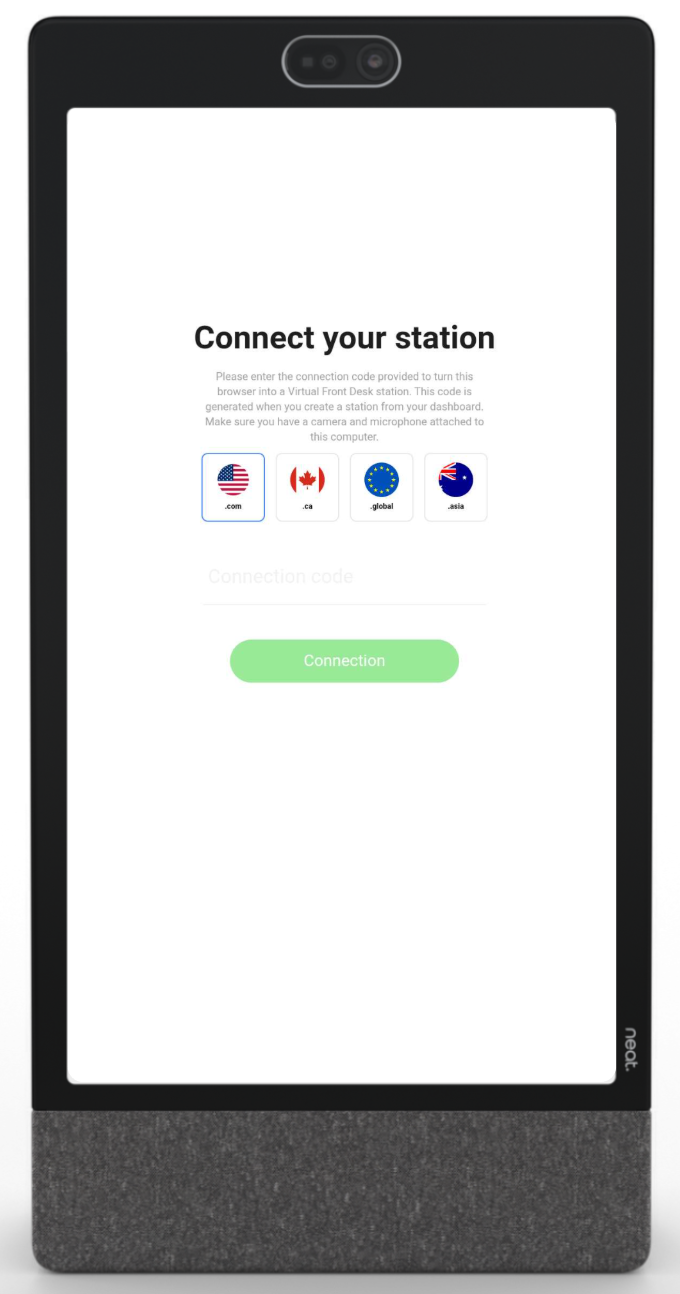
Enter your station’s connection code
Step 6: Turn on kiosk mode and keep the screen on
In Neat Pulse, click the device to open its settings:
- Under Device settings > Apps, turn on Kiosk Mode for Virtual Front Desk. This hides the Frame’s quick settings so visitors cannot leave the station.
- Under Display, turn on Keep screen on.
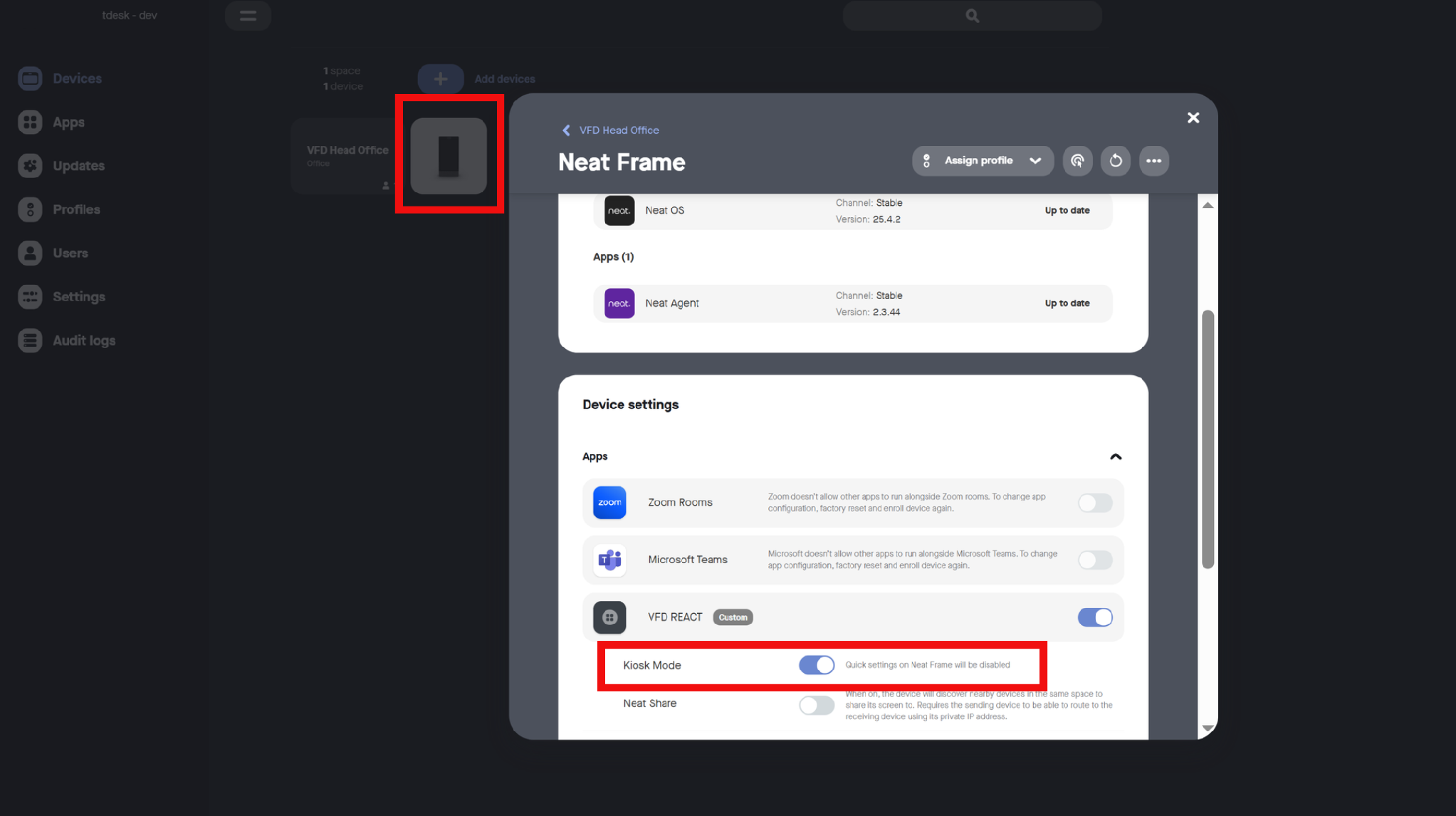
Turn on Kiosk Mode
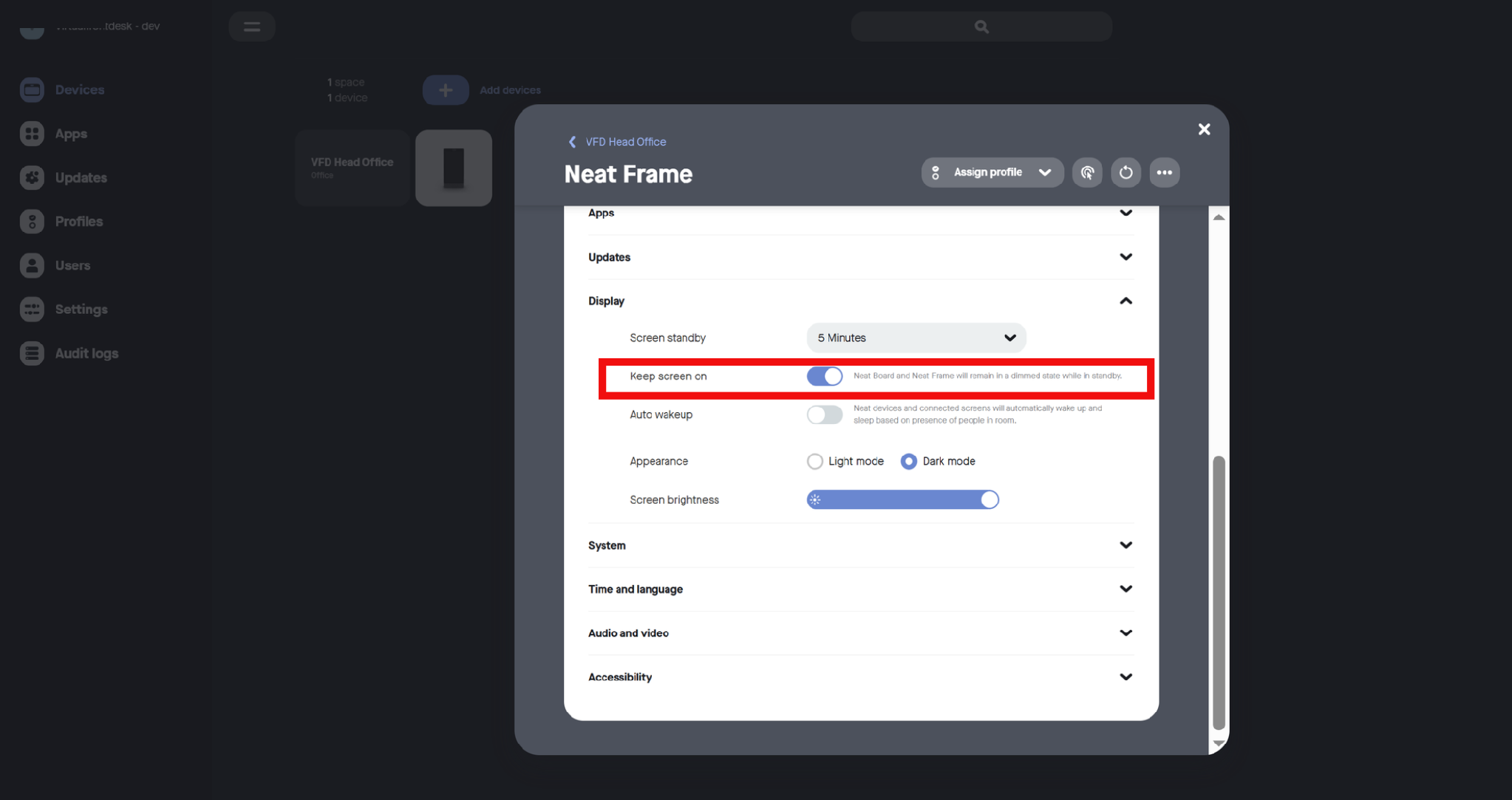
Turn on Keep screen on
You are all set: your Neat Frame is now a Virtual Front Desk station.
Adjust the volume or other device settings
- In Neat Pulse, turn off Kiosk Mode for a moment.
- Click the remote control icon at the top of the device page to control the Frame from your computer.
- On the Frame’s screen, swipe in from the right edge to open the quick settings, and adjust the volume or other settings.
- Turn Kiosk Mode back on when you are done.
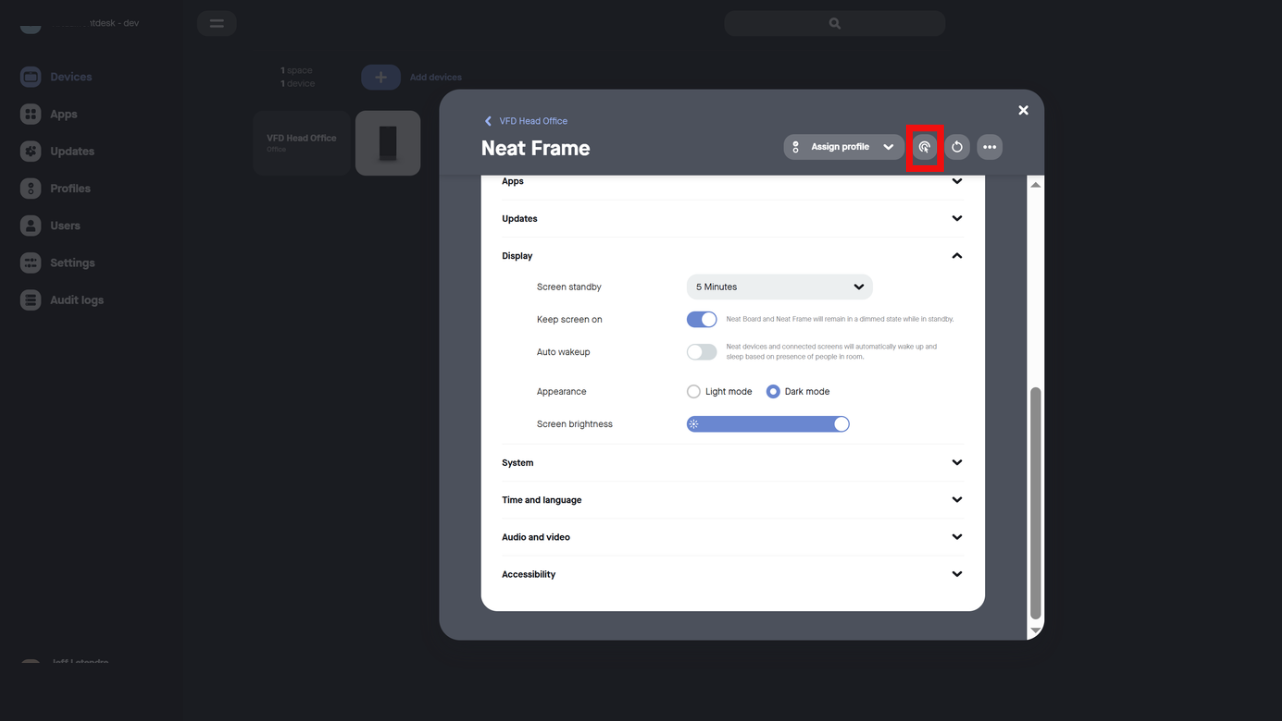
Open remote control from the device page
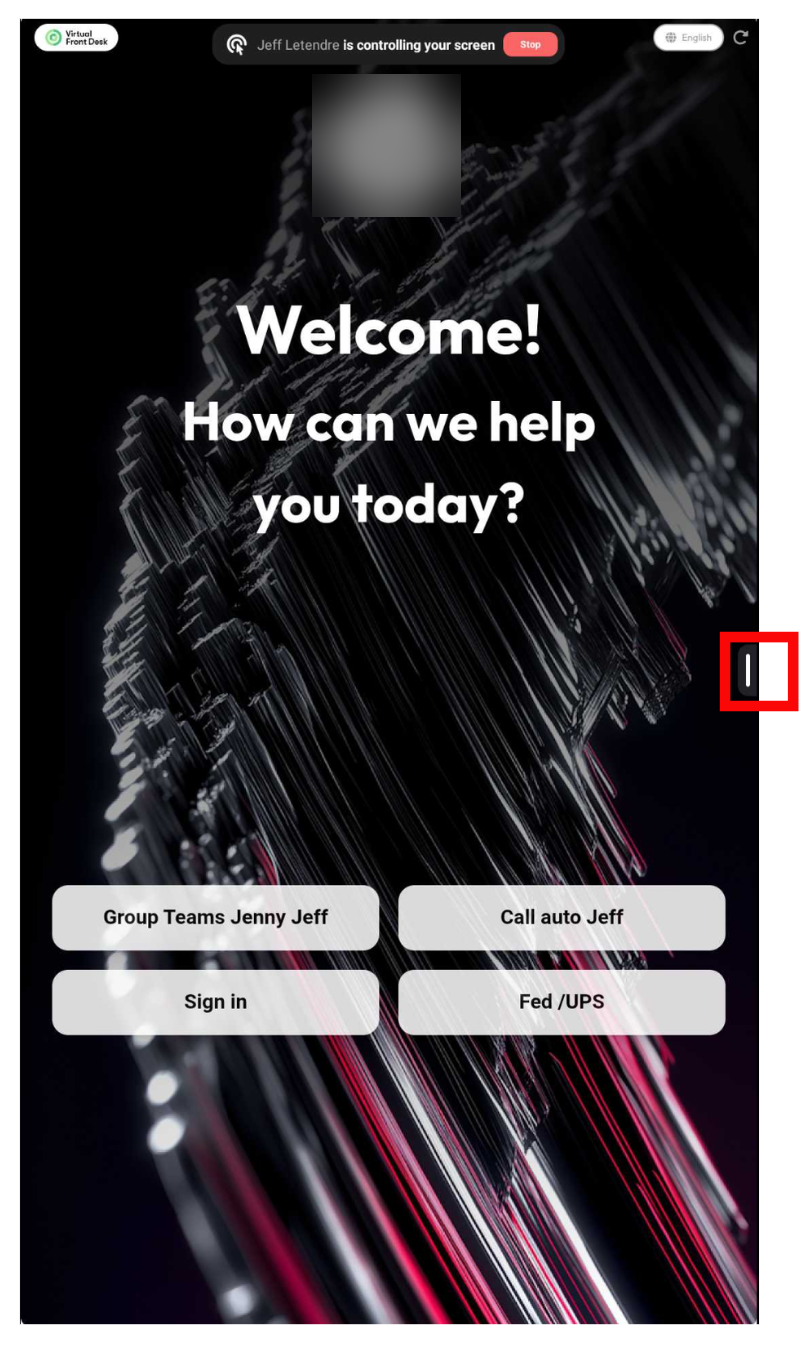
Swipe in from the right edge to open the quick settings
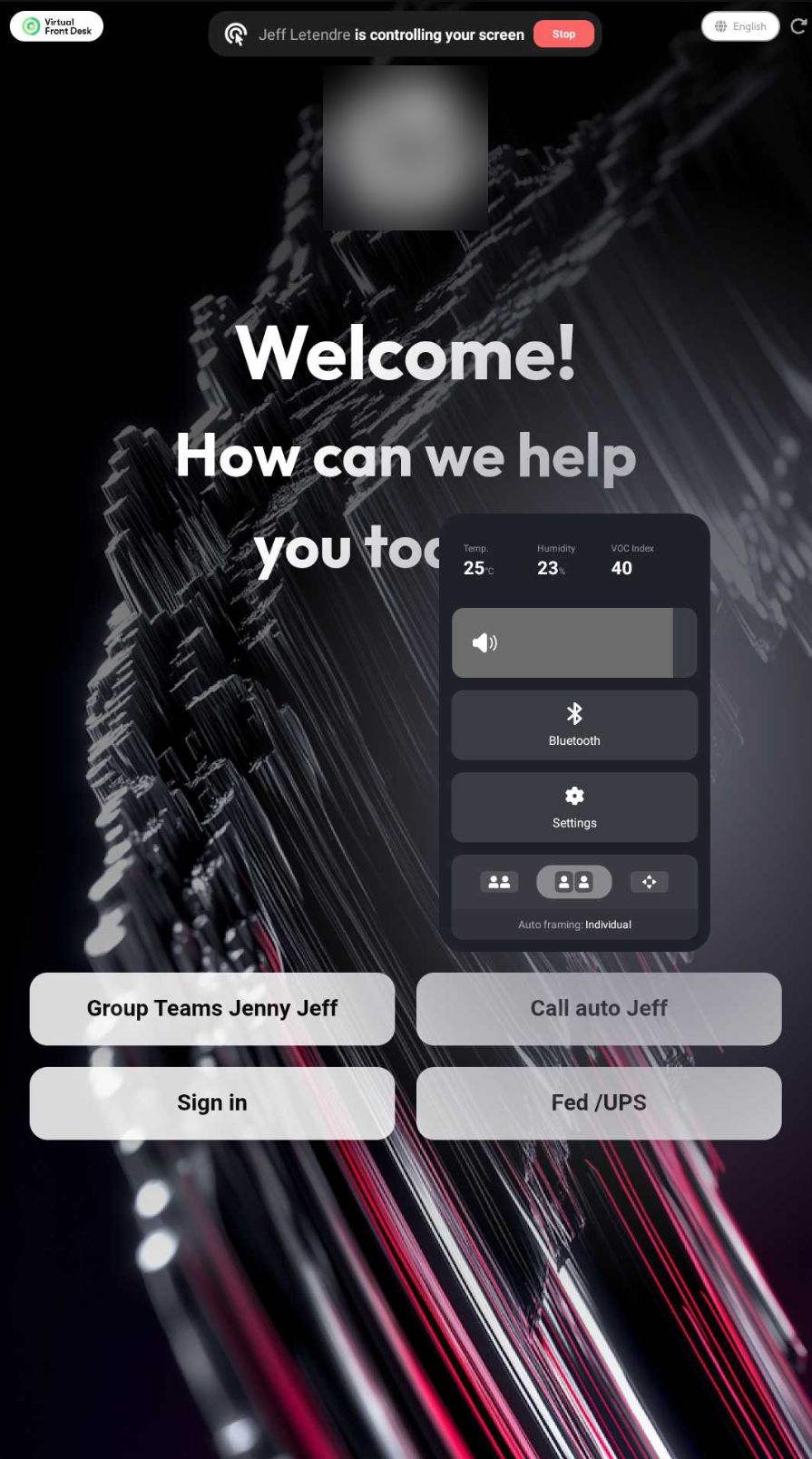
Adjust the volume in the quick settings
For more details, read Neat’s guide Getting started with Neat open apps.
Contact Neat support
If you have a problem with your Neat device itself, contact Neat directly from Neat Pulse:
- Click the device’s picture to open its page.
- Click the three dots at the top of the page.
- Click Open a support ticket.
Need more help?
Please contact us through the live chat.