
Digital Scanner
Digital Scanner
The digital scanner lets visitors share documents during a live video call, such as an ID card, an insurance card, a form or a letter. It needs no scanner or other hardware: the visitor uses their own phone. The digital scanner is available only on the Enterprise plan.
Scan a document during a call
- During a live video call, click the Scanner icon in the toolbar below the video.
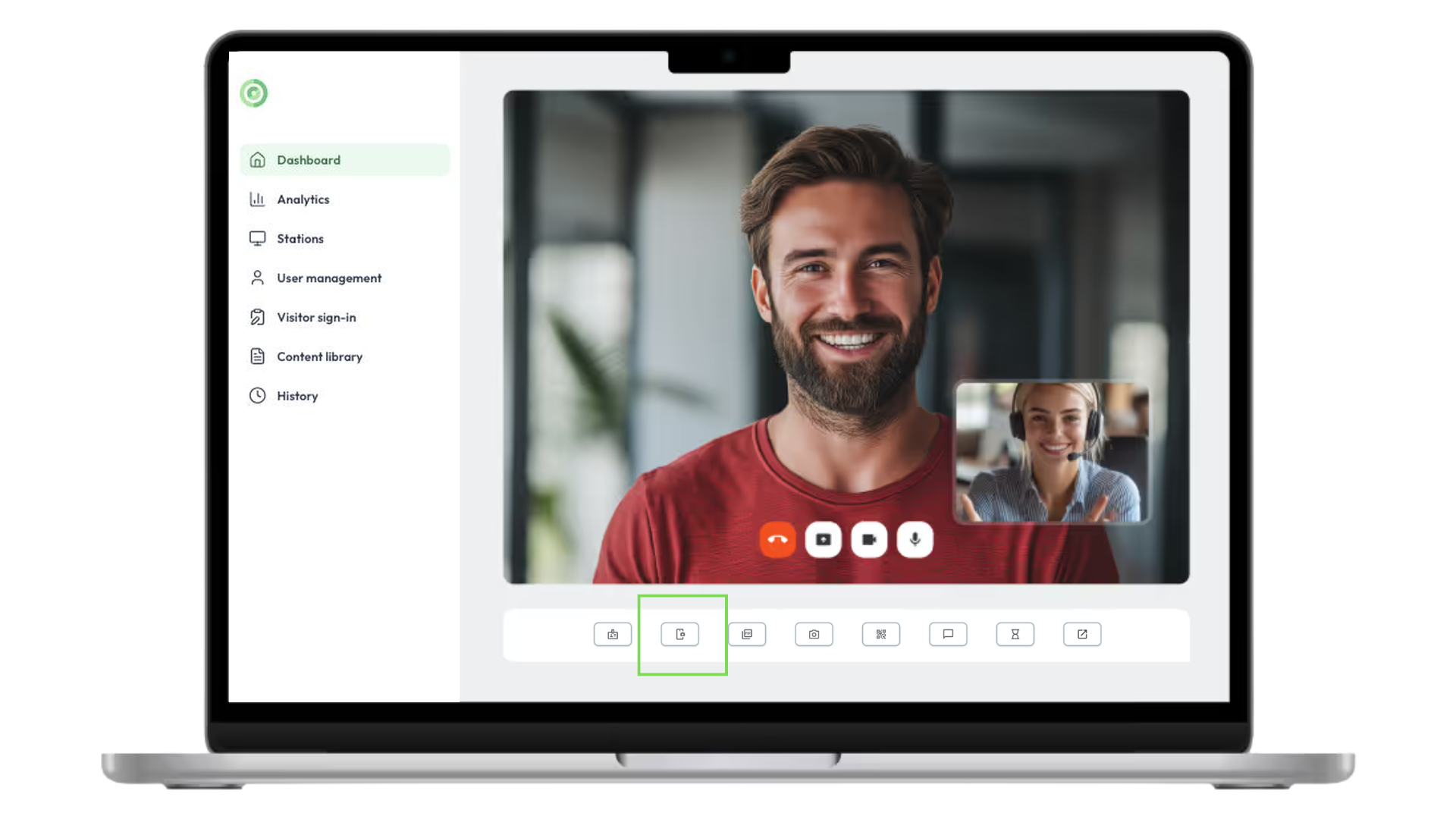
The Scanner button in the call toolbar
- A Document Scanner window with a QR code appears on the station screen. It closes automatically after 10 minutes.
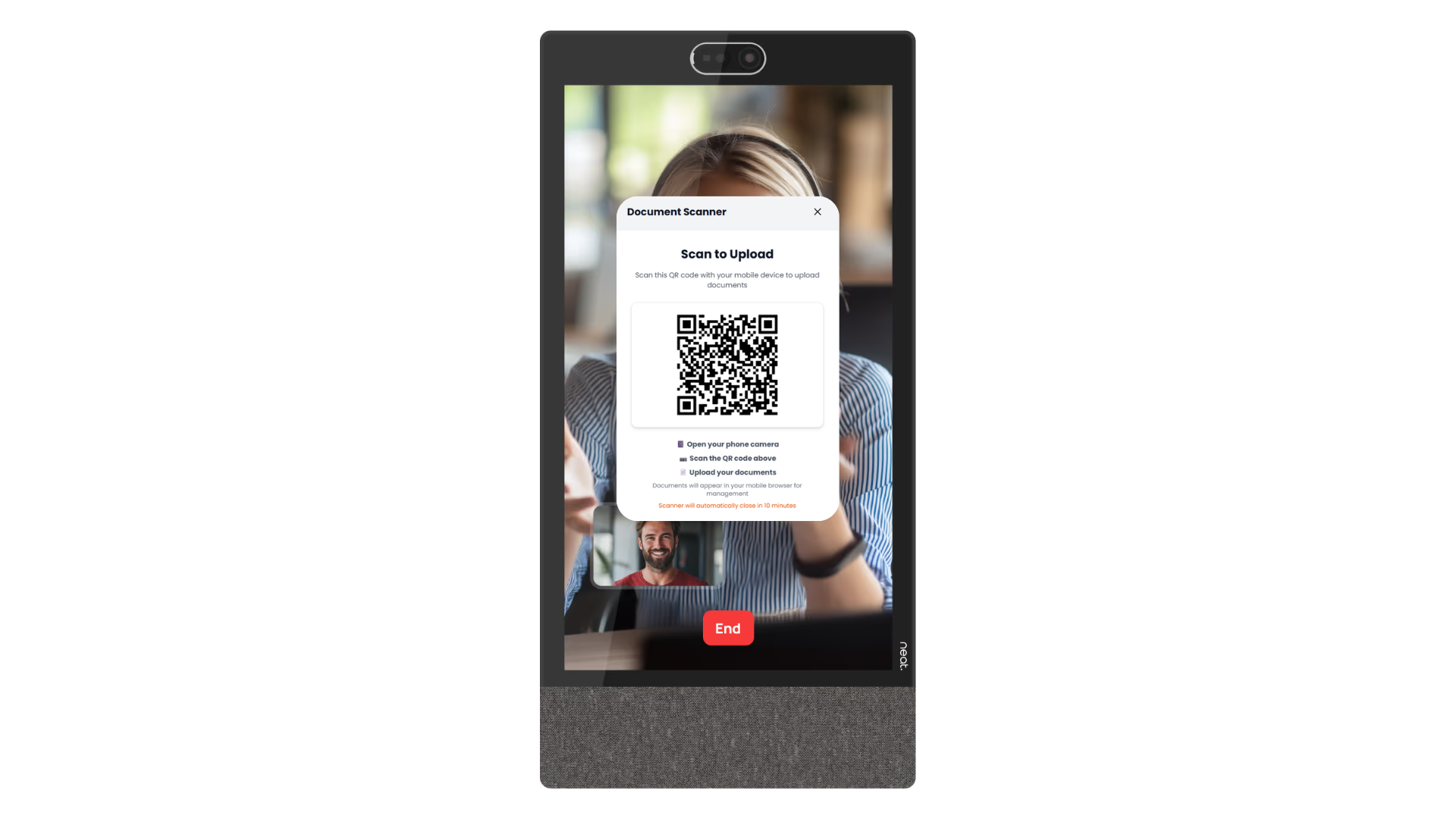
The Document Scanner QR code on the station screen
- The visitor scans the QR code with their phone’s camera. A secure Upload Document page opens in their phone’s browser. The visitor does not need to install an app, and any internet connection works: the phone does not need to be on the same network as the station.
- The visitor chooses Take Photo to capture the document with the phone’s camera, or Select File to choose an image or a PDF from the phone’s gallery or files.
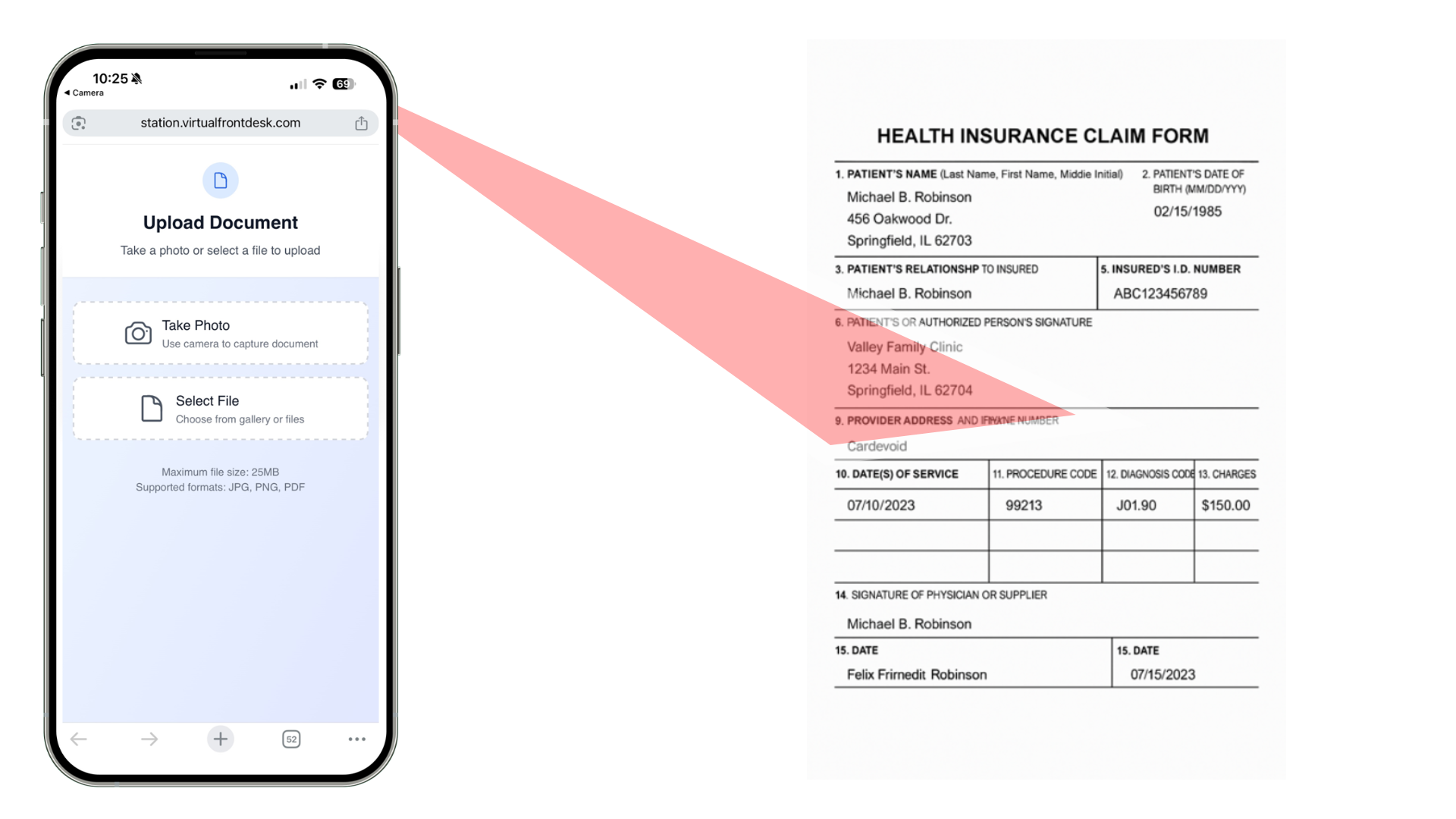
The Upload Document page on the visitor’s phone
- When the upload is complete, the phone shows Upload Successful!. The visitor can upload more documents, or tap Done.
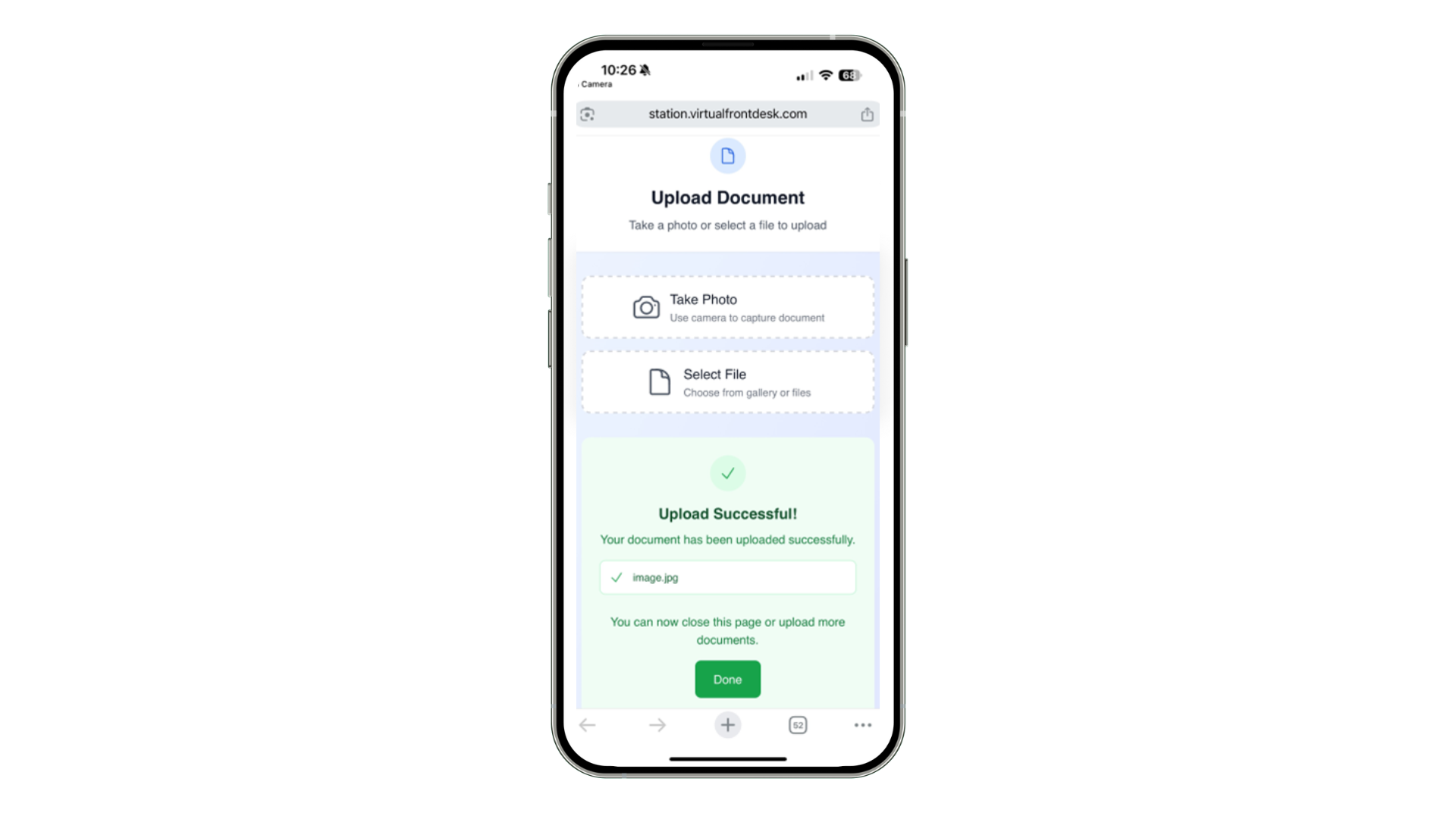
The Upload Successful message on the visitor’s phone
- The document opens on your screen during the call, so you can check that it is clear. You can download it from there.
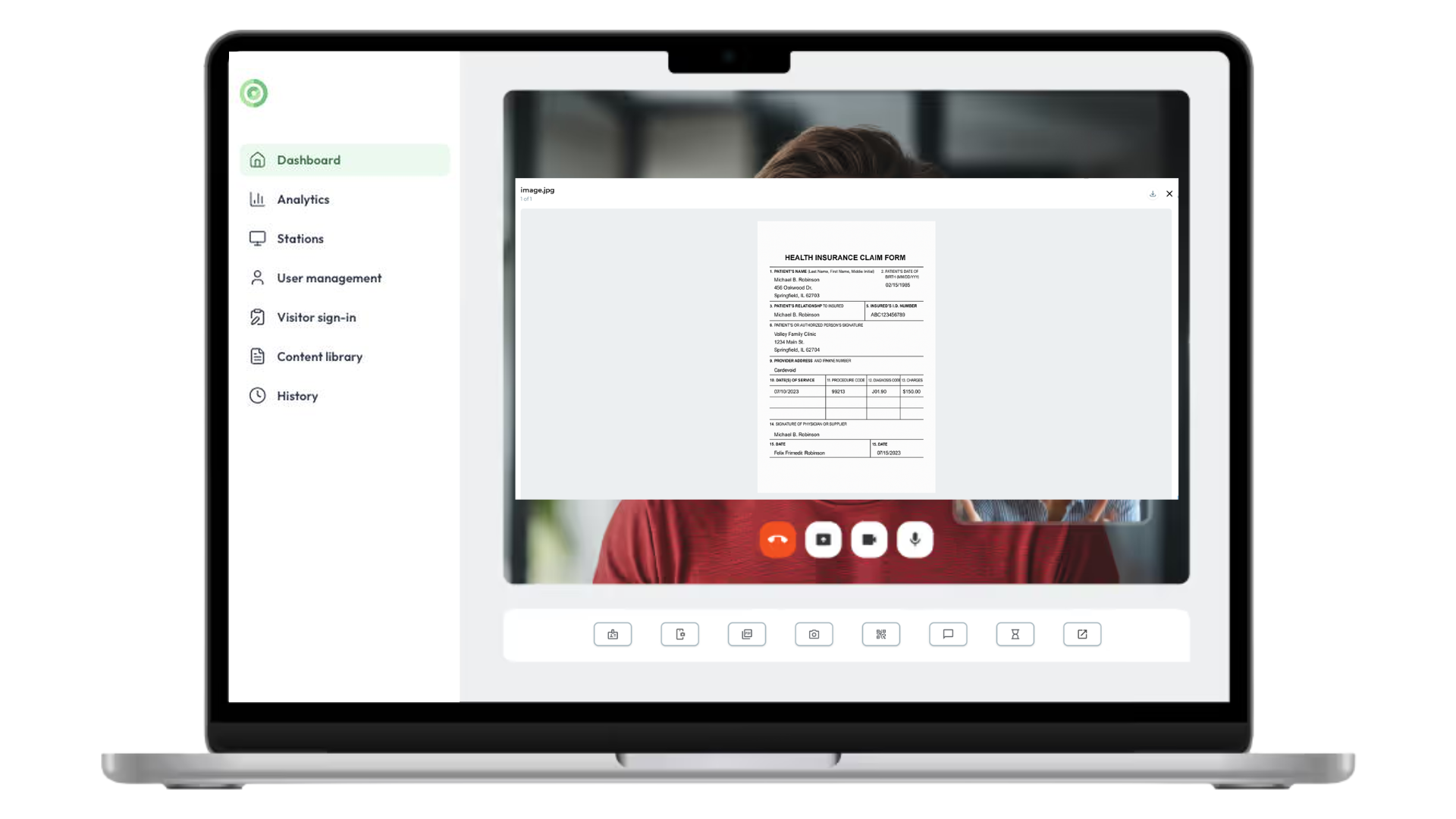
The scanned document open on the dashboard during the call
The visitor can send several documents during the same call.
Good to know
- Supported formats: JPG, PNG and PDF.
- Maximum file size: 25 MB per file.
- Time limit: the scanner closes automatically after 10 minutes.
Find scanned documents after the call
Every uploaded document is saved with the call. In the main menu, click History, then open Call logs. A paper clip icon shows calls with saved documents. Click the eye icon to view and download them.
To learn more, read History: Call logs, Other actions, Sign-in logs, Pre-registration logs, Transaction logs and AI conversations and Live Call Features.