SMS for Microsoft Teams
SMS for Microsoft Teams
Virtual Front Desk can send a text notification directly into Microsoft Teams when a visitor presses a station button. Unlike video calls in Microsoft Teams, which require additional Microsoft licenses, text notifications work at no extra cost and can be set up in minutes.
Important: If you only plan to use text notifications in Microsoft Teams, leave Teams video call turned off for the user. Turning it on without the required Teams Phone license causes calls to fail.
Text notifications in Microsoft Teams work only for users imported from your Azure directory. Users invited by email cannot use this feature.
Step 1. Connect your Azure directory
- Click the gear icon next to your name, then under Organization, select Integrations.
- Under Microsoft Azure directory, connect your Azure Active Directory (Microsoft Entra ID) and accept the Microsoft permissions request.

The Microsoft Azure directory integration
Step 2. Import your users
In User management > Users, use the Microsoft Teams integration search box to find and add your users.
Step 3. Install the Virtual Front Desk SMS app in Microsoft Teams
Open Microsoft Teams, search for Virtual Front Desk SMS in Apps, and install it.
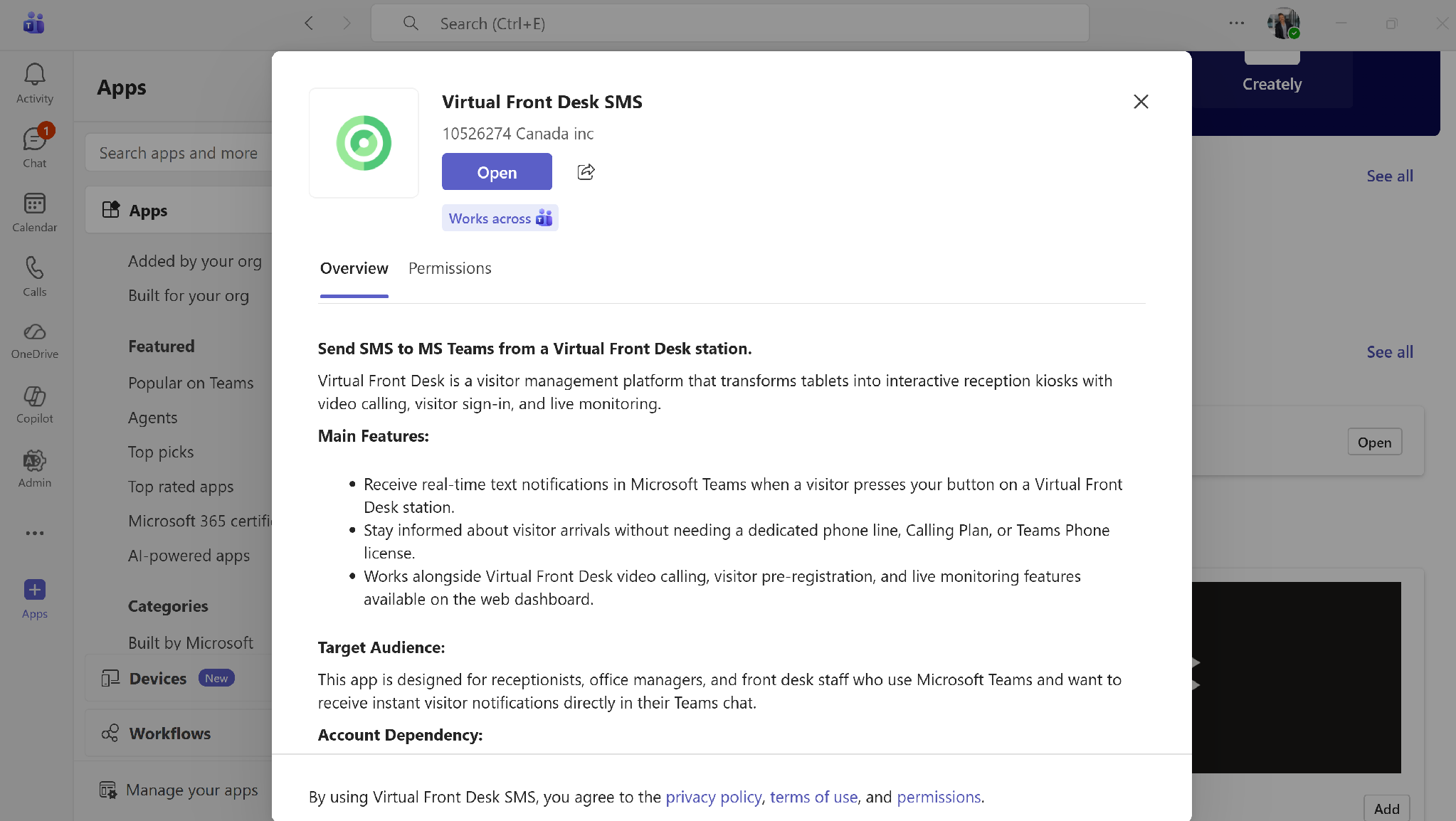
The Virtual Front Desk SMS app in Microsoft Teams
Step 4. Turn on text notifications in Microsoft Teams
Each user turns on Microsoft Teams text notifications in their own settings:
- Click the gear icon next to your name, then under Personal, select Notifications & calls.
- Under Connected apps, turn on Microsoft Teams calls.
- Turn on Teams text notification.
- Leave Teams video call turned off unless you have a Teams Phone license.
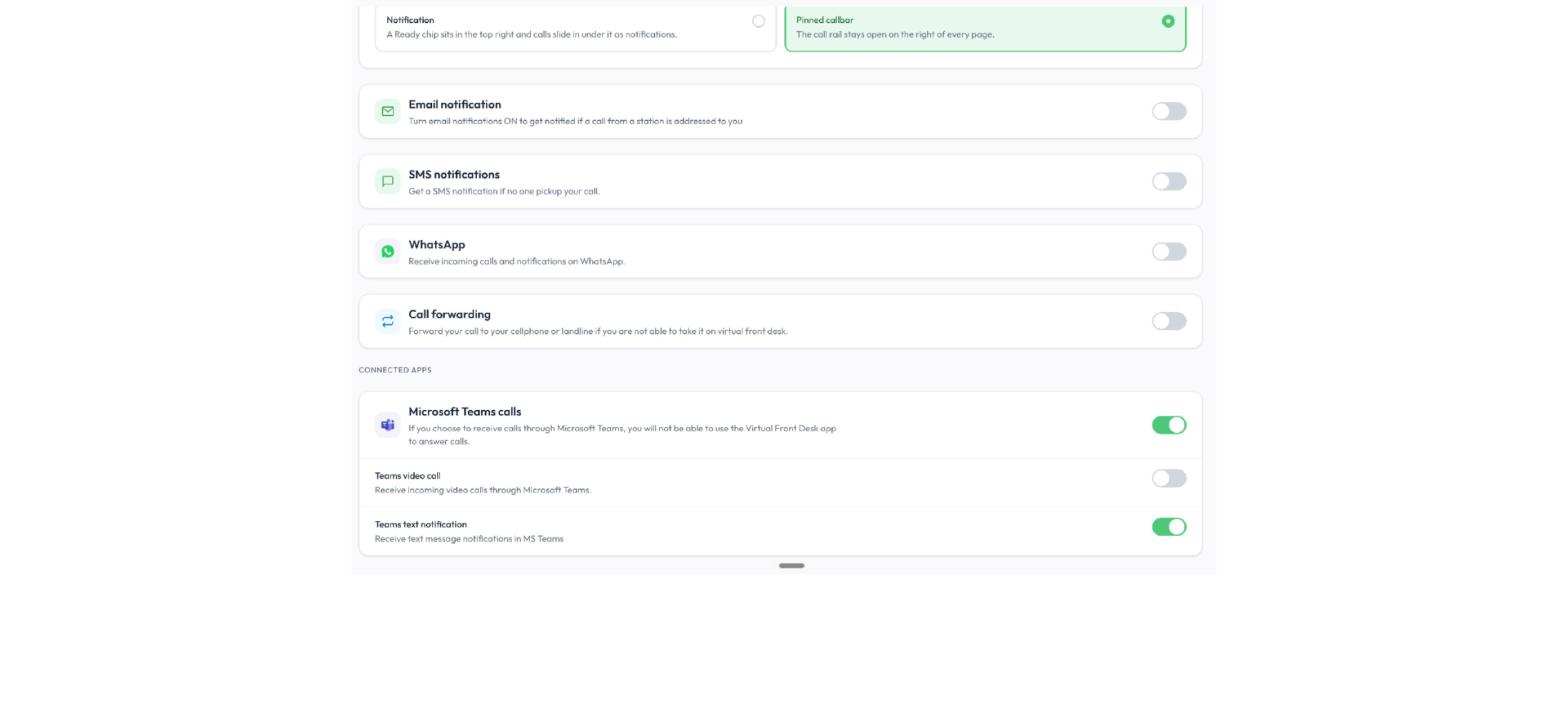
Notifications & calls, with Microsoft Teams text notifications turned on
Once Microsoft Teams calls is turned on, the Incoming calls panel on the right shows Calls routed to Microsoft Teams. You can turn text notifications on or off at any time from the same page.
Note: When you receive calls through Microsoft Teams, you cannot answer them in the Virtual Front Desk app.
Step 5. Link the user to a station button
On your station, create a button with the Video call user action and select the user. When a visitor presses the button, the user receives a text notification in Microsoft Teams.
Why “Video call user”? A video call is the primary way a station reaches a user, so the action keeps that name. When the user is offline or has not signed in to Virtual Front Desk, the station automatically falls back to the notifications set up for that user, such as a call to their forwarding phone number, an SMS, an email, a text notification in Microsoft Teams, a WhatsApp message or a Slack message.
To receive video calls in Microsoft Teams as well, read Microsoft Teams integration for video calls, call queue & auto attendant.