
Android Mobile native application
Mobile App for Android
Answer video calls from your stations on your Android phone or tablet.
The Virtual Front Desk app for Android lets you receive video call notifications directly on your Android phone or tablet, and answer visitors face to face from anywhere. The app is free. Search for Virtual Front Desk in the Google Play Store, or open it in Google Play.
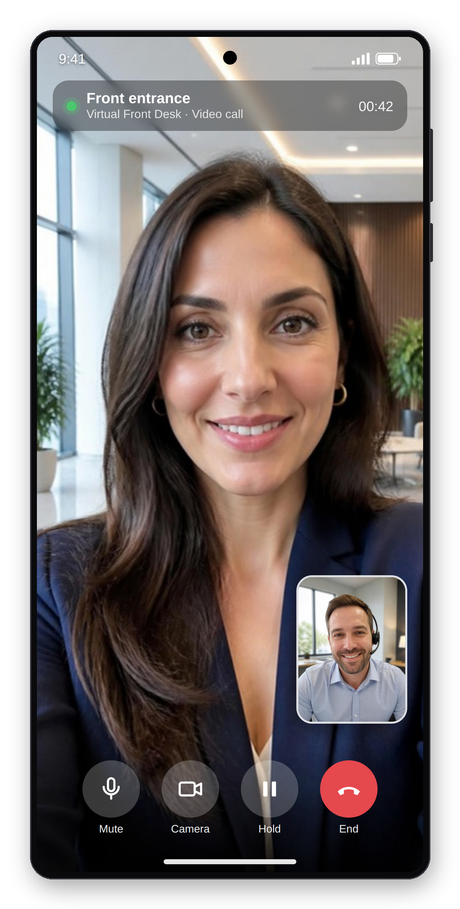
Answer visitors face to face from your phone
Using an iPhone or iPad? Read Mobile application iPhone and iPad.
Important: if your account is outside the United States (Canada, Global (EU) or Asia (AU)), close and reopen the app after you sign in for the first time.
Keep the app up to date: always use the latest version of the app. Turn on automatic updates in the Google Play Store, or check for updates regularly.
Set up the app
- Allow the permissions. When you open the app for the first time, allow Virtual Front Desk to use your microphone and camera (select While using the app), and to make and manage phone calls (select Allow). Calls cannot ring or connect without these permissions.
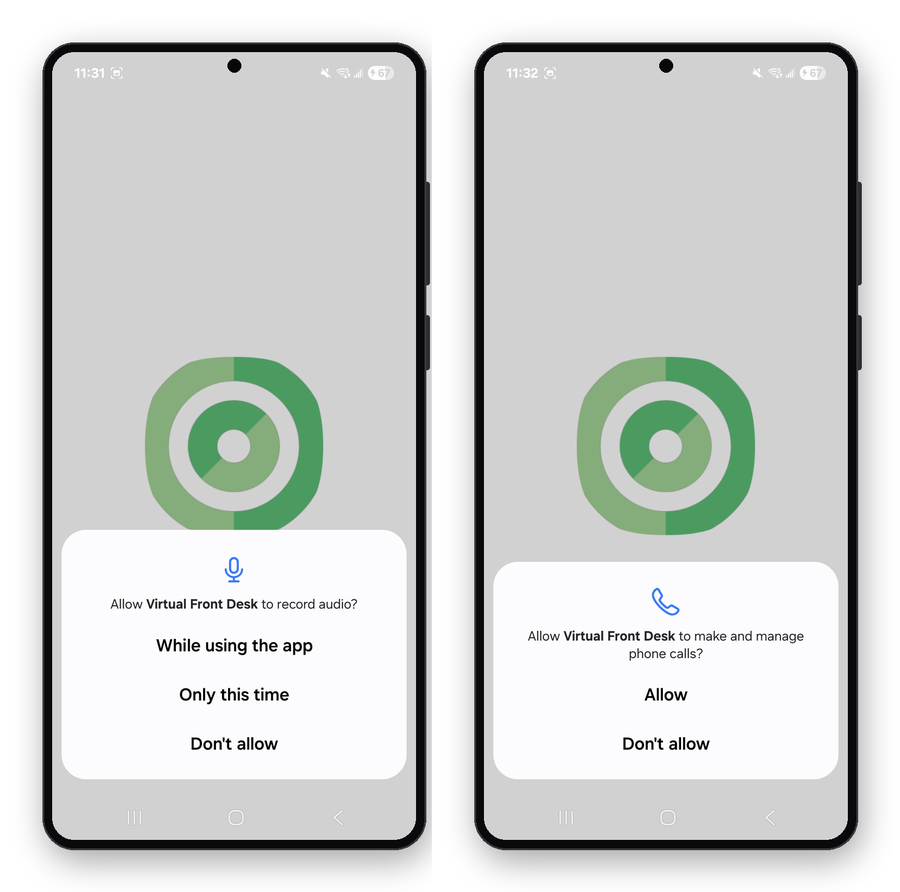
Allow access to the microphone and phone calls
- Turn on the calling account. When the app asks to access your phone accounts, tap OK. Your phone opens Calling accounts: turn on Virtual Front Desk. This lets calls ring on your phone like regular phone calls.
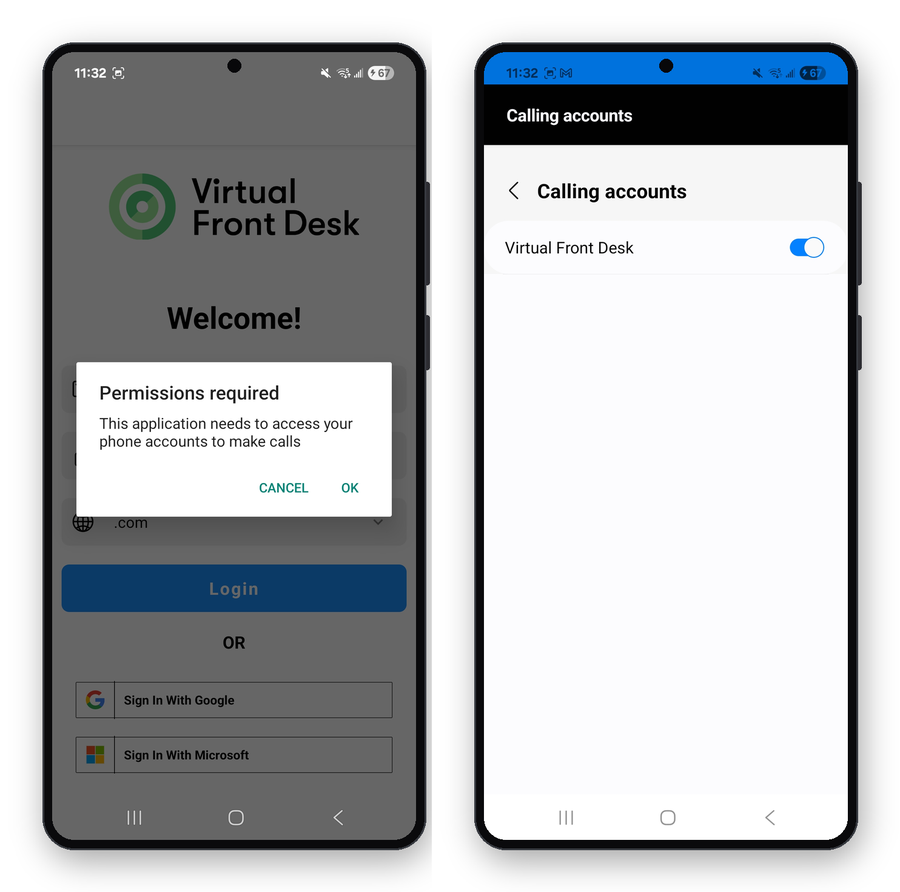
Turn on Virtual Front Desk under Calling accounts
- Sign in. Choose your region from the Region menu (United States, Canada, Global (EU) or Asia (AU)), then sign in with Microsoft, Google, Apple, Sign in with SSO, or your email.
- Go online. Your Waiting list opens. Make sure your Status is Online to receive calls. Incoming calls appear under Calls.
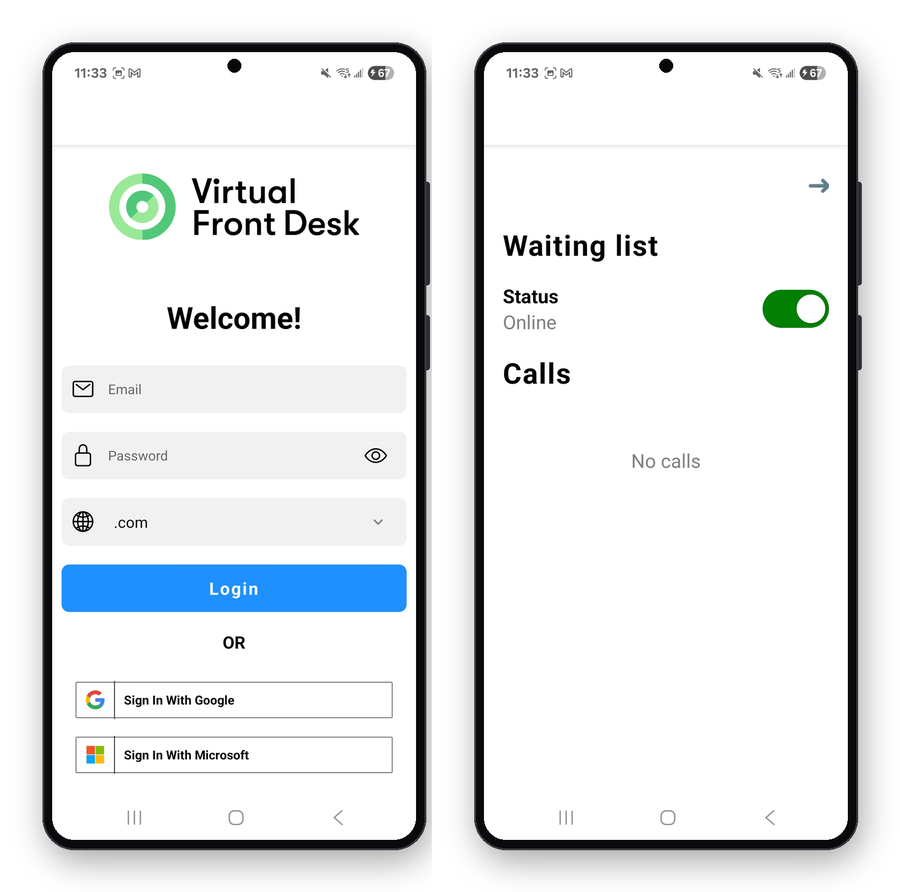
Sign in, then check that your status is Online
What to know
- The app is made for answering calls only. To set up stations, users, sign-in forms and other features, use the dashboard on a computer.
- While the app is open, calls work just like on the dashboard: you can answer a call, put it on hold or end it.
- One call at a time: if another call comes in during a video call, you cannot put the current call on hold. Answering the new call ends the active one. To switch between calls, use the dashboard on a computer.
Need more help?
Please contact us through the live chat.