
Printer, Printing Badges and Documents
Printer Setup and Usage Guide
Virtual Front Desk (VFD) allows you to seamlessly print visitor badges at the end of a visitor sign-in form and send documents to a printer during video calls with customers. Both badge and document printing functionalities can operate from the same station. Please note you will need the Enterprise plan to access this feature. (Please scroll down to use this app as a Printer Windows service.)
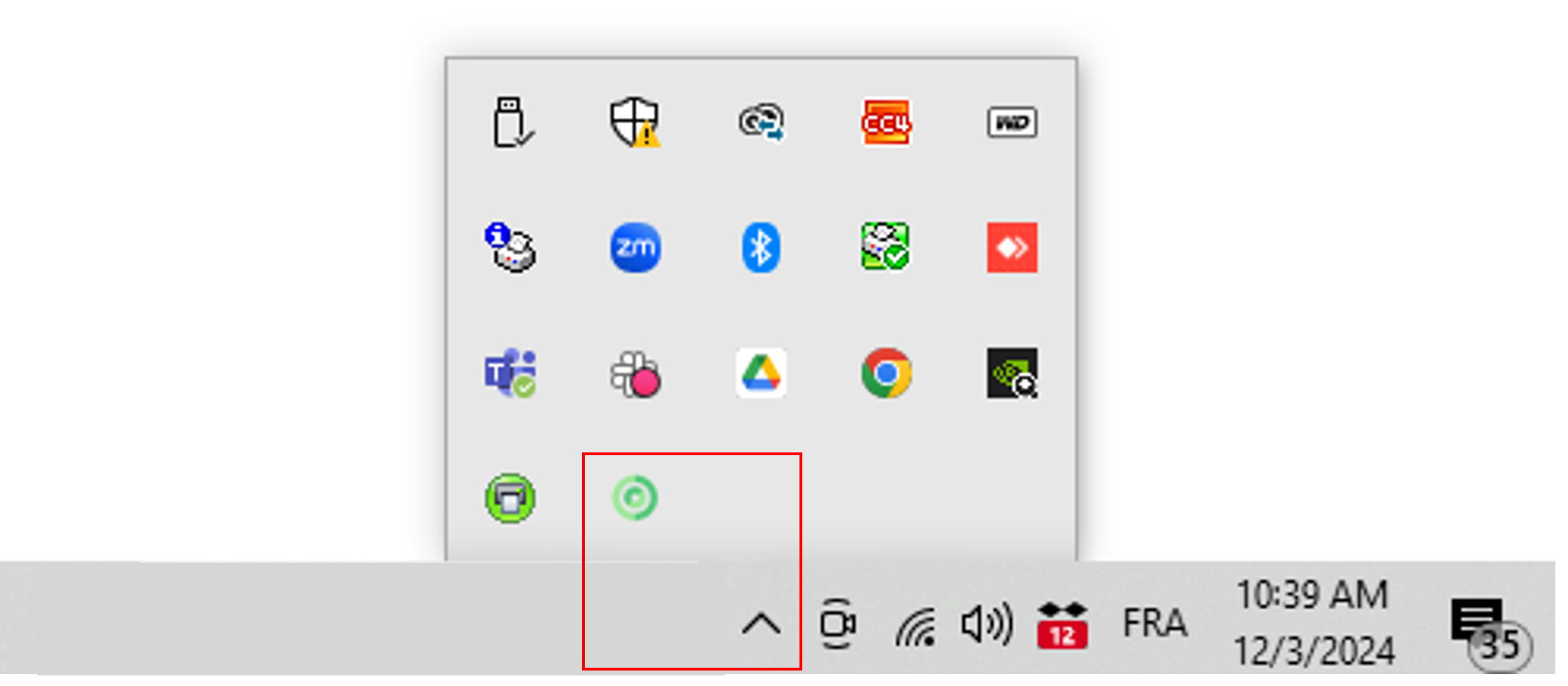
The VFD Printer App runs in the background on your Windows computer. It doesn’t feature a visible dashboard or settings menu, only an icon in your system tray. You can right-click this icon to edit settings or close the app.
Badge Printing
Compatible Label Printer
Visitor badges are designed for the Brother QL-820 NWBc label printer, using a black-and-white DK 2205, 2.4-inch wide roll. While other label printers with similar roll sizes may work, we recommend the Brother QL-820 NWBc for the best performance.
Badge Printer Setup
- Install the printer driver on a Windows computer near your VFD station, or directly to your station if it runs on Windows. Follow the instructions in the Brother QL-820 NWBc Quick Setup Guide.
- Connect (by cable or network) the Brother QL-820 NWBc label printer to the same Windows computer near your VFD station, or directly to your station if it runs on Windows.
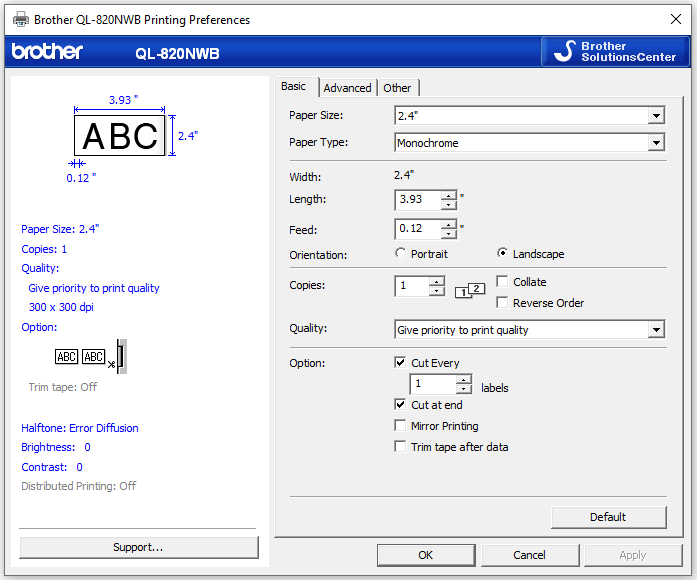
- Once installed, access the printer’s Preferences and set the roll width to 2.4 inches for proper badge formatting.
- Set the Quality to "Give priority to print quality"
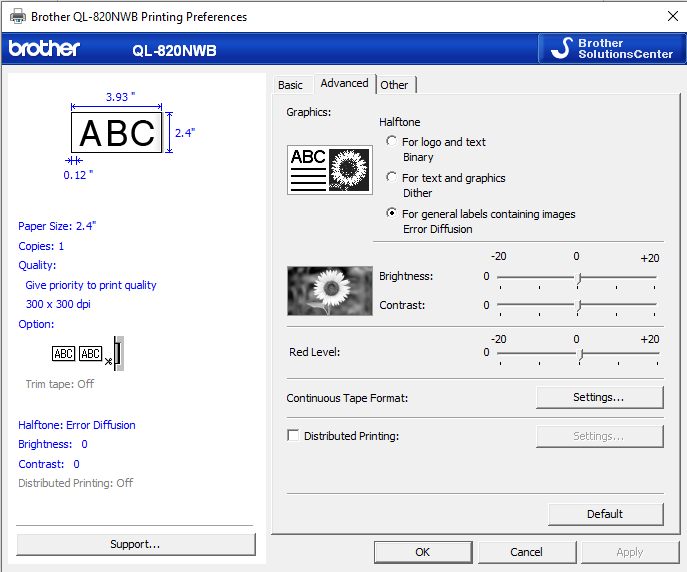
-Set Graphics to "For general labels containing images"
Internet Connection
Ensure the document printer is connected to the internet by following the manufacturer’s setup instructions.
Document Printing
Setup Instructions
- Install the appropriate driver for your document printer on a Windows computer near your VFD station, or directly to your station if it runs on Windows.
- Connect (by cable or Network) the printer to a Windows computer near your VFD station, or directly to your station if it uses Windows.
Internet Connection
Ensure the document printer is connected to the internet by following the manufacturer’s setup instructions.
Installing the Virtual Front Desk Printer App
Download the VFD Printer App
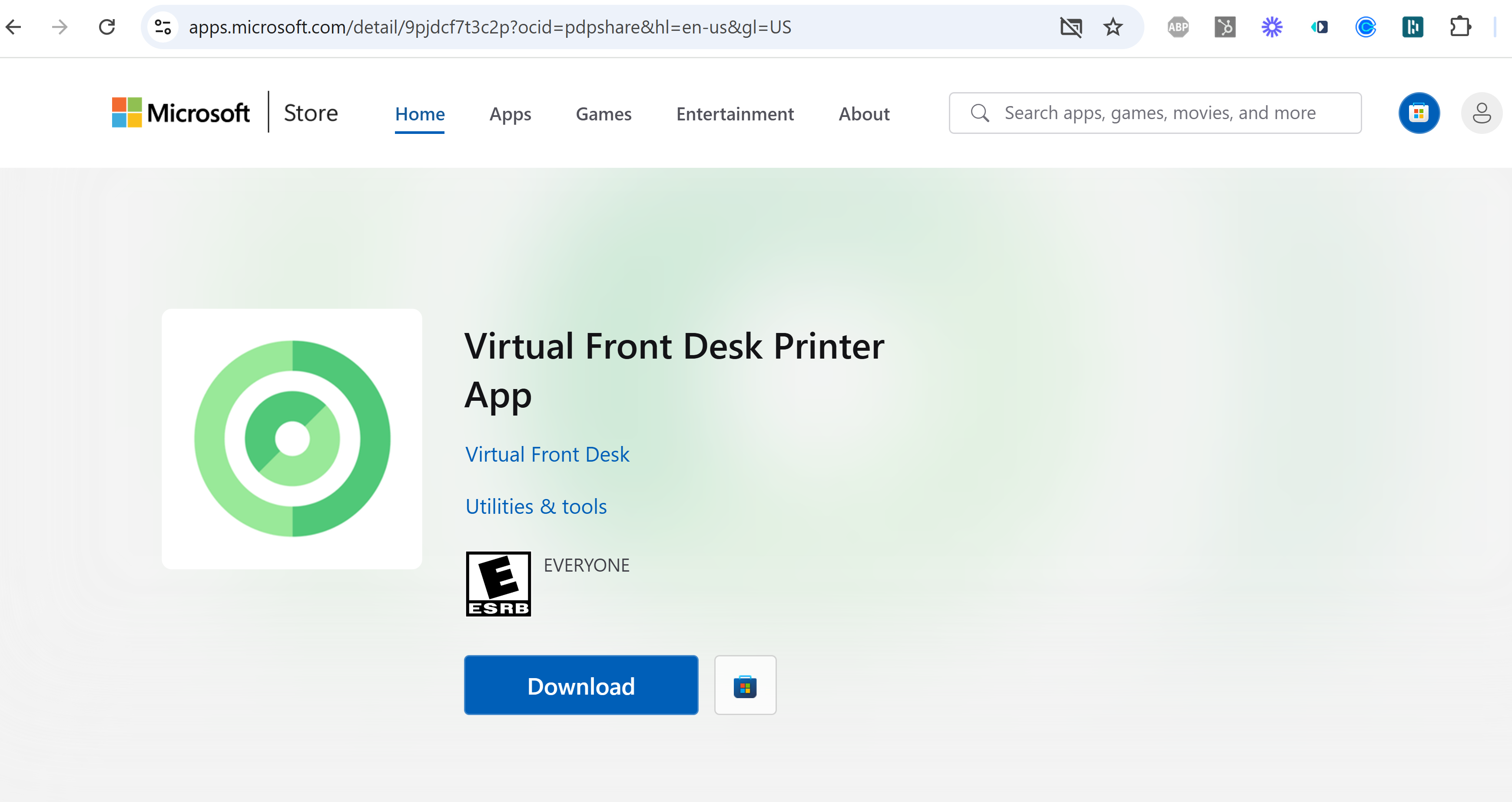
- Access the VFD Printer App on the Microsoft Store using the following link: Download VFD Printer App.
- Install the app on the Windows computer connected to your printers.
Enter Location ID Code, and global admin email
- Once installed, the app will prompt you to enter a Location ID code and the global admin email of your account. Proceed to the next steps to retrieve your Location ID.
- Make sure you have the latest update.
Configuring the Printer in the Virtual Front Desk Dashboard
Log In
- Sign in to your VFD Dashboard.
Access Printer Settings
- Select the location where you’d like to add a printer. Open the editor. Printers are at the location level to allow multiple Station to use the same Printer. If you need one printer per station, create one location per station.
- Navigate to the Printer section.
- Click Add a printer.
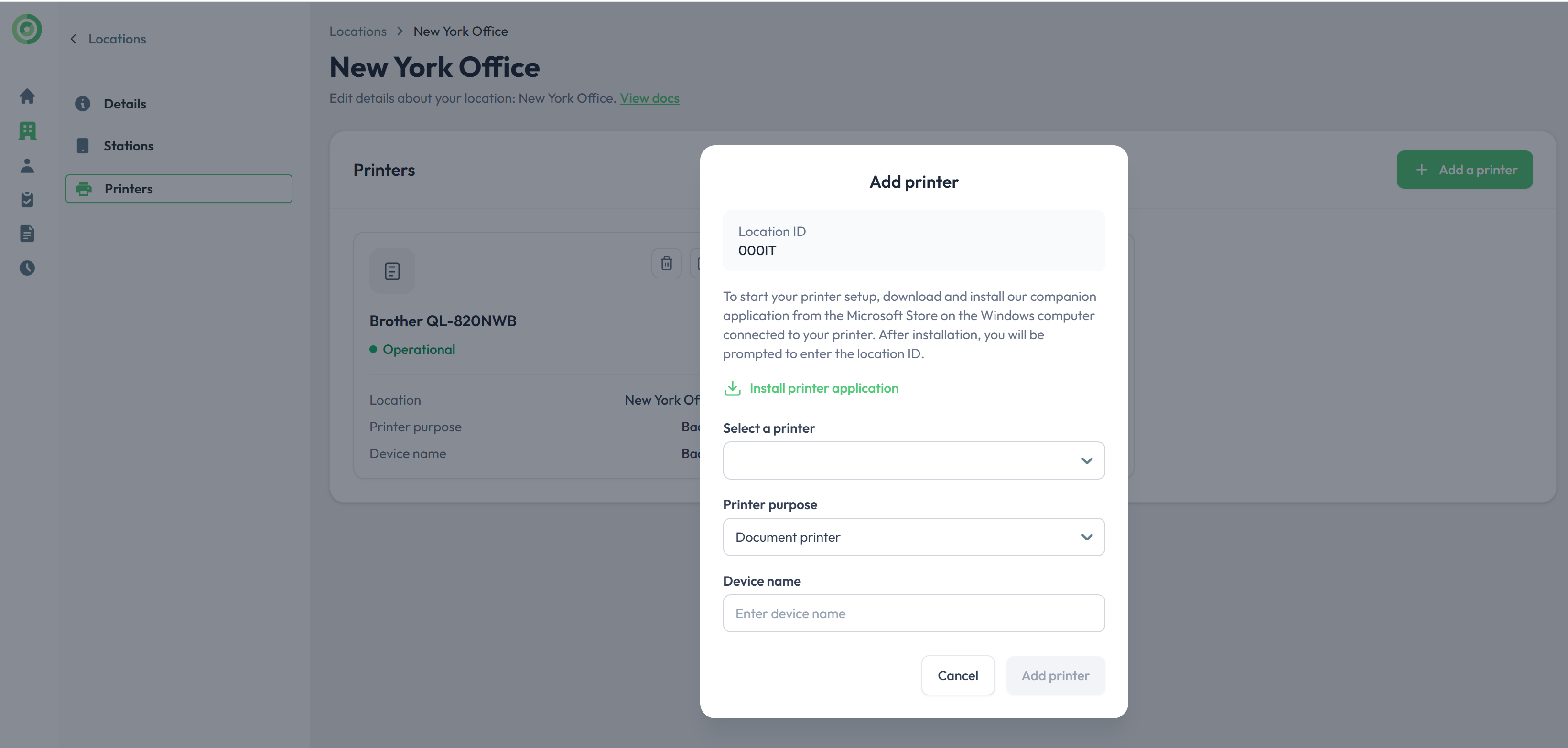
Add a Printer
- Click Add Printer.
- Locate the Location ID.
- Enter the Location ID into the VFD Printer App on your Windows computer.
Select and Configure the Printer
- Choose the printer you want to add from the list.
- Assign a name to the printer.
- Indicate whether it will be used for Badge Printing or Document Printing.
Save Changes
- Click Save Changes to finalize the setup.
- Your printer is now ready to use!
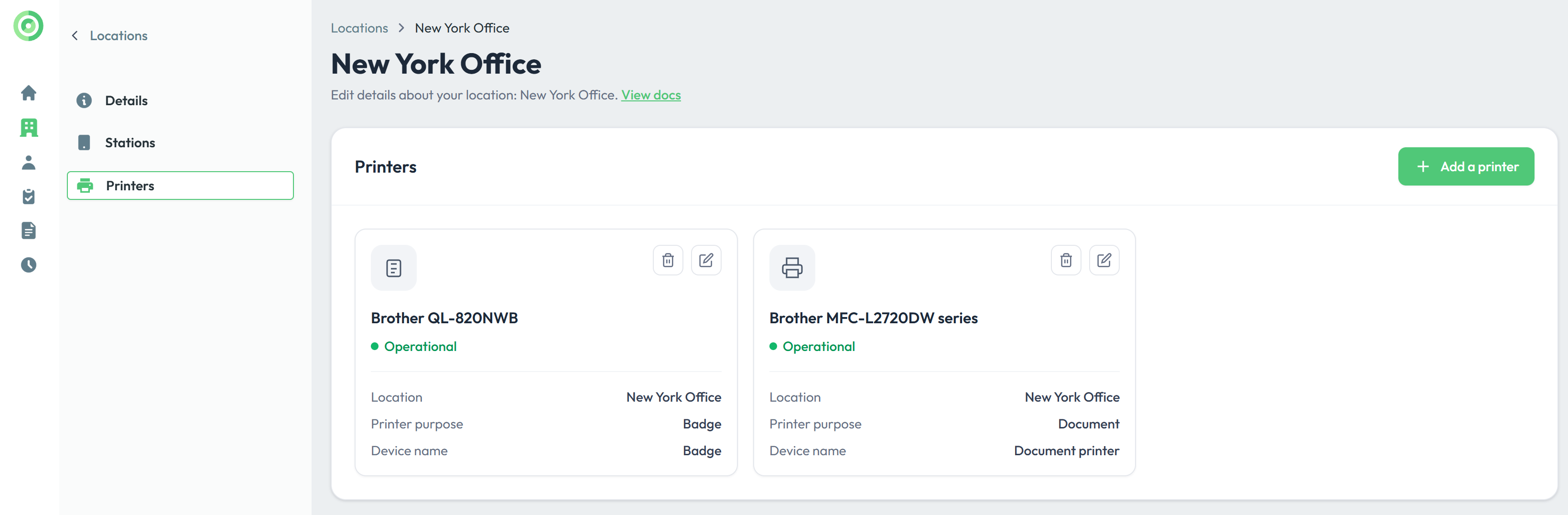
Adding Additional Printers
To add another printer:
- Repeat the steps above for each printer you want to configure.
- All stations in this location will automatically connect to the newly added printers and be ready to send printing tasks.
By following these steps, you can easily manage and configure printers for seamless operation with Virtual Front Desk.
VFD Printer Windows Service (This feature is optional)
The VFD Printer Windows Service is a headless background process that enables Virtual Front Desk to send print jobs to a Windows machine without requiring anyone to be logged in as a Windows user.
It runs automatically on system startup, connects to VFD's cloud infrastructure via Azure SignalR, and listens for incoming print jobs. When a visitor checks in at a VFD station and a badge or document needs to be printed, the service receives the job, downloads the file from Azure Blob Storage, and sends it to the configured printer — all without any user interaction.
Unlike the existing tray app, which stops working when the user logs out or the machine is left unattended, the service runs continuously as a system process. This makes it suitable for dedicated print servers, kiosks, Windows Server environments, and any setup where a permanent user session cannot be guaranteed.
Enabling the Service
The service is bundled with the VFD Printer tray app and managed through it.
- Install the VFD Printer app via the provided MSIX installer
- Open the app a setup window will appear asking for the Location IDa nd Owner Email
- Fill in the credentials and submit
- From the system tray icon, open the menu and select Enable Service Mode
- The app will request administrator permission, install the Windows Service, and close. The service will now run in the background automatically, including after reboots
Disabling the Service
- Open the VFD Printer tray app (run as administrator)
- From the tray icon menu, select Disable Service Mode
- The service will be stopped and uninstalled. The tray app will take over printing as normal
Configuration
- Location ID and Owner Email entered through the tray app setup window. These are stored as system-level environment variables so the service can access them without a user session.
- Printer must be installed system-wide (available to all users), not just for the current user. To verify, run
Get-Printerin PowerShell as administrator. - Label printer media settings— label printers such as the Brother QL series require the correct label size to be set as the system-wide default. Without this, the service (which runs as the LocalSystem account) uses the driver's generic defaults and jobs will fail. Even if configured from the preference tab art the righ label size of 2.4 inches, you must also do it from the properties. To configure: openDevices and Printersas administrator → right-click the printer →Printer Properties→Advanced→Printing Defaults→ set the roll width to 2.4 inches for proper badge formatting.
Limitations
- Sleep mode when the PC enters sleep or hibernate, the Windows Service is suspended along with all other processes. Print jobs sent while the machine is asleep will not be processed. For 24/7 availability, sleep must be disabled on the host machine (recommended for any dedicated print server setup).
- System printers only the service runs as the LocalSystem account and can only access printers installed for all users. User-specific printers and Microsoft Store printer apps are not accessible.
- Updates require reinstall the service does not update automatically. When a new version is available, the tray app's existing update notification can prompt the user to reinstall the service. The process is: disable Service Mode, update the tray app, re-enable Service Mode.
Resolving the ".NET Desktop Runtime 8" Error
If you receive an error indicating that the application requires .NET Desktop Runtime 8, the runtime may not be installed on your computer. This component does not always come pre-installed with Windows.
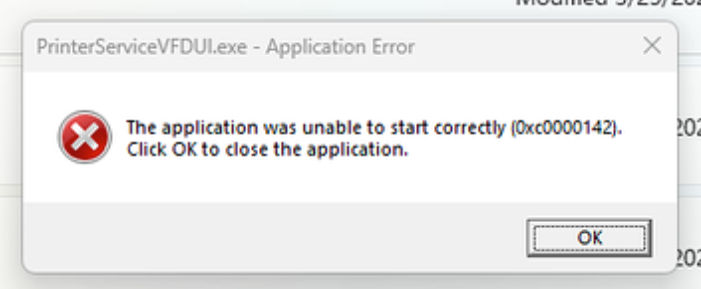
How to Fix the Issue
Step 1: Download .NET Desktop Runtime 8
Open the following link:
https://dotnet.microsoft.com/en-us/download/dotnet/8.0
Scroll down to the ".NET Desktop Runtime 8" section.
Download the x86 (32-bit) version for Windows.
Step 2: Install the Runtime
Run the downloaded installer.
Follow the on-screen instructions to complete the installation.
Step 3: Restart Your Computer
Once the installation is complete, restart your computer to ensure the runtime is properly registered.
Setting Up Badge Printing on Your Visitor Sign-In Form
Access the Sign-In Forms Menu
- Log in to your VFD Dashboard.
- Navigate to the Sign-In Forms section.
Create a New Sign-In Form
- Click on Create New Sign-In Form.
- Fill in the necessary details for your form.
Enable Badge Printing
- In the form settings, locate the Badge Printing option.
- Toggle the option to Enable badge printing.
- Configure your badge by customizing its design and the information fields.
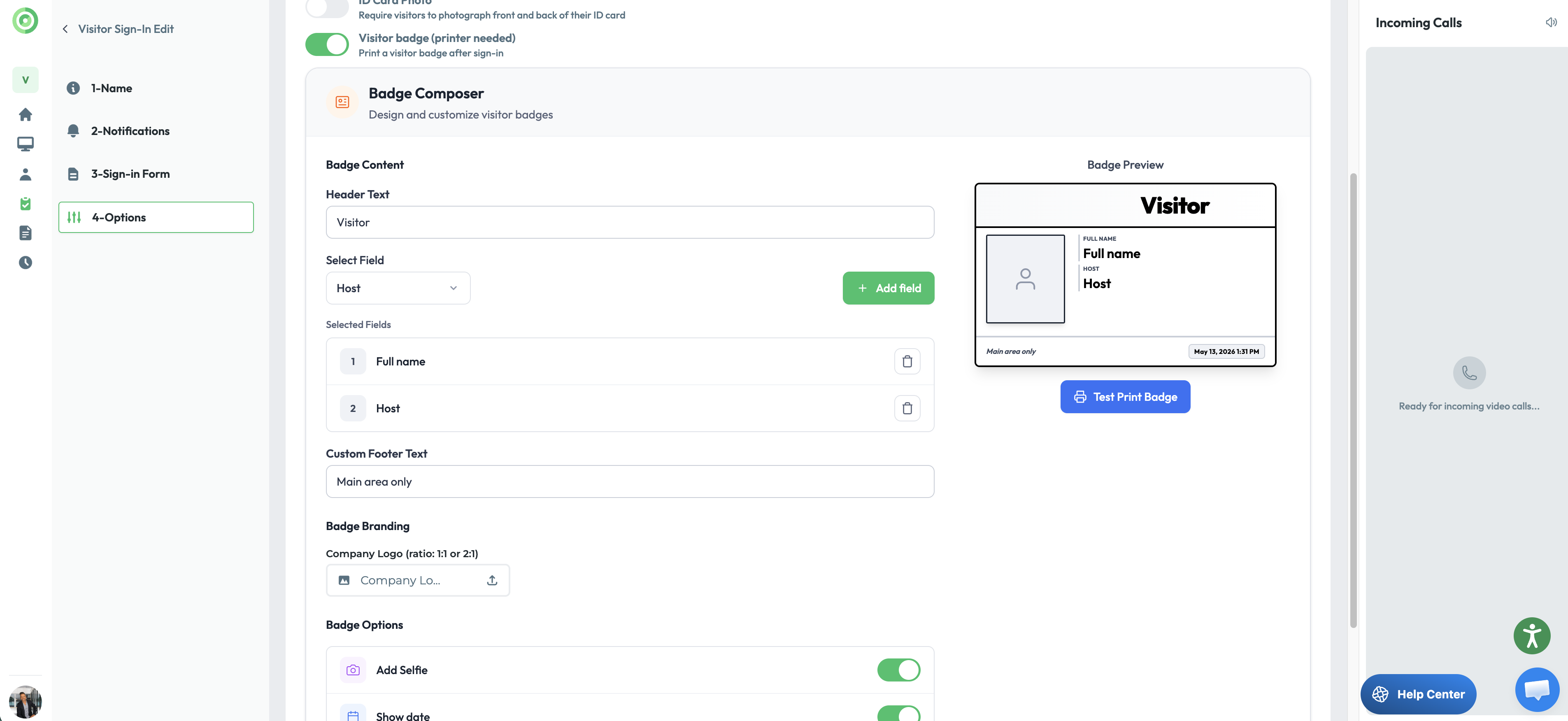
Save Your Changes
- Click Save to apply your settings.
- Your sign-in form is now set up to print badges automatically when visitors check-in.
Printing Documents During a Live Video Call
To print a document while on a video call:
Upload the Document
- Before the Call:
- Go to the Documents section in your dashboard.
- Upload the PDF documents you may need during the call.
- During the Call:
- Use the upload option within the video call interface to select or upload a document on the spot.
Send to Printer
- Once the document is uploaded, click on the Send to Printer button.
- The document will be sent to your connected printer and printed immediately.
Troubleshooting Guide: Printer Status "Not Operational"
If your printer status shows "Not Operational," it typically indicates one of the following issues:
The Virtual Front Desk Printer App on Your Windows Computer Is Closed or Not Functioning Properly
- Solution: Close and reopen the app. If the issue persists, uninstall and reinstall the app to ensure it is working correctly. Make sure the app is updated to the latest version. Download VFD Printer App.
Your Printer Is Disconnected From Your Computer or the Network
- Solution: Verify that all connections are secure. Ensure the printer is connected to your computer or network. After checking, refresh your Dashboard to update the status to "Operational."