Ms Teams integration for video calls, call queue & auto attendant
Microsoft Teams integration for video calls, call queue & auto attendant
Please read carefully for a successful Microsoft Teams integration.
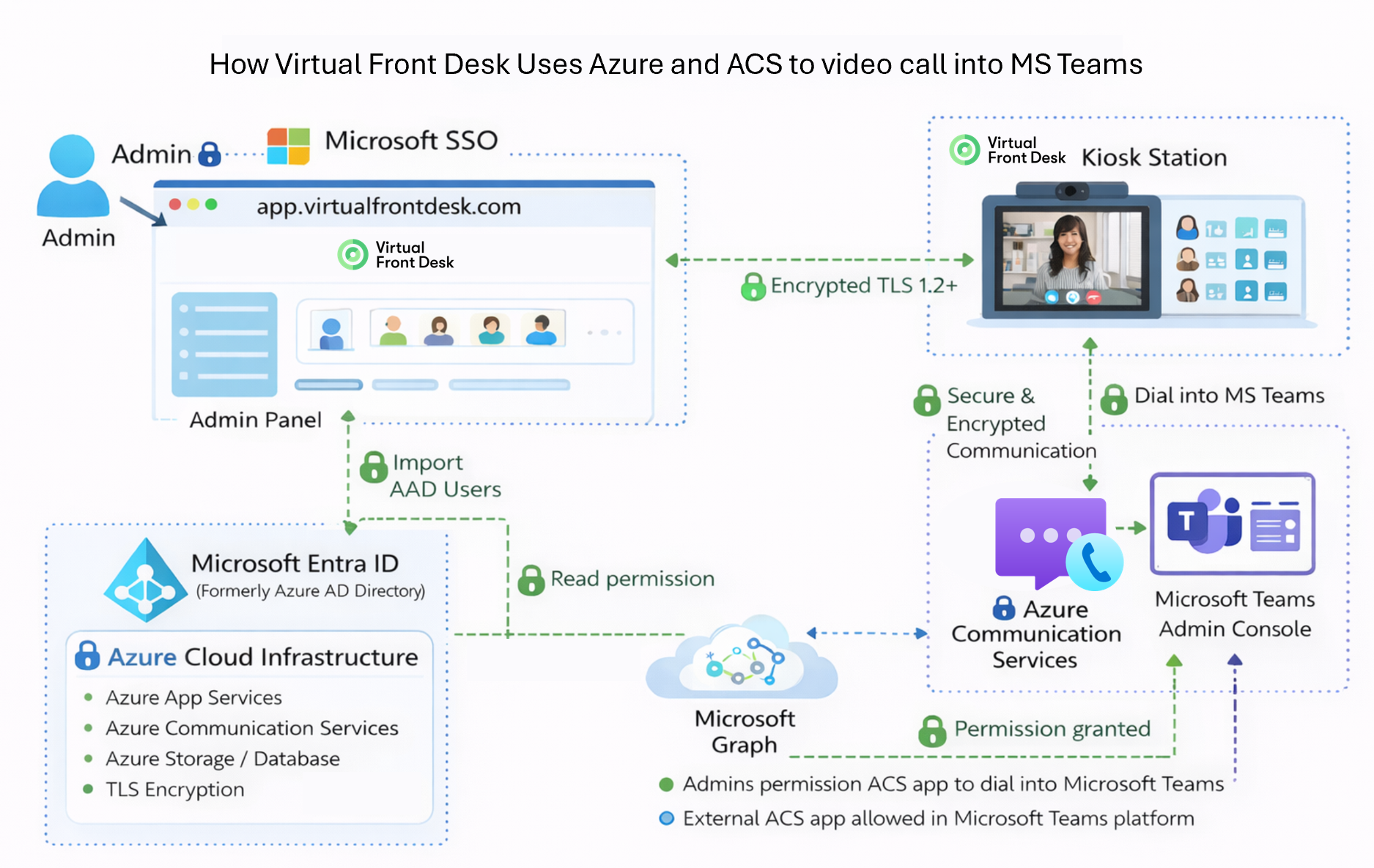
With the Microsoft Teams integration, station calls can ring directly in Microsoft Teams instead of the Virtual Front Desk dashboard. A button on your station can video call a user in the Microsoft Teams desktop or mobile app, a Microsoft Teams call queue, or an auto attendant. Users who answer in Microsoft Teams never need to sign in to Virtual Front Desk.
Only want text notifications in Microsoft Teams? SMS for Microsoft Teams sends a text notification into Microsoft Teams instead of a video call. It uses a simpler setup and does not require the Microsoft licenses described below.
Before you start: Microsoft licenses
To receive video calls in Microsoft Teams, you need:
- A Microsoft Teams Phone calling plan assigned to your Microsoft administrator.
- A Teams Phone Standard license for every other user who will answer calls in Microsoft Teams.
You manage these in the Microsoft Teams admin center. Some of the settings below can take up to 24 hours to take effect.
Step 1. Allow Virtual Front Desk to call into Microsoft Teams
- Sign in to the Microsoft Teams admin center and open External access.
- Turn on external access and add Virtual Front Desk’s Azure Communication Services (ACS) resource at the bottom of the page. Virtual Front Desk ACS resource ID: 46a7945f-eec2-4aad-bd52-abcc5522116e
- In the Microsoft Teams admin center, turn on Enterprise Voice for every user who will answer calls.
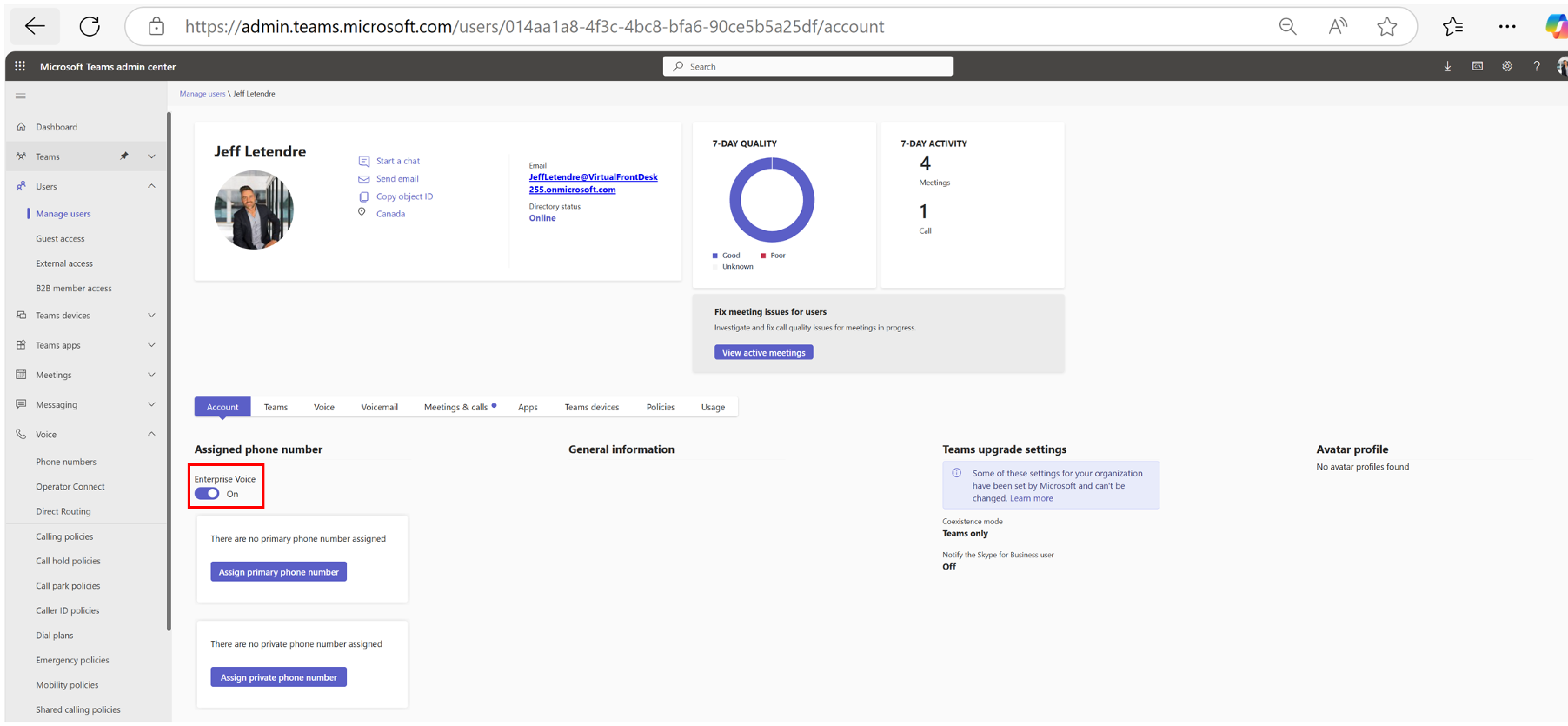
Enterprise Voice turned on for a user in the Microsoft Teams admin center
Step 2. Connect your Azure directory
- In Virtual Front Desk, click the gear icon next to your name, then under Organization, select Integrations.
- Under Microsoft Azure directory, connect your Azure Active Directory (Microsoft Entra ID).
- Choose how much access Virtual Front Desk has: your full directory, or only your groups. This decides which users and groups you can import.
- Accept the Microsoft permissions request. A Microsoft administrator must grant this permission.

The Microsoft Azure directory integration
Step 3. Import your Microsoft Teams users
- In the main menu, click User management, then open the Users tab.
- In the Microsoft Teams integration section, search for a user or a call queue under Select a Microsoft Teams user or queue, and add them.
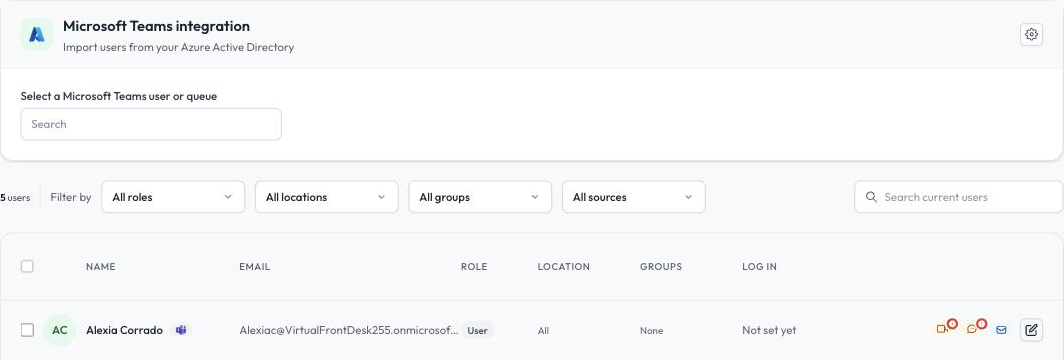
Importing users from your Azure directory
Imported users show a Microsoft Teams icon next to their name. The icons in each row show how that user is reached. A red mark means something needs attention, such as a missing Teams Phone license.
Important: Only users imported from your Azure directory can receive calls in Microsoft Teams. Users invited by email use the Virtual Front Desk dashboard and cannot be connected to Microsoft Teams.
Step 4. Check each user’s Microsoft Teams settings
Click the pencil icon next to a user and scroll to Integrations:
- Microsoft Teams enabled: the user answers and is notified through Microsoft Teams.
- Teams video call: the user answers station calls in Microsoft Teams. Virtual Front Desk checks the user’s license and shows a warning if it cannot find a Teams Phone license. Click Check again after the license is assigned.
- Teams text notification: the user receives a text notification in Microsoft Teams. See SMS for Microsoft Teams.
- This is a Call Queue or Auto Attendant: turn this on when the imported entry is a Microsoft Teams call queue or auto attendant rather than a person.
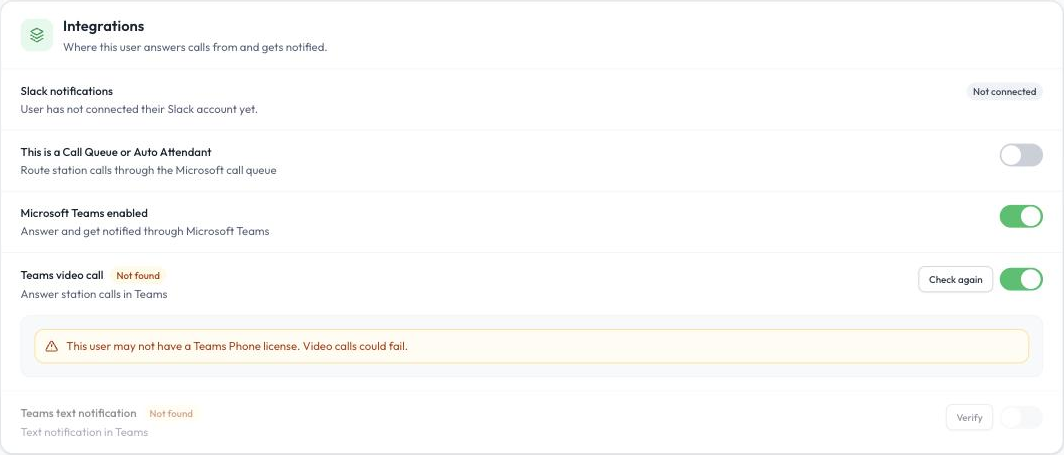
A user’s Microsoft Teams settings
To recheck all users at once, click Sync Teams checks on the Users tab.
Step 5. Add users to your station
Link a station button to a user with the Video call user action, or to a group with Video call group. When a visitor presses the button, the call rings in Microsoft Teams. To learn more, read Creating Stations.
Groups, call queues and auto attendants
You can reach several Microsoft Teams users in three ways:
- Virtual Front Desk groups: groups that contain Microsoft Teams users can use the Queue or List call mode. Broadcast is not available for Microsoft Teams users. To learn more, read Groups and call queue.
- Azure groups: sync a group from your Azure directory to create an employee directory on your station. To learn more, read Azure Groups.
- A Microsoft Teams call queue or auto attendant: create it in the Microsoft Teams admin center, then import it like a regular user (Step 3), turn on This is a Call Queue or Auto Attendant (Step 4), and select it on a Video call user button.
For a call queue or auto attendant, also make sure that:
- A free Microsoft Teams Phone Resource Account license is assigned to it in the Microsoft 365 admin center.
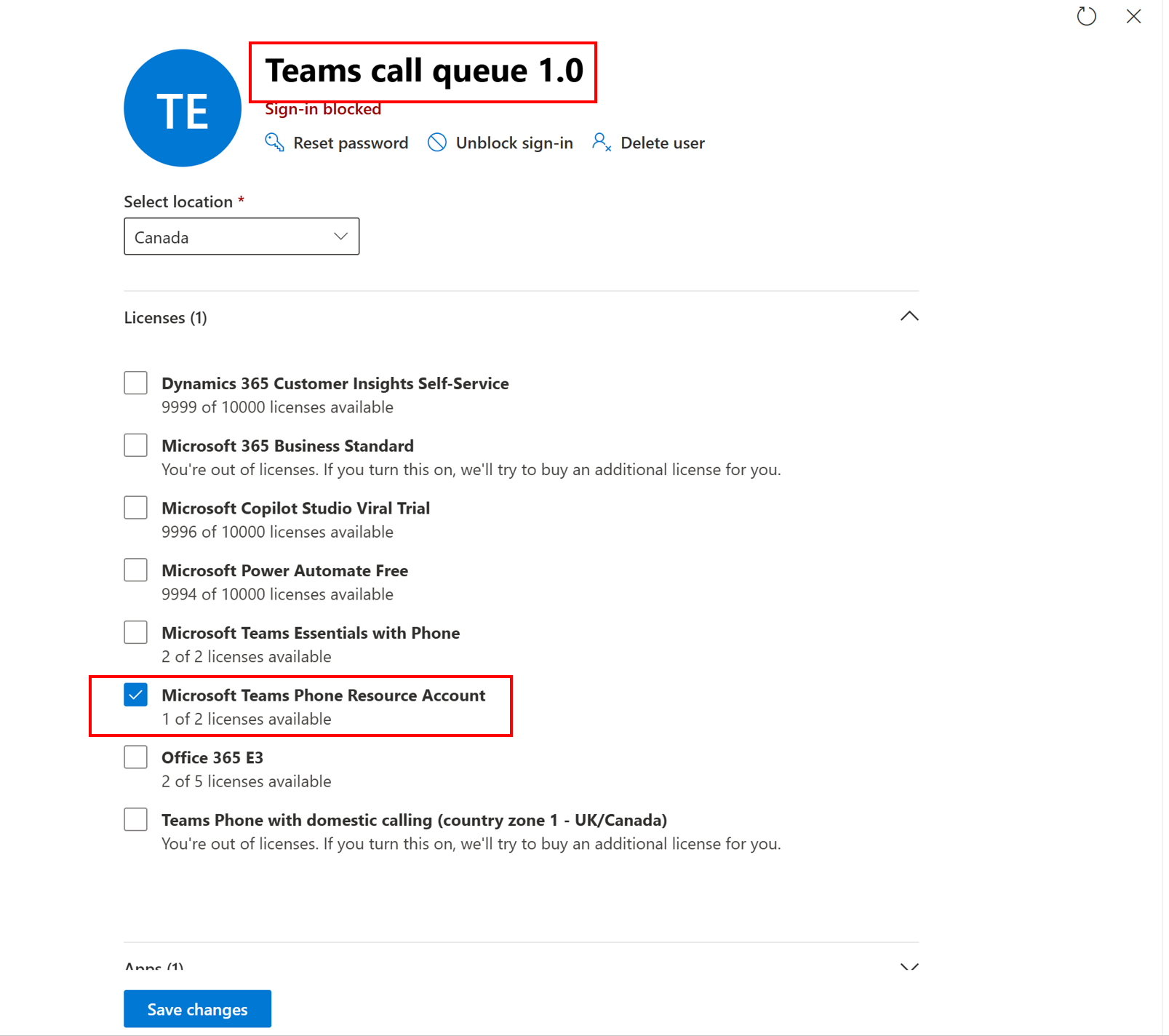
Assigning the Microsoft Teams Phone Resource Account license
- Conference mode is turned on in the call queue’s settings in the Microsoft Teams admin center.
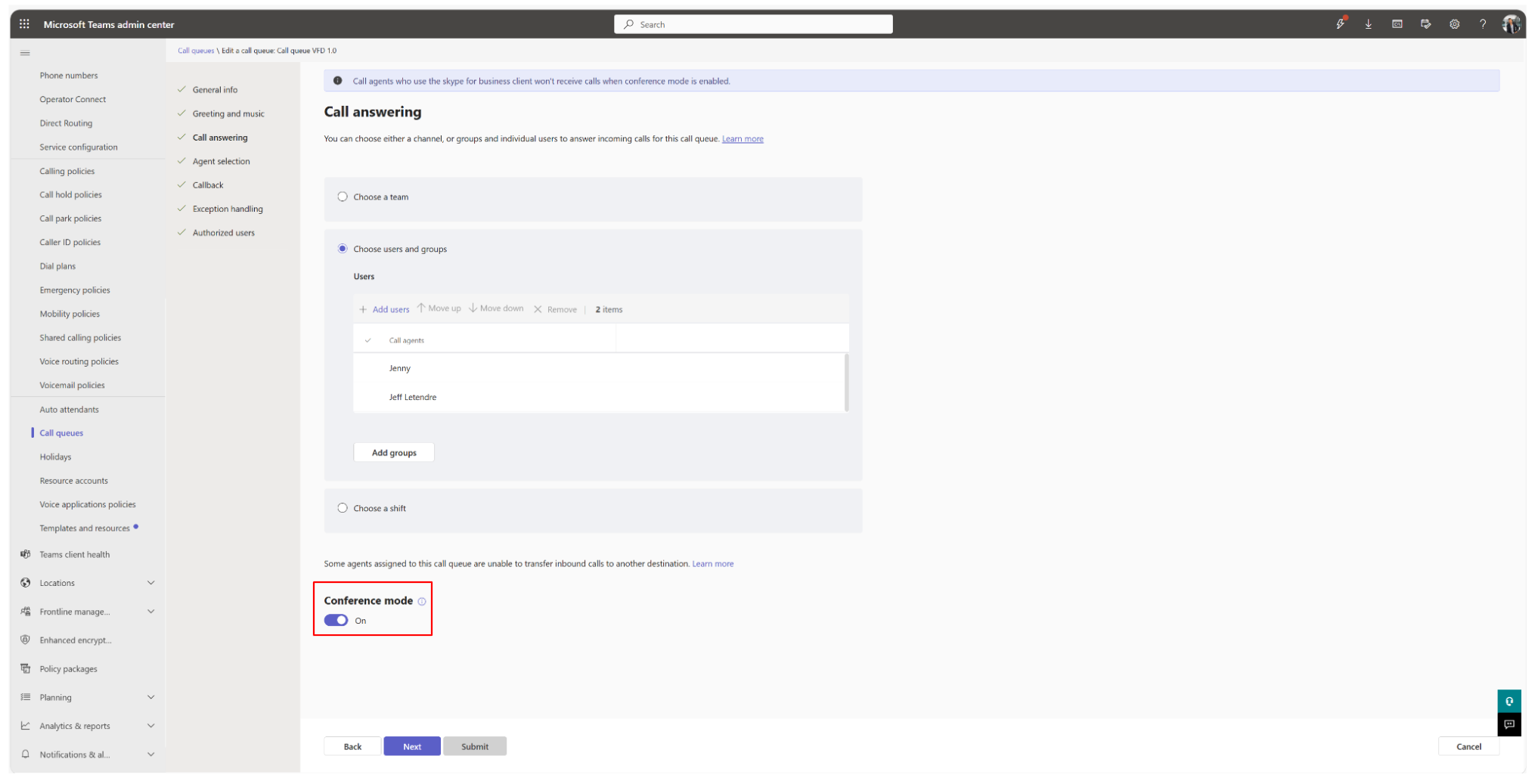
Conference mode turned on for a call queue
To choose between a call queue and an auto attendant, read MS Teams Call Queue & Auto Attendant Explained.
Limitations
Calls answered in Microsoft Teams do not include the Virtual Front Desk call tools, such as ID capture, screenshots, sending PDFs to the screen or printer, payments and QR codes. Live translated closed captions do work in Microsoft Teams calls. To learn more about the call tools, read Live Call Features.
Architecture Diagram