
Phone calls and call forwarding
Phone calls and call forwarding
Virtual Front Desk can reach people by phone as well as by video. You can add phone numbers to your stations in three ways: a button that dials a number directly, call forwarding for a user who cannot answer a video call, and phone-only groups.
1. Phone call button
A phone call button dials a number as soon as the visitor presses it.
- In the main menu, click Stations, open the station, and go to the Buttons tab.
- Click Add button and enter a Button name.
- Under Button action, select Phone call.
- Under Option details, enter the international code, the Phone number and, if needed, an extension.
- Click Add button.
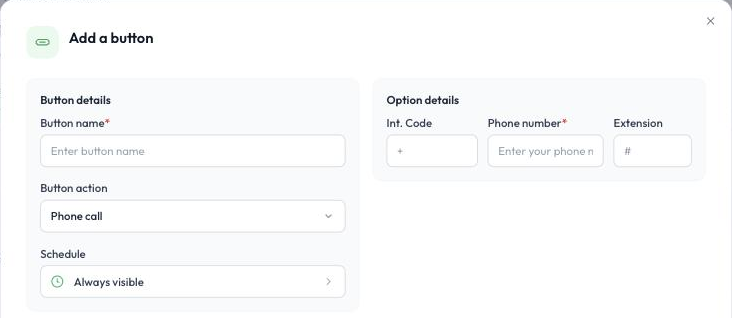
A phone call button
2. Call forwarding for a user
With call forwarding, a video call is forwarded to a user’s mobile phone or landline when they cannot answer it in Virtual Front Desk. The system dials the forwarding number:
- when the user is offline, or
- when the user is online but does not answer the video call in time (30 seconds by default).
Each user can set their own forwarding number:
- Click the gear icon next to your name at the bottom left of the dashboard.
- Under Personal, select Notifications & calls.
- Turn on Call forwarding and enter the international code, phone number and, if needed, an extension.

Call forwarding in Notifications & calls
Administrators can also set call forwarding for any user under User management > Users by editing the user. To learn more, read Users.
Change the forwarding delay
The delay before a call is forwarded is 30 seconds by default. An administrator can change it for the whole organization under Settings > Organization > Features > Call forward time. This delay applies to users and to groups that do not use a call queue.

The Call forward time setting
3. Phone-only groups
A group can contain only a phone number, with no users. When a visitor selects the group, the system dials that number directly.
Unlike a single phone call button, phone-only groups let you build a submenu: select several groups on one Video call group button, and visitors choose from a list of names. This is especially useful to display a company or department name instead of a person. For example, a coworking space can create a group for each tenant company with only that company’s phone number, and list all of them in one submenu. Pressing a company’s name dials its number.
To learn how to create groups, read Groups and call queue.