Customization, logo and background images & videos
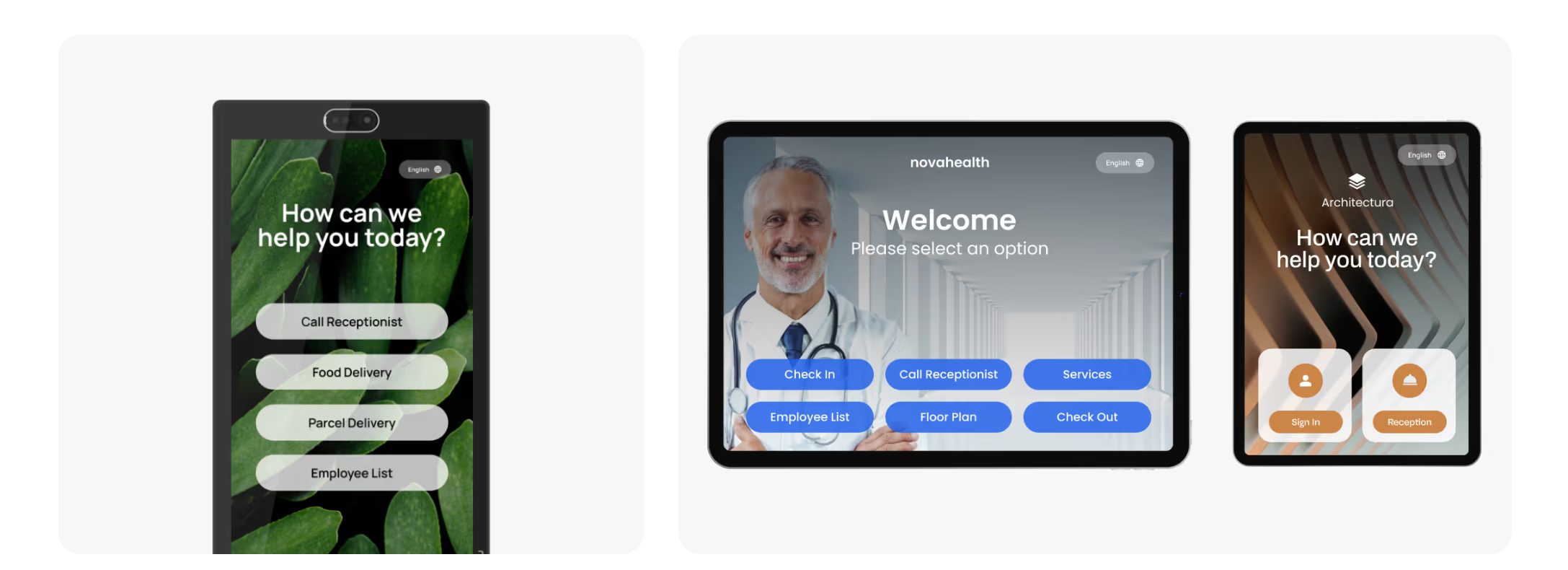
Customization, logo and background images & videos
You can brand each station with your logo, a background image or video, your own welcome message and button colors. To open these settings, click Stations in the main menu, open the menu (three dots) next to a station, click Edit, and select the Branding tab.
Logo
Upload your logo, then adjust its Logo size (in pixels) and Logo opacity. A square PNG works best. Click the X next to the file to remove it.
Background
Give your station a fresh, welcoming look with a background image or a looping video. Choose a landscape or portrait video from our video library, or upload your own image or video. Videos can be in MP4, WebM or OGG format, up to 100 MB. For best results, match the image or video to your device’s orientation (portrait or landscape) and resolution.
Under Background overlay, you can add a color layer over the background and set its opacity. This makes the welcome text easier to read on a busy image or video.
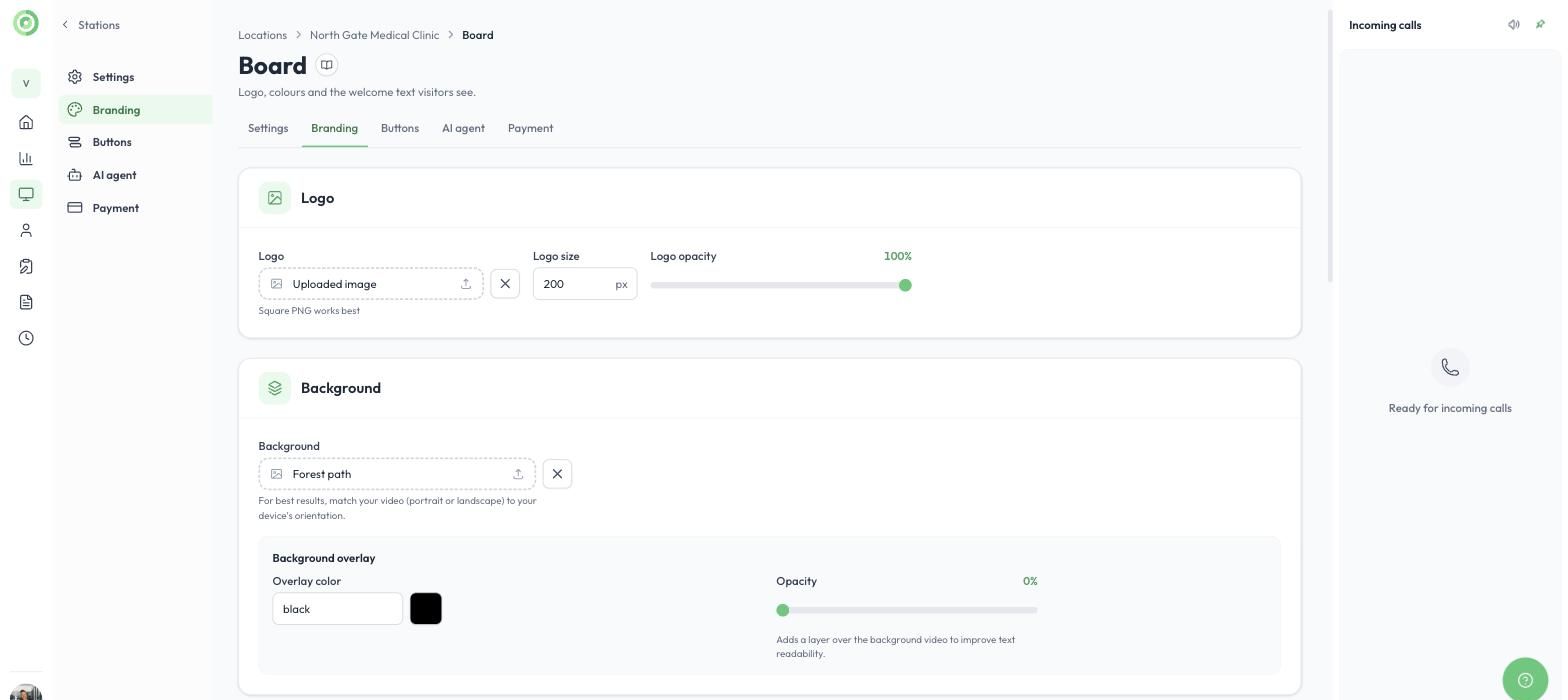
Logo and background settings
Tip: For a fully custom look, design a single background image that already includes your logo and welcome text, instead of using the separate logo and welcome message settings. This gives you complete control over the layout.
Welcome screen
- Welcome screen message: the text visitors see on the welcome screen. Use the editor to change the font, size, style and alignment, or to add lists.
- Welcome text color and Welcome text opacity.
- Video calling waiting message: the text displayed while the visitor waits for someone to answer a call. The default is “We will be with you shortly.”
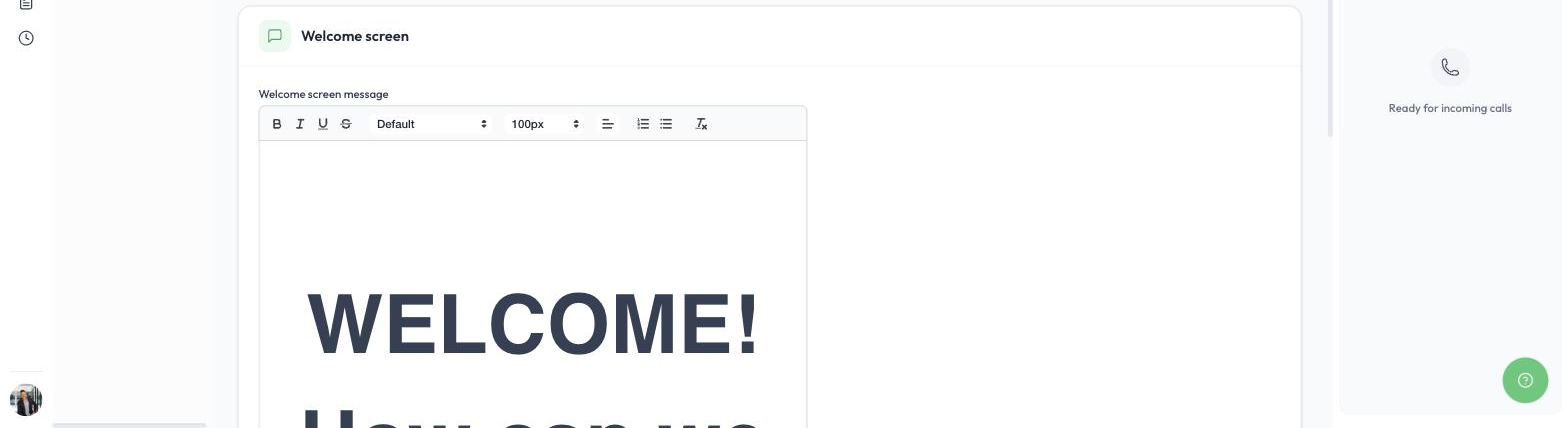
Editing the welcome screen message
Buttons style
Set the Default button color and Default button text color for all buttons on the station, the Number of button columns (up to 2 in portrait mode) and the Vertical button alignment. You can override the colors of a single button, or give it its own background image, when you add or edit that button in the Buttons tab.
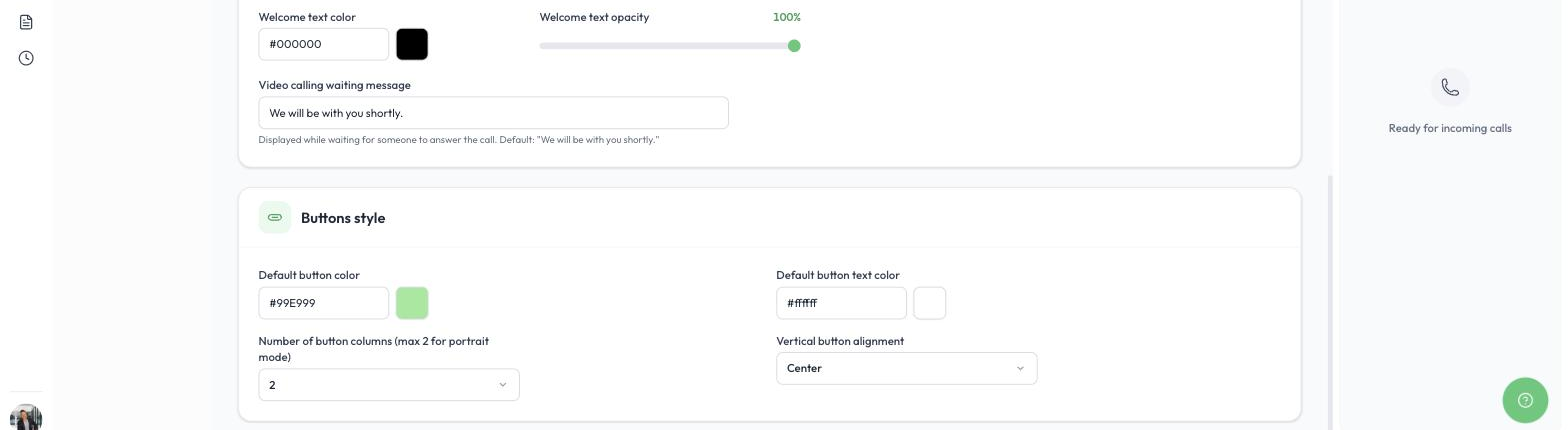
Waiting message and buttons style
Images behind buttons
Instead of a plain color, each button can show an image, such as a photo, an icon or a designed graphic that matches your brand. To add one:
- Open the station’s Buttons tab.
- Click Add button, or the pencil icon next to an existing button.
- Under Button styling, click Upload next to Button background image and choose your image.
- Adjust the Opacity, Button width and Button text size if needed, then save the button.
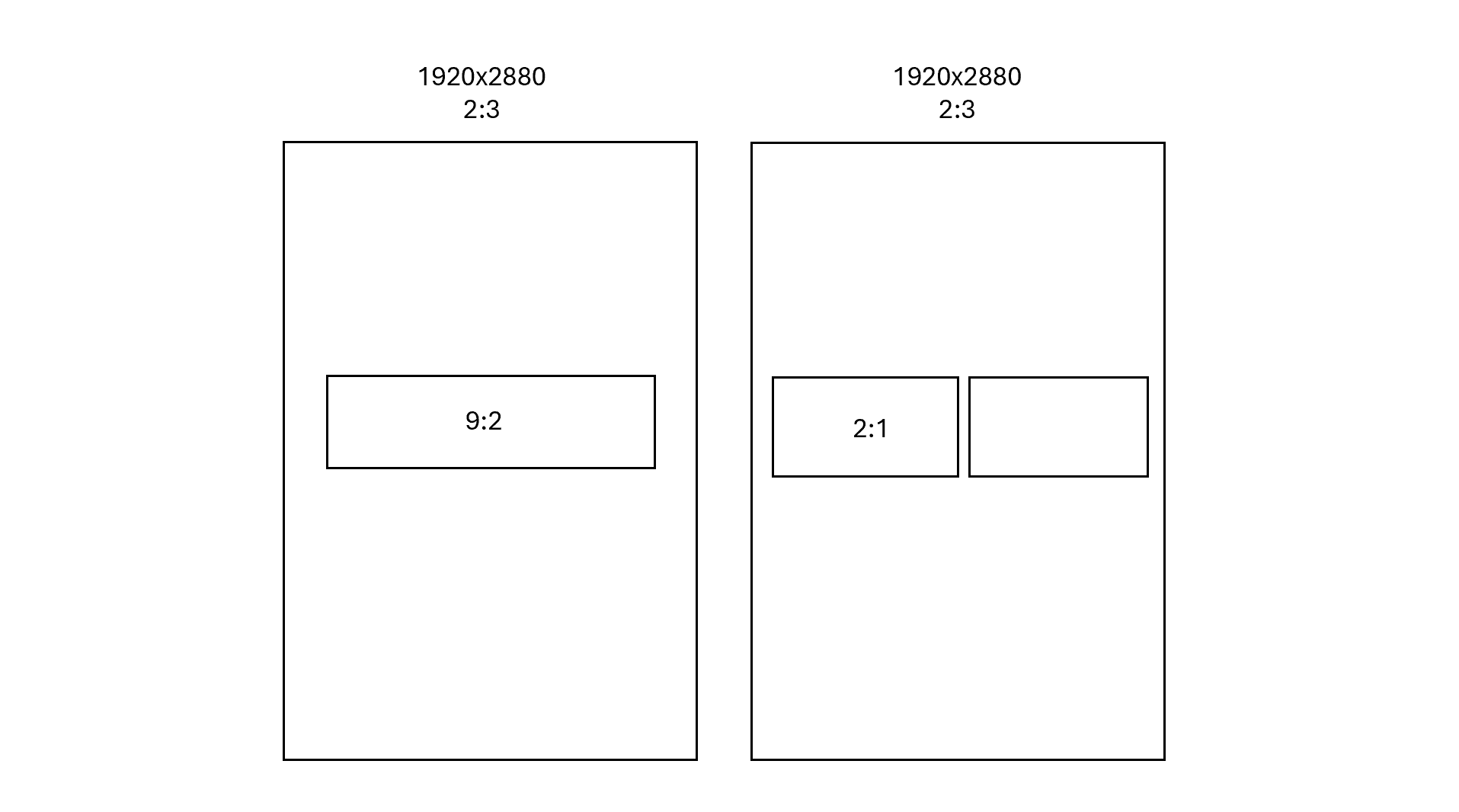
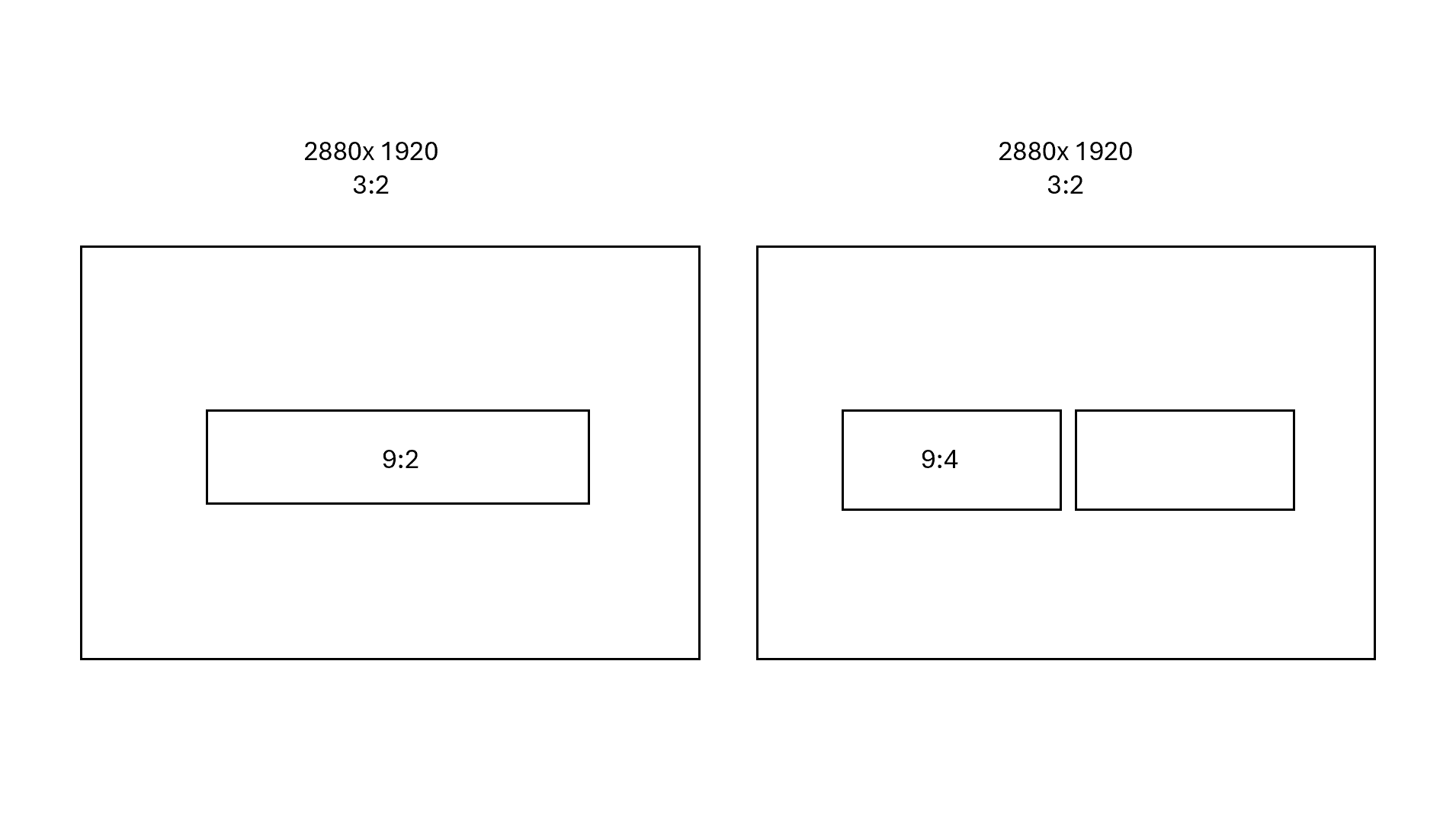
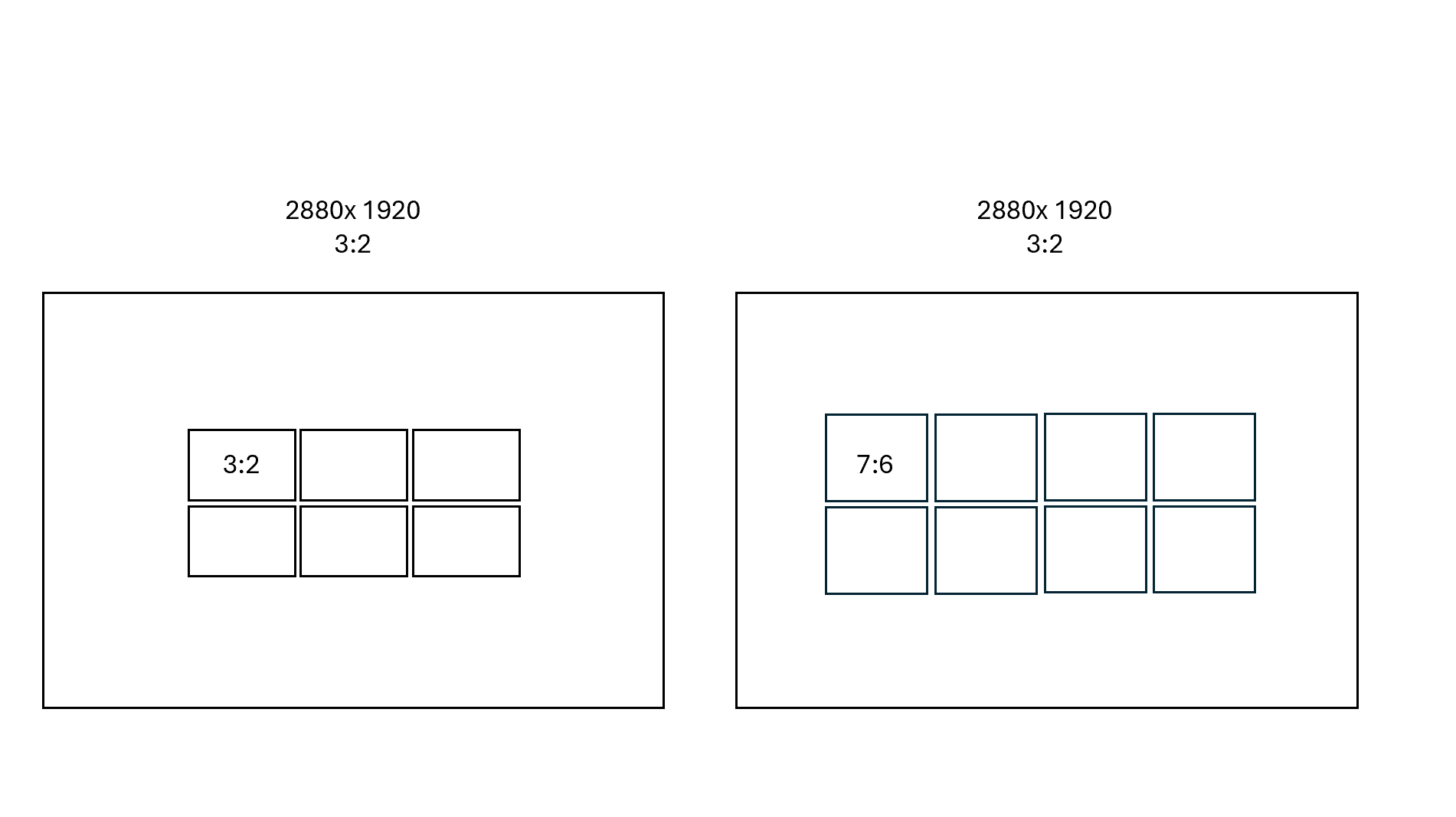
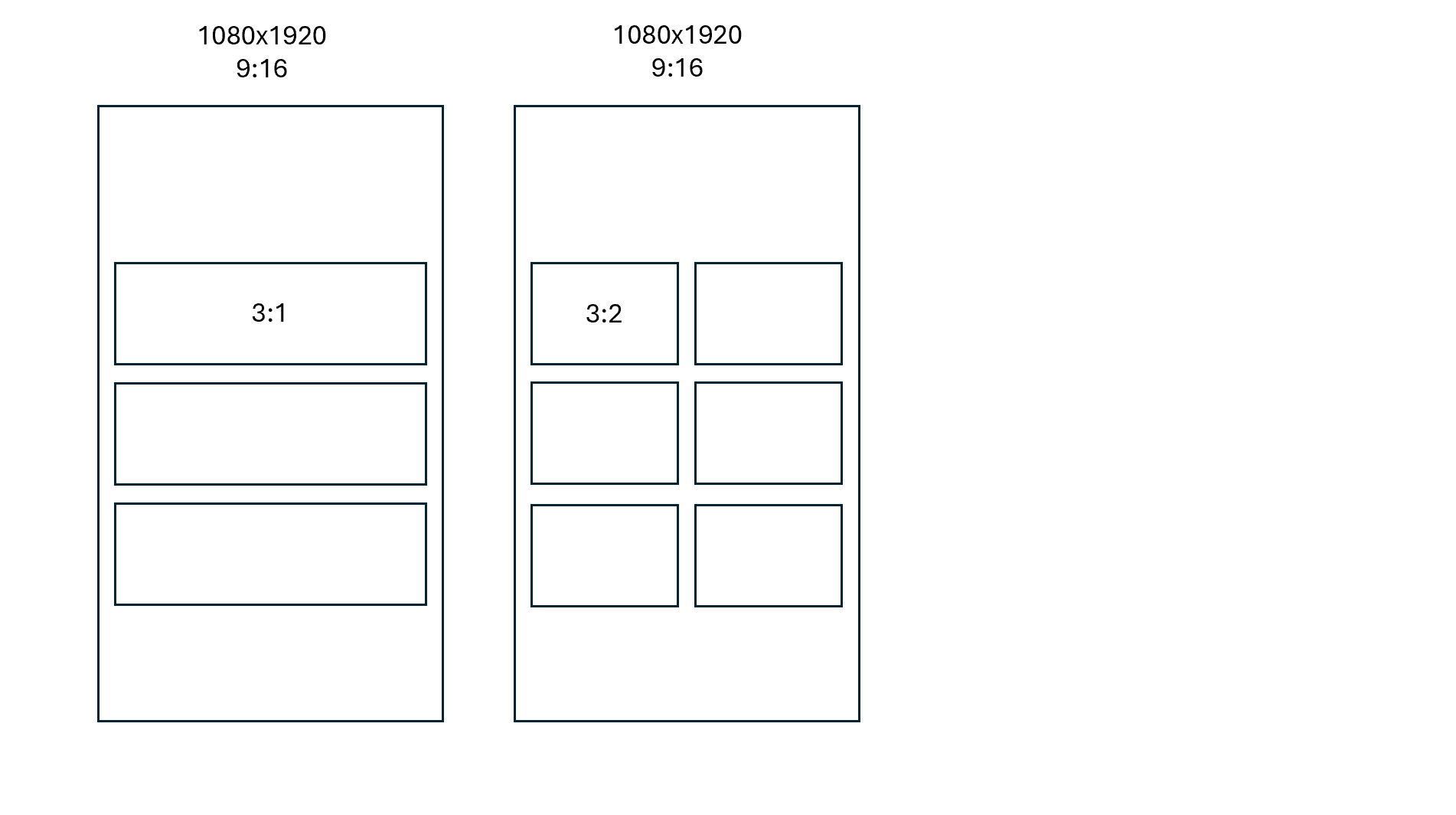
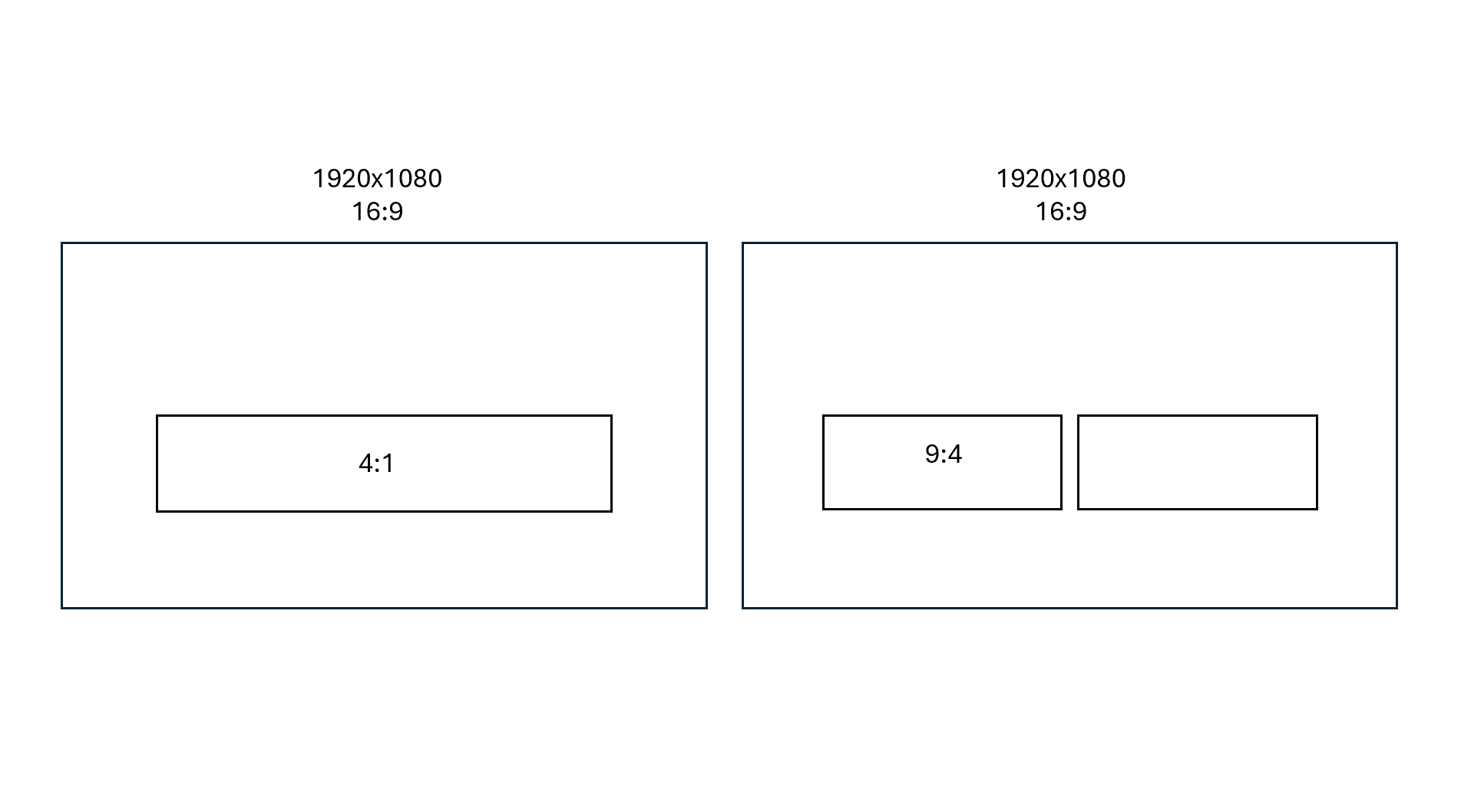
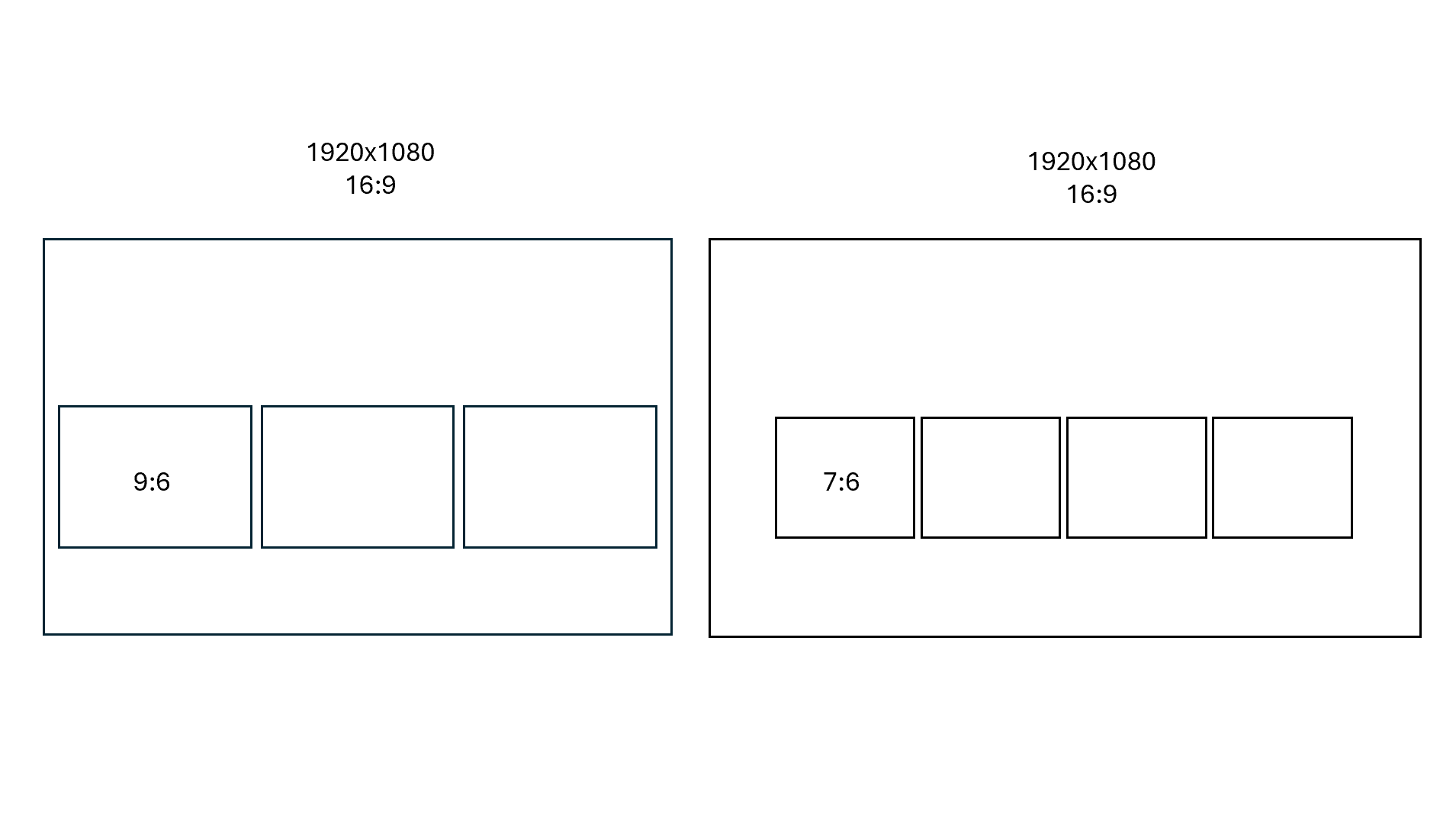
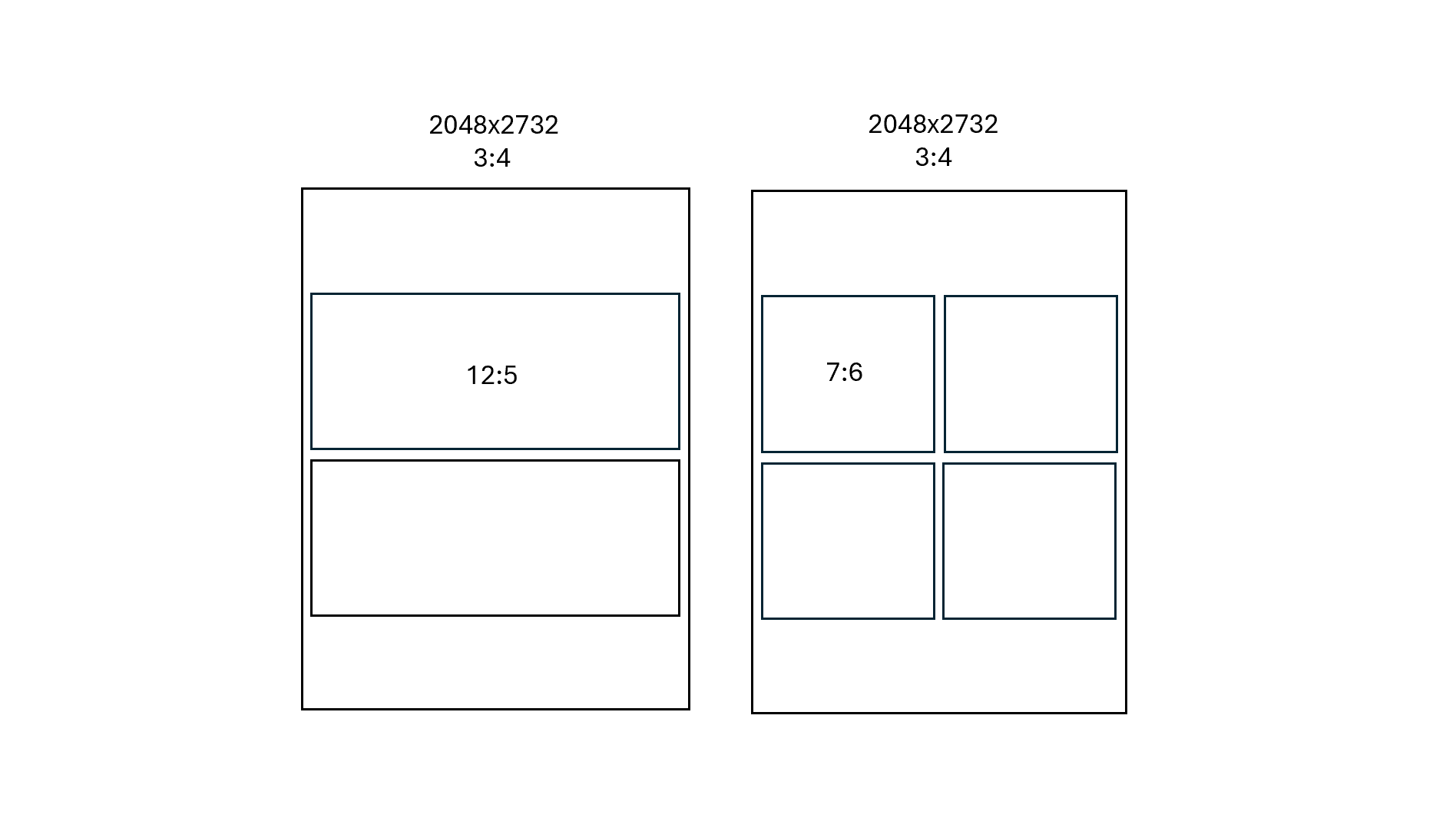
The ideal size for a button image depends on whether the station is in portrait or landscape mode, the device’s resolution and aspect ratio, and the number of button columns. You will find examples of button sizes for common devices at the end of this article.
Choosing the right size for background and button images
For the sharpest result, use background and button images that match your device’s resolution and aspect ratio. The examples below show the button sizes for common devices, in portrait and landscape mode and with different numbers of button columns.
To create images at the right size, you can use a design tool such as Canva. Start a new design with a canvas at the correct aspect ratio. For example, for a 7:6 ratio, use a 700 x 600 pixel canvas. Keeping the ratio and scaling the dimensions up or down keeps your images sharp on the station.
- Devices with a 1080 x 1920 resolution (9:16 ratio): for example Neat Frame, Elo Touch and all-in-one PCs.
- Devices with a 2048 x 2732 resolution (3:4 ratio): for example iPad Pro and some Android tablets.
- Devices with a 1920 x 2880 resolution (2:3 ratio): for example Surface tablets.
More ways to customize a station
In the station’s Settings tab, you can also split the screen to show a web page or a looping video beside the buttons, display a QR code on the welcome screen, and hide the Virtual Front Desk logo. To learn more, read Creating Stations.
Devices with 1080x1920 resolution and 9:16 aspect ratios. (Ex: Neat Frame, Elo Touch, All in one PC)
Devices with 2048x2732 resolution and 3:4 aspect ratios. (Ex: iPad Pros, Some Android Tablets)
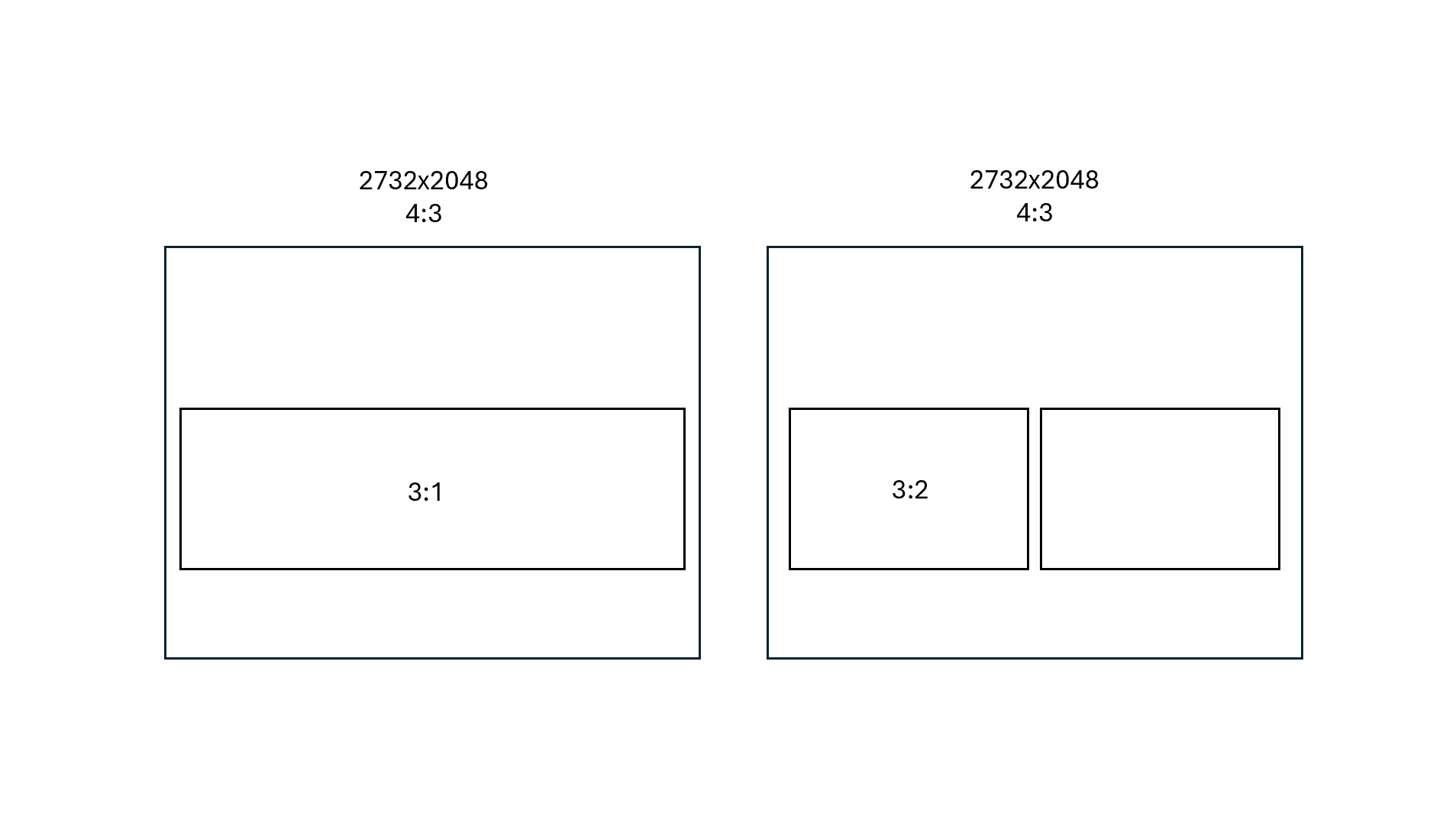
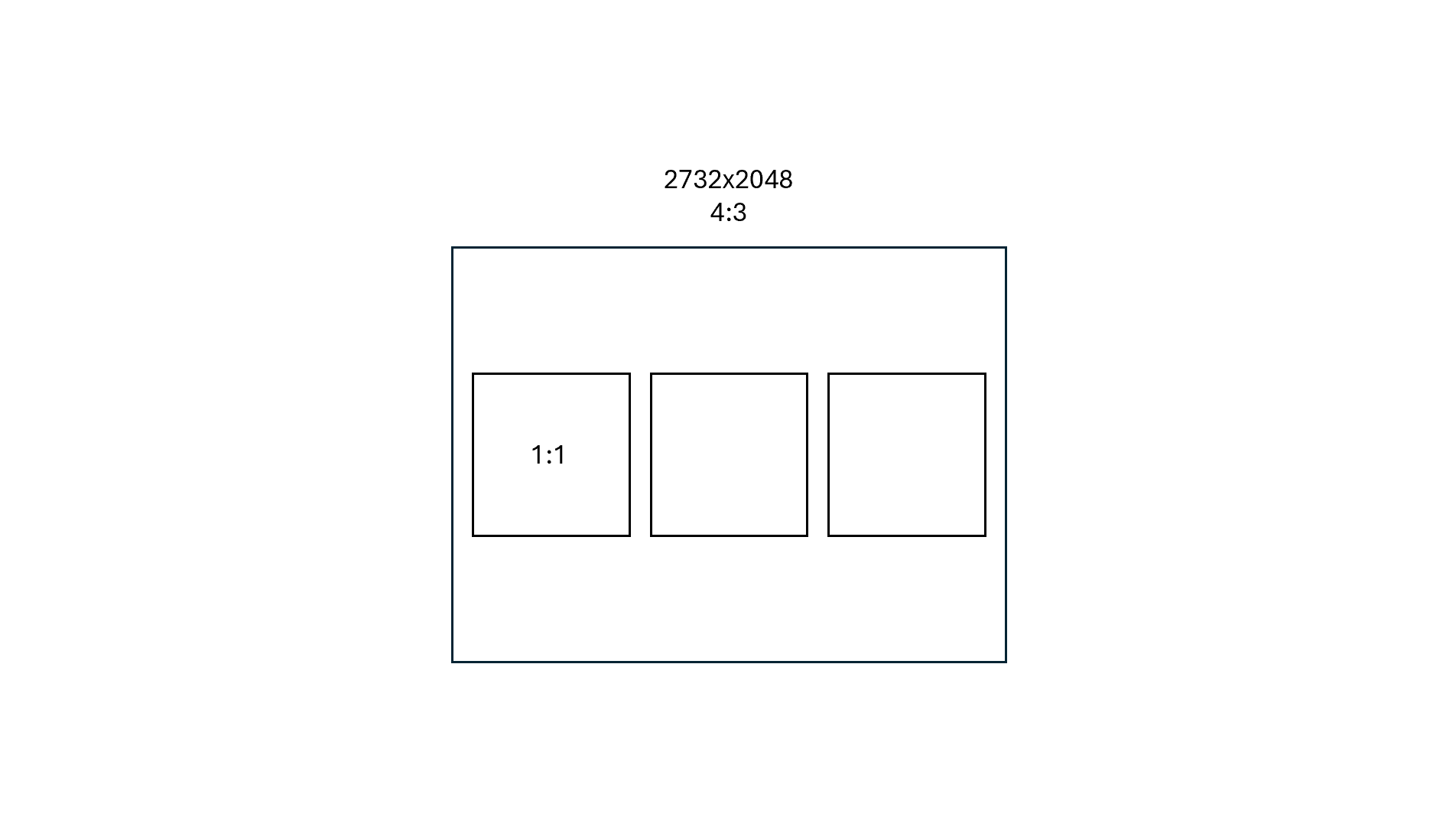
Devices with 1920x2880 resolution and 2:3 aspect ratios. (Ex: Surface Tablets)