
Emergency Message
Emergency message
In an emergency, such as a fire alarm, an evacuation, a lockdown or severe weather, you can send a text message (SMS) to every visitor who is still in your building. The emergency message is sent from your dashboard in a few clicks, so visitors receive your instructions on their own phone, wherever they are in the building.
Note: Only owners, administrators and managers can send emergency messages.
Who receives the emergency message
The message is sent to every visitor who:
- signed in at one of your stations today,
- has not signed out yet,
- entered a mobile number when signing in, and
- signed in with a sign-in form that has Emergency message turned on.
Before you start: prepare your sign-in form
Do this once for each sign-in form, so your visitors can be reached in an emergency.
- In the main menu, click Visitor sign-in, then click the edit icon of your form.
- In the Sign-in form tab, click Add field, choose the Mobile number field type and give it a name, such as “Mobile number”. We recommend making it required, so every visitor leaves a number.
- In the Options tab, under Advanced features, turn on Emergency message. This option becomes available once the form has a mobile number field.
- Save your form.
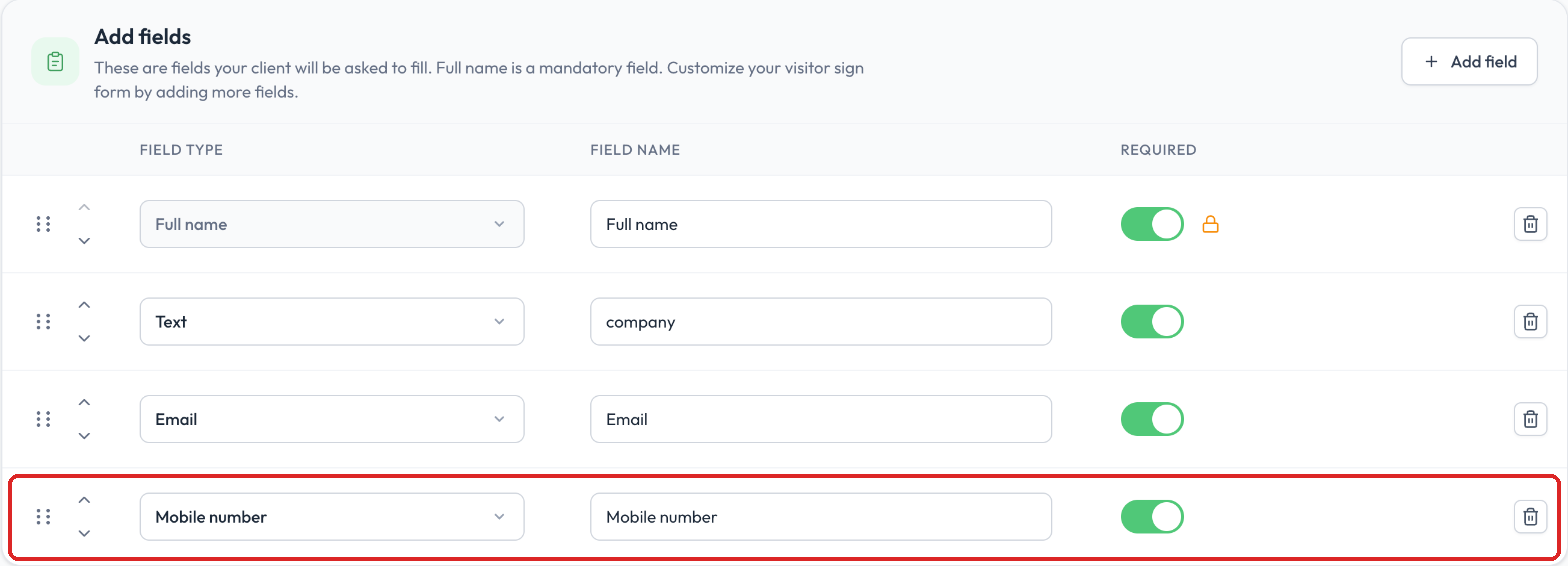
The Mobile number field in the Sign-in form tab

The Emergency message option turned on in the Options tab
Tip: Also turn on Sign out in the same tab, so visitors sign out when they leave. This keeps your list of visitors on site accurate, and only people who are still in the building receive the message. To learn more, read Visitor sign in, sign out and Express QR code sign in.
Send an emergency message
- In the main menu, click History, then Sign-in logs.
- Click Emergency message at the top right.

The Emergency message button in Sign-in logs
- Review the Subject and Message. A default message is ready to use, and you can edit it to give visitors clear instructions. Click Save as template to reuse your message next time.
- Under Send to locations, choose which locations receive the message. All locations are selected by default. Click Deselect all to pick only the ones affected. If your organization has only one location, it is listed and checked, so you can see where the message goes before you send it.
- Optional: under Test on your device, enter your own mobile number and click Send test to see how the message looks. Only your number receives the test; no visitors are notified.
- Click Next to review your message.
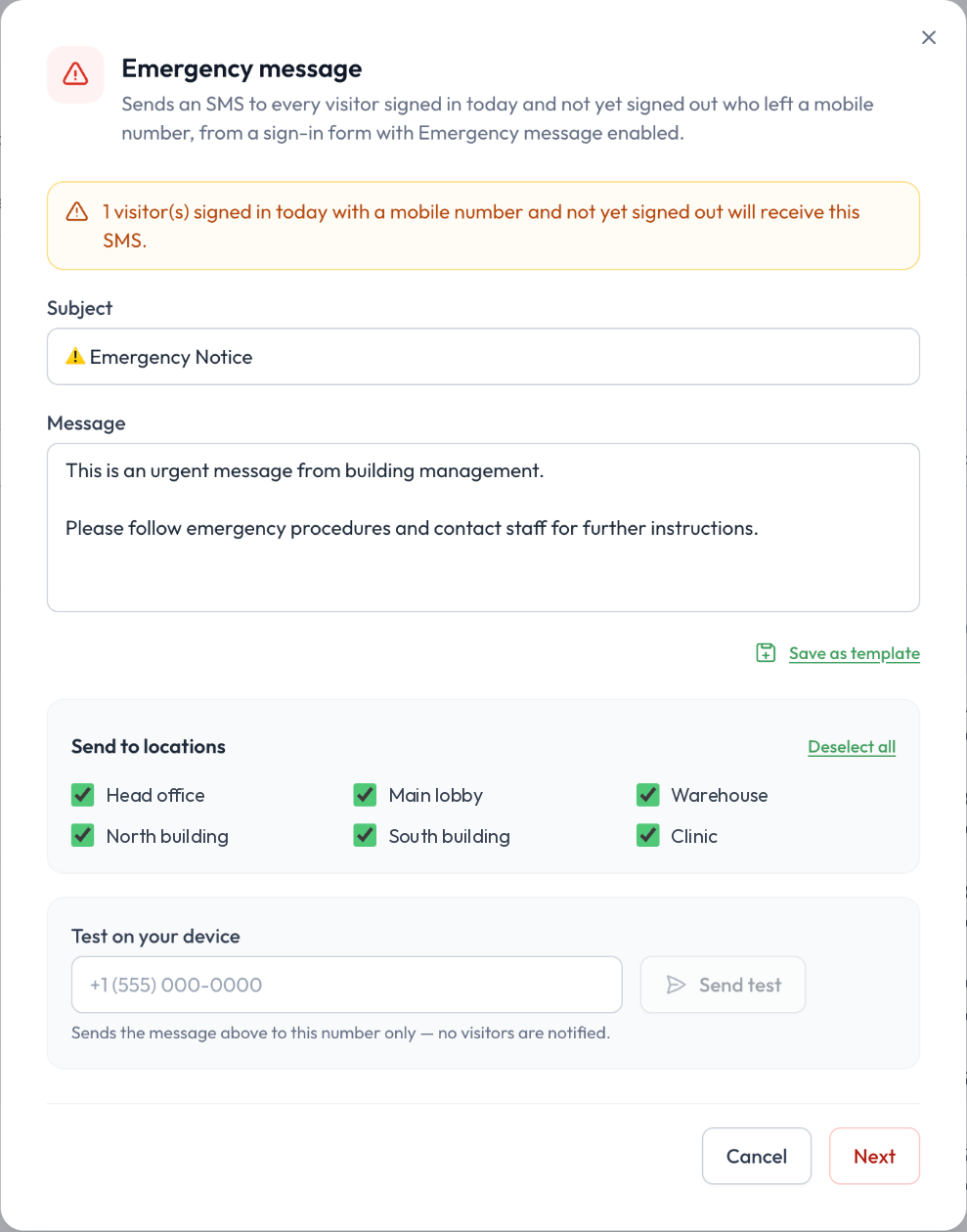
The Emergency message window
- The Confirm emergency message window shows your subject and message. Check them, then click Send now. The message is sent right away to every visitor who meets the conditions above. This action cannot be undone.
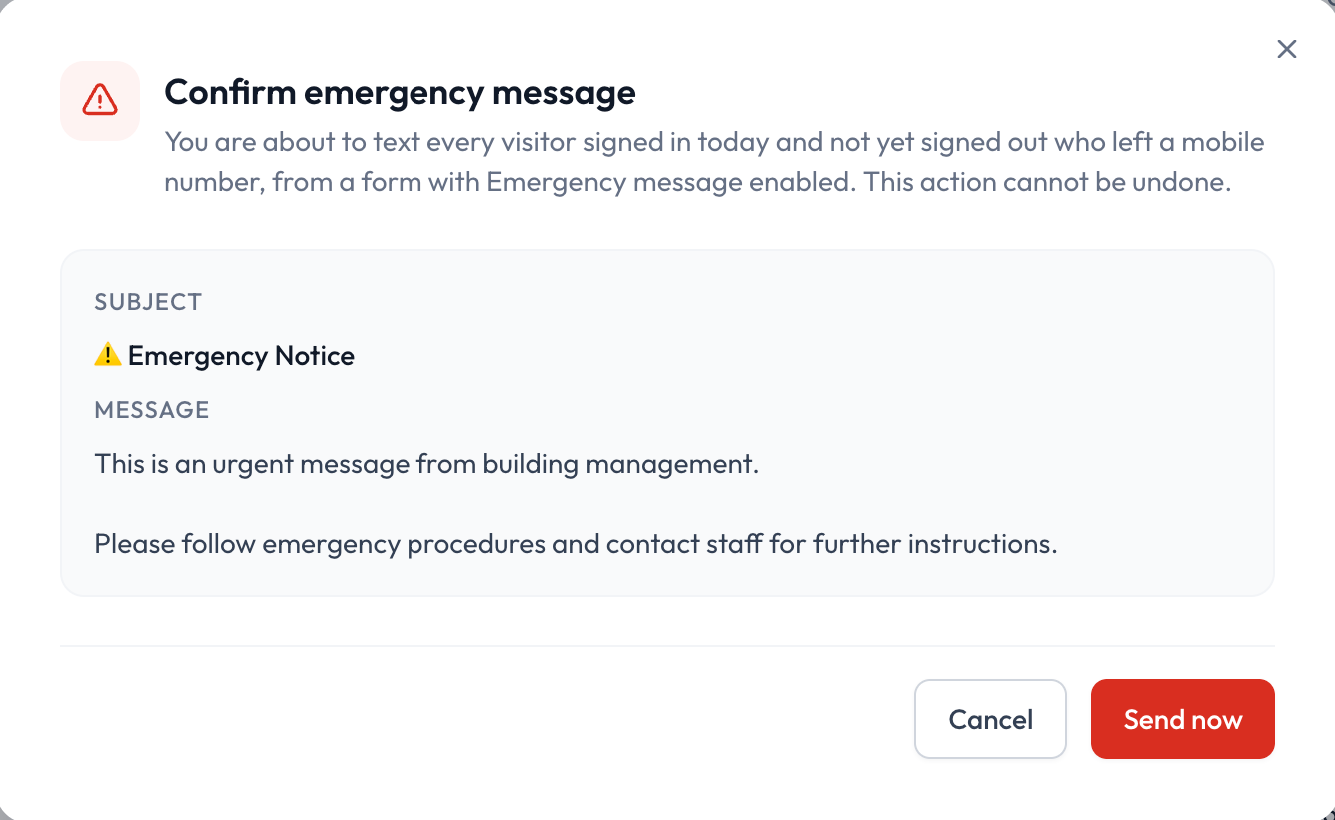
The Confirm emergency message window
Note: The banner at the top of the Emergency message window shows how many visitors will receive the SMS. If it says “No sign-in form has emergency alerts turned on”, none of your forms is ready yet. Follow the steps in Before you start above.
Tips
- Prepare your templates in advance. Save a template for each situation, such as a fire evacuation, a lockdown or a building closure, so you can send the right message in seconds.
- Test before you need it. Send a test to your own phone when you set up the feature, and again after you change your templates.
- Keep messages short and clear. Tell visitors what is happening, what to do and where to go.
- Check who is on site. Your Sign-in logs show which visitors are still in the building. To learn more, read History.
Need more help?
Please contact us through the live chat.